Programming Exercise
Overview
Programming exercises in Artemis allow you to write and test code directly in the platform or using your own IDE. The system automatically tests your code submissions and provides immediate feedback.
Exercise Workflow
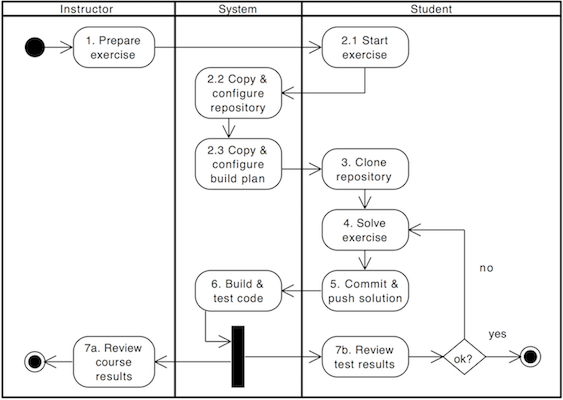
Participating in a programming exercise involves the following steps:
- Start exercise: Click on start exercise in Artemis, which automatically generates a personal copy of the exercise repository with the starter code
- Clone repository (optional): Clone your personal repository from the remote version control system to your local machine
- Solve exercise: Solve the exercise using the online code editor in Artemis or with an IDE of your choice on your local computer
- Upload solution: Submit your changes by committing and pushing them to the remote server (or by clicking submit in the online editor)
- Receive feedback: The continuous integration server automatically verifies your submission by executing test cases and provides feedback on which parts are correct or incorrect
- Review result: Review the build result and feedback in Artemis. If the build fails, you can reattempt to solve the exercise
- Practice mode (after due date): After the due date, you can continue working in practice mode to improve your solution
The results from practice mode submissions after the due date are not graded and do not affect your score.
Online Code Editor
Artemis provides an integrated online code editor that allows you to work on programming exercises directly in your browser without needing to install any additional software.
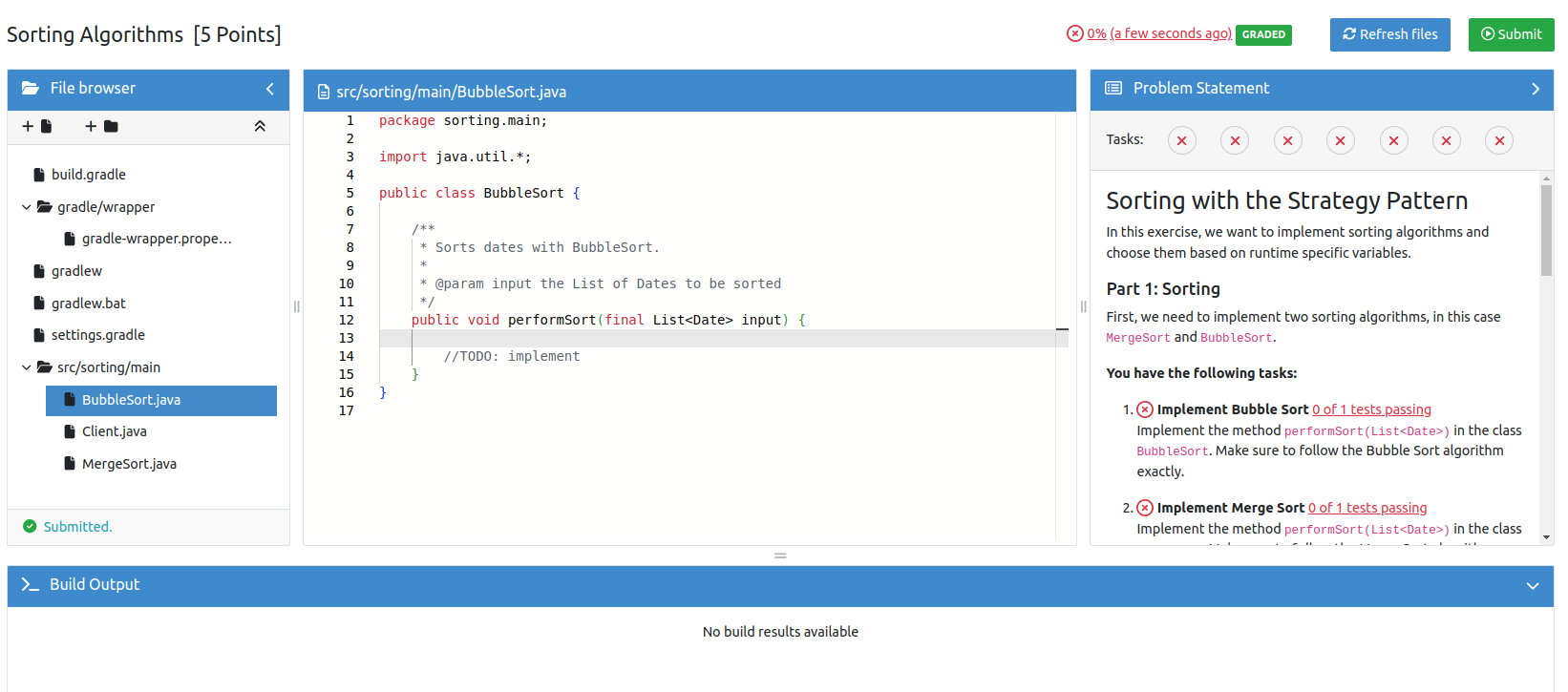
The online editor features:
- File browser: Navigate through your code files and see the project structure
- Interactive problem statement: View exercise instructions with dynamic task indicators that update from red to green as you pass tests
- Code editor: Write and edit your code with syntax highlighting
- Build output: See compilation results and test feedback
- Submit button: Submit your solution for automated testing
Task Indicators
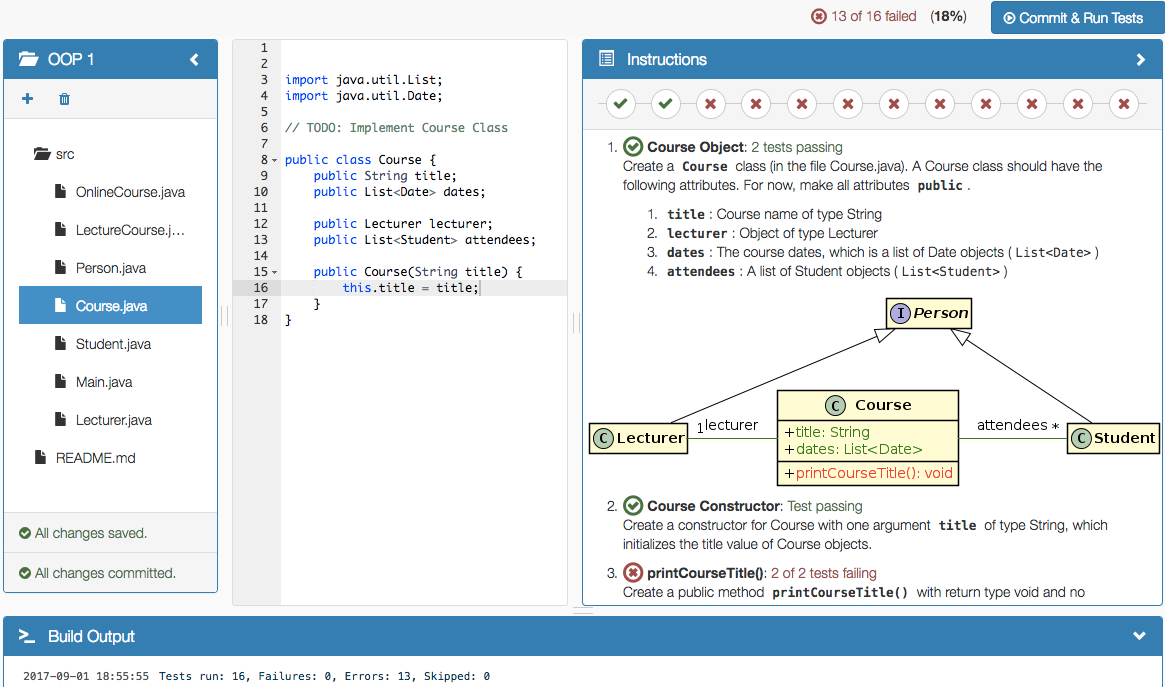
The online editor displays task indicators that are linked to test cases:
- Red: Tests associated with this task are failing
- Green: All tests associated with this task are passing
This helps you identify which requirements you have already fulfilled and which still need work.
Tasks and UML diagram elements are referenced by test cases and update their color automatically after you submit a new version.
Display of Hidden Files
The online editor only displays visible files to avoid showing configuration files like .git and .gitignore. This means that certain config files (like SwiftLint's .swiftlint.yml) are not shown in the online editor and can only be accessed via your own IDE.
Working with Your Local IDE
If you prefer to work on your local machine, you can clone your personal repository and use any IDE you like.
Cloning Your Repository
- Navigate to the exercise in Artemis
- Click on the Clone Repository button to get your personal repository URL
- Clone the repository using your Git client:
git clone <your-repository-url>
Submitting Your Solution
After making changes locally:
-
Commit your changes:
git add .
git commit -m "Your commit message" -
Push to the remote repository:
git push
The push will automatically trigger the test execution, and you will receive feedback in Artemis.
Make sure to push your changes before the due date. Commits made after the due date will not be graded.
Repository Access
Your access to the exercise repository depends on the current phase of the exercise:
- Before start date: You cannot access your repository yet
- During exercise period: You have full read and write access to submit your solutions
- After due date (course exercises only): You have read-only access and can view your solution, but practice mode allows you to continue working
For exam exercises, you cannot access your repository after the exam ends.
Practice Mode
After the due date has passed, you can use practice mode to continue improving your solution without affecting your grade.
How to Access Practice Mode
- Navigate to the exercise after the due date
- Click on Start Practice to create a practice repository
- Work on the exercise just like during the regular exercise period
- Receive feedback from the automated tests
Practice mode is only available for course exercises, not for exam exercises. Results from practice mode are not graded.
Understanding Test Results
After submitting your solution, you will see test results that indicate which parts of your solution are correct:
- Passed tests: Displayed in green, showing which requirements you have fulfilled
- Failed tests: Displayed in red, with feedback messages explaining what went wrong
- Hidden tests: Some tests may only be visible after the due date to prevent hardcoding solutions
The test results also show your current score based on the weight of the passed tests.
Build Failures
If your code doesn't compile or has syntax errors, you will see a build failure message. In this case:
- Review the build output for error messages
- Fix the compilation errors in your code
- Submit again
Build error messages can be cryptic. Make sure your code compiles locally before pushing.
Submission Policies
Some exercises may have submission policies that limit how often you can submit:
No Submission Policy
You can submit as many times as you want until the due date.
Lock Repository Policy
You can submit a fixed number of times. After reaching the limit, your repository will be locked and you cannot submit anymore.
Submission Penalty Policy
You can submit as many times as you want, but each submission exceeding the limit will deduct points from your score.
Check the exercise details to see if a submission policy applies and plan your submissions accordingly.
Tips for Success
- Start early: Don't wait until the last minute to begin working on the exercise
- Test locally: Before submitting, test your code on your local machine if possible
- Read feedback carefully: The automated feedback often contains helpful hints about what's wrong
- Use version control: Commit frequently with meaningful commit messages
- Ask for help: If you're stuck, use the course communication features to ask questions
If you're using the online editor, remember to click the submit button to trigger the automated tests. Simply saving is not enough.