Tutorial Groups
Viewing Tutorial Groups as a Student
Students can access their tutorial groups for a specific course by navigating to the course's Tutorial Group page.
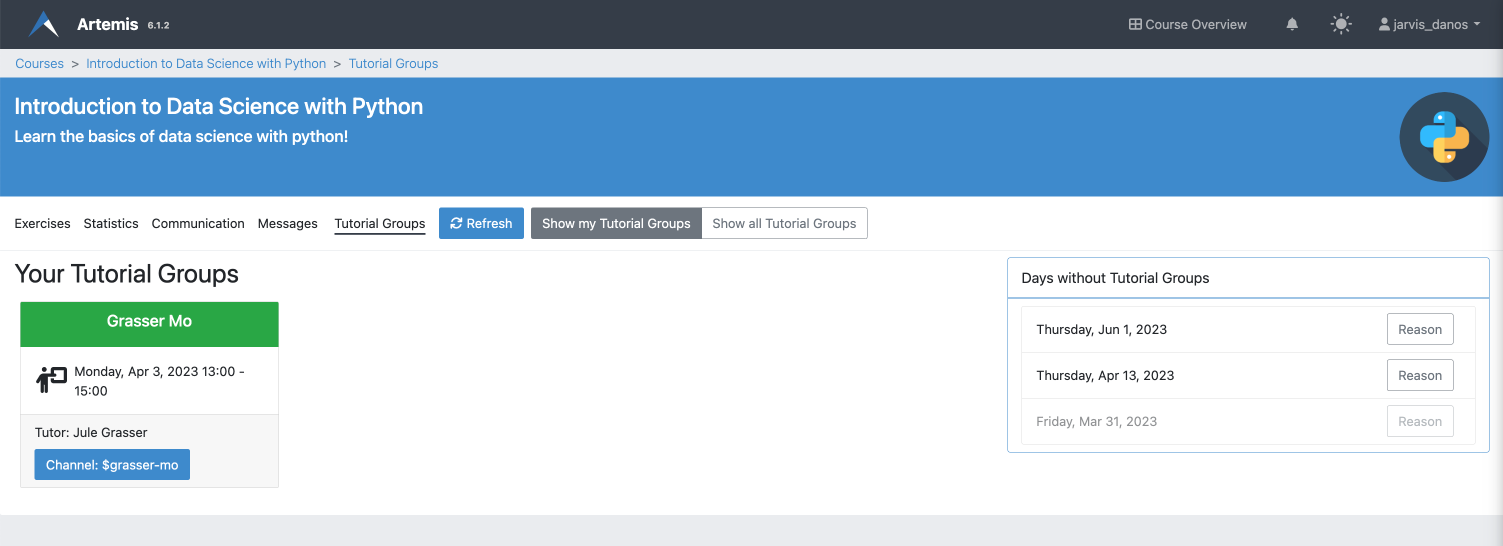
The view is split into two tabs that can be changed via the toolbar. In the Show my tutorial groups tab, students can see the groups for which they are registered. Each group is displayed as a card with the date of the next session in the center. At the bottom of the card, a link to the tutorial groups communication channel is shown (if this feature is activated). On the right side of the page, all course-wide holidays are displayed where no tutorial groups meet.
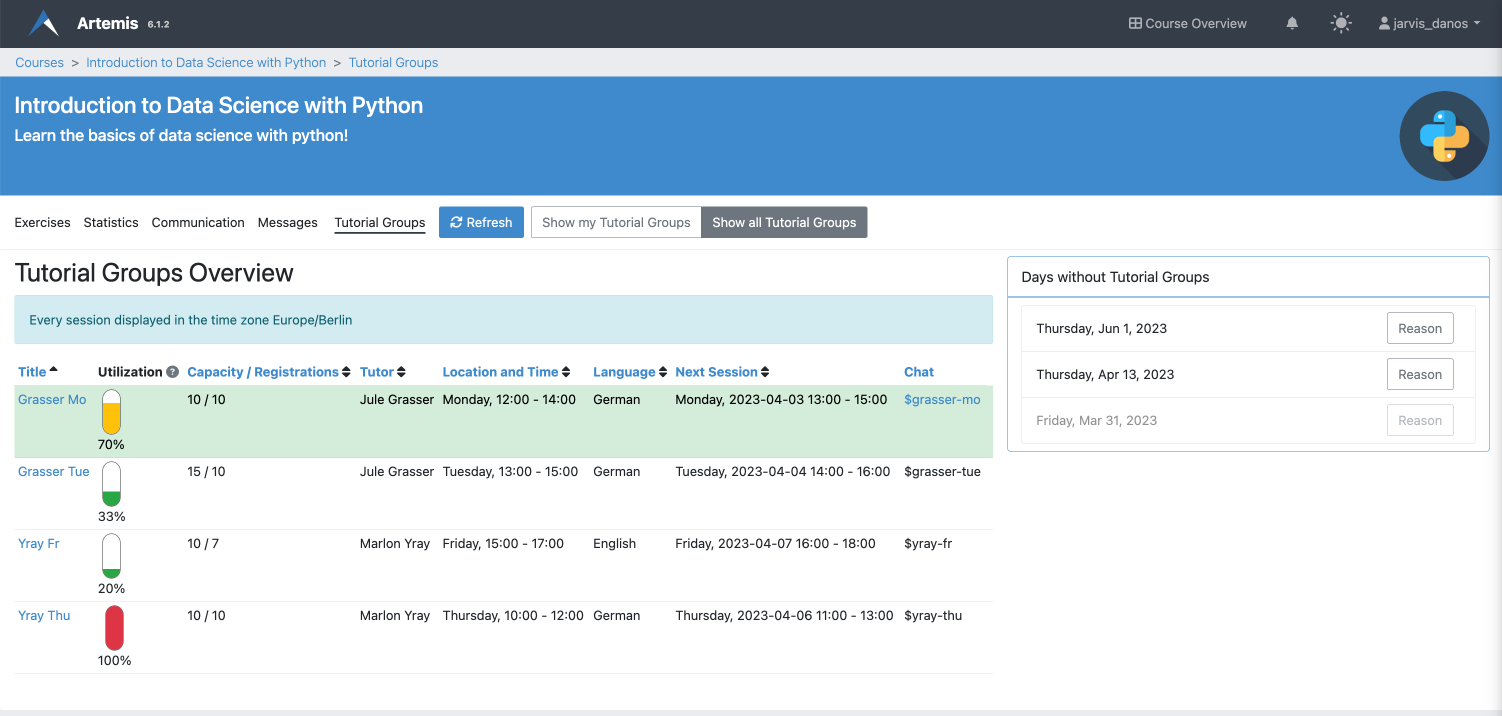
In the Show All Tutorial Groups tab, students can see the main information for all tutorial groups of the course. This includes the name, utilization and responsible tutor. This page is useful if they want to switch to a less crowded group. Then they can pick one via low utilization and contact the tutor so that they get registered.
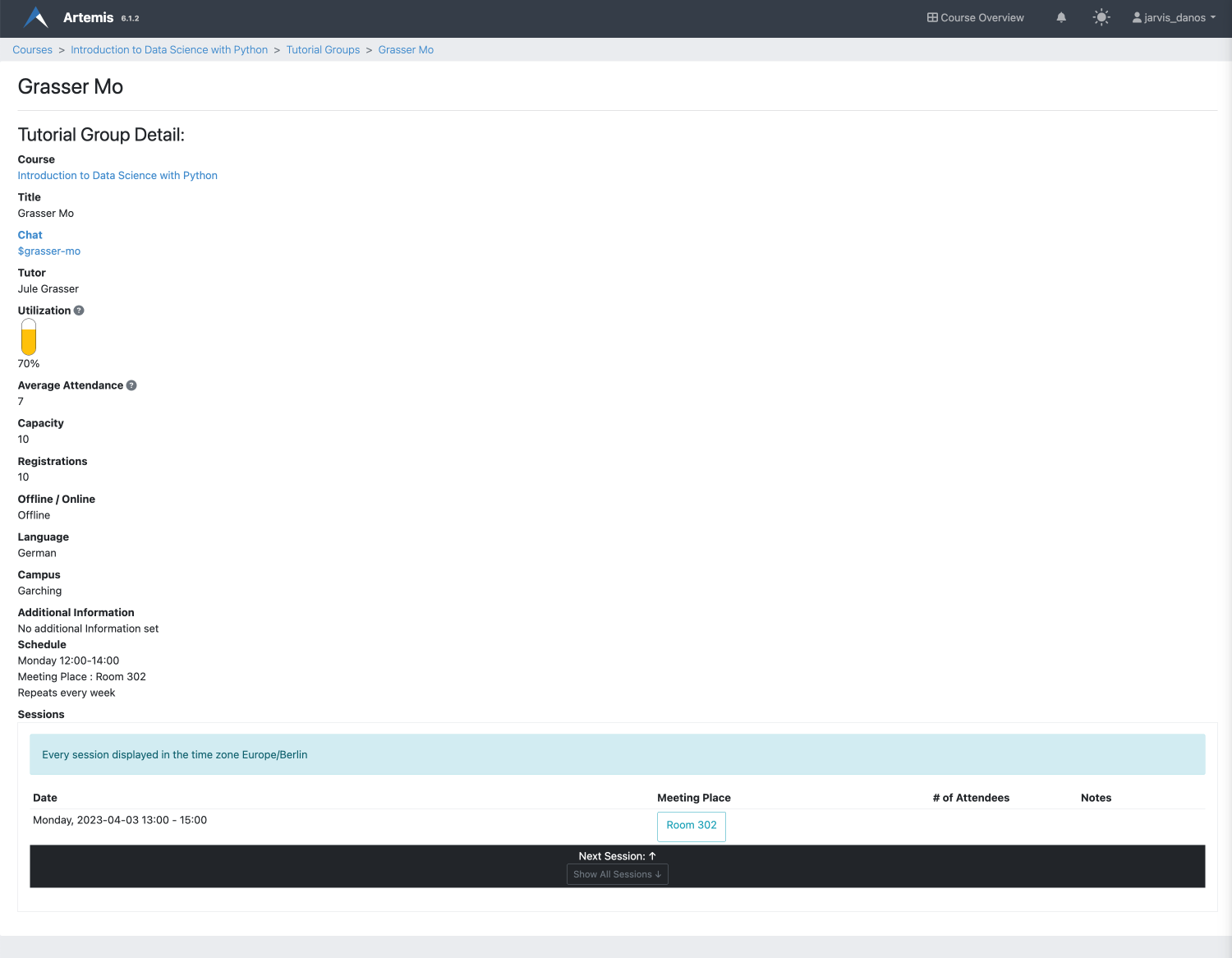
To see more details about a tutorial group (including an overview of all sessions), the student can click on the name of the tutorial group. This will open the detail page of the respective group. The session table is shown at the bottom of the page. By default, only the top row is displayed which is the next session. The student can expand the whole table by clicking on the Show All Sessions button at the bottom.