Lectures
Overview
Instructors can upload files, such as lecture slides, and partition the lecture's content into individual lecture units. Lecture units can consist of files, text, external links, videos or livestreams (e.g., lecture recordings). To directly link the necessary knowledge to its application, regular course exercises can be added to the lecture as a unit, too. Instructors can also define learning goals so that students can keep track of the knowledge they should have after working with those lecture materials.
On the course management site, clicking on  opens the lecture management page.
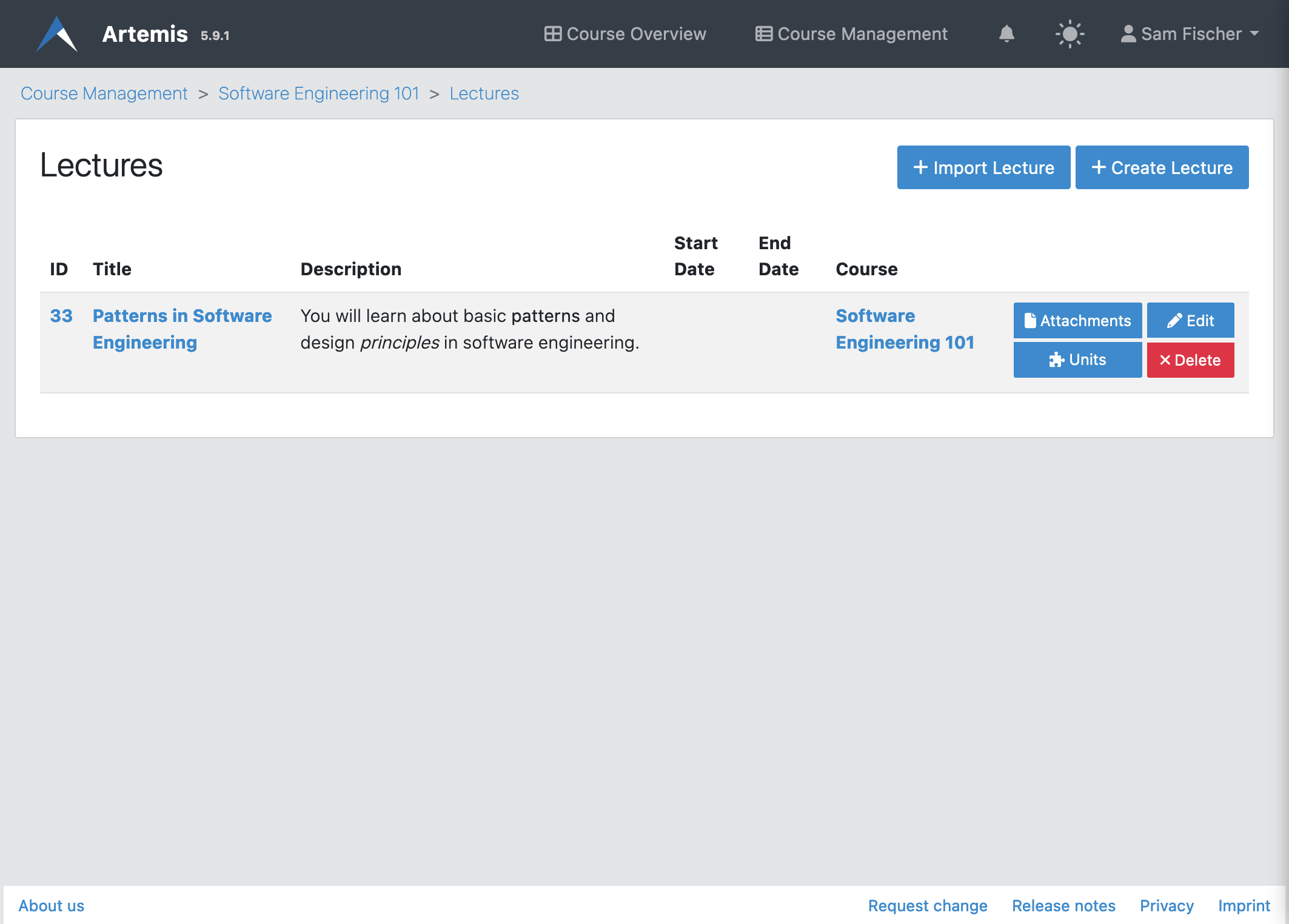
Managing Lectures
Instructors have two options for creating a lecture.
Option 1: Create from Scratch
Create a new lecture from scratch by clicking on  . Lectures consist of a title, a description, optionally a start and end date, and the selection of automatic unit processing.
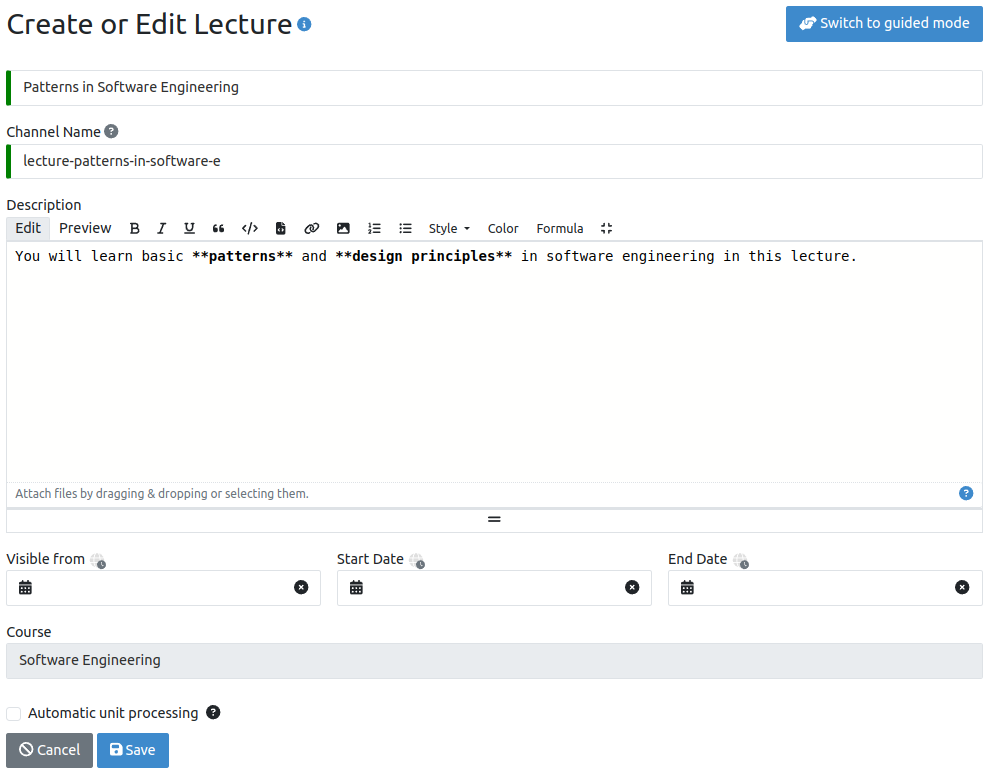
Automatic Unit Processing
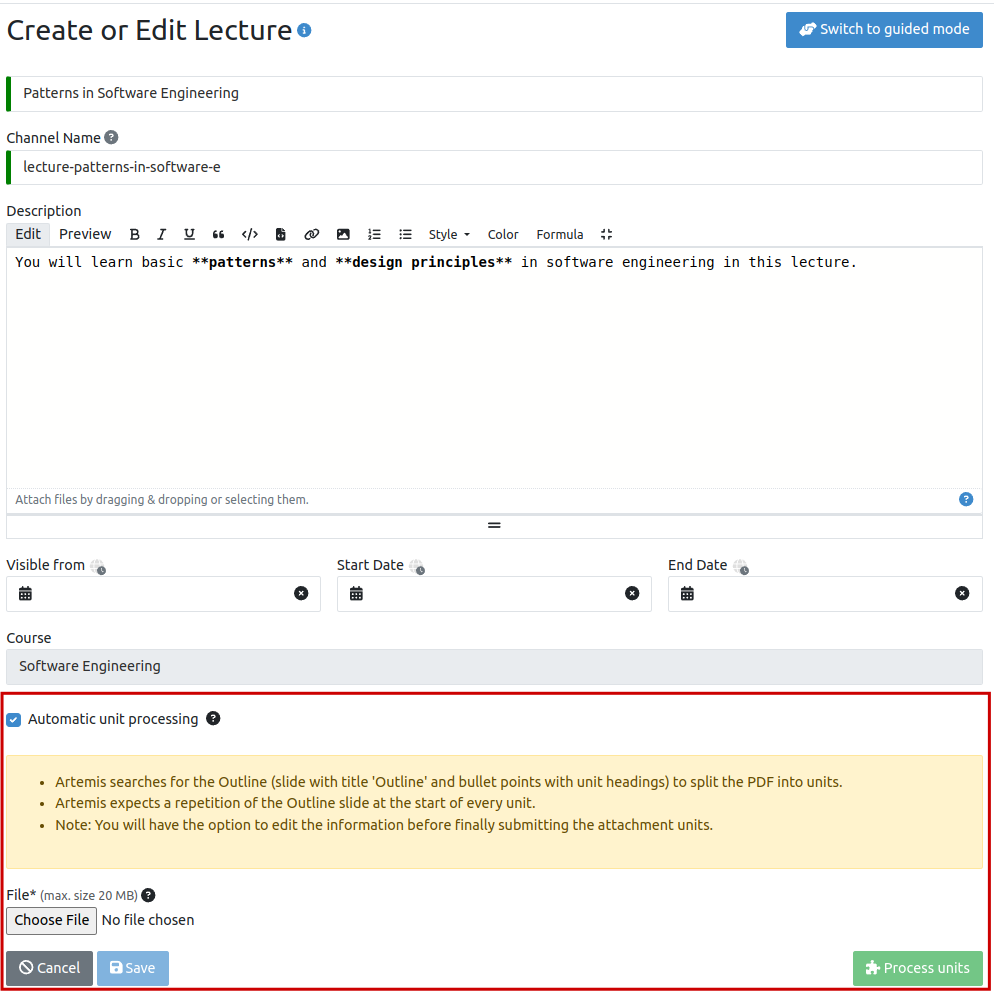
If instructors decide to process units automatically by clicking on the  checkbox, additional information will be displayed and they can click on
  to process the lecture PDF into multiple units.
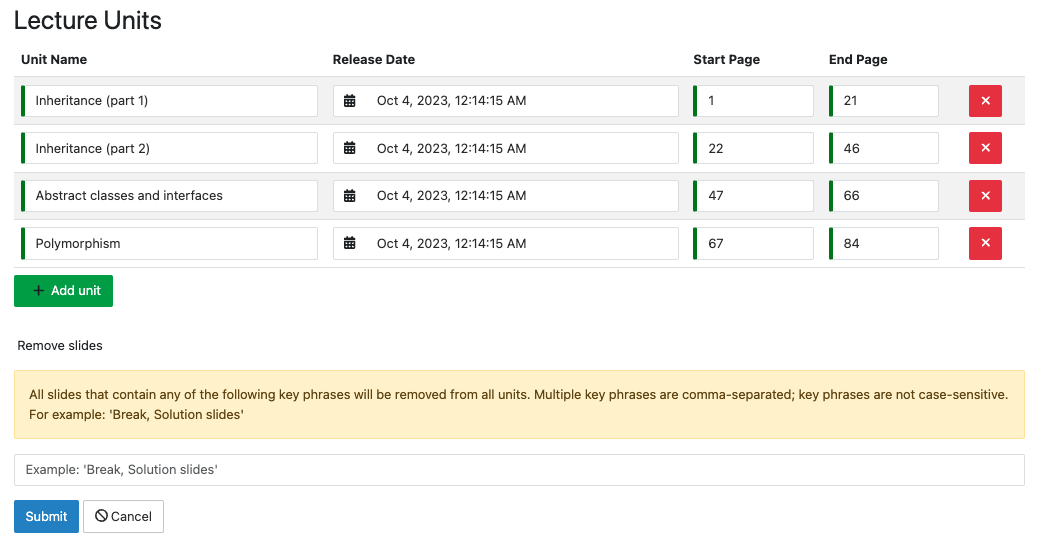
Once the units are processed, instructors can view how the units are split, beginning from a start page to an end page. A name is automatically generated for each lecture unit. Instructors can also customize the table entries by removing or adding new units. Additionally, they can enter keywords if they want particular slides to be removed. Slides containing one of the comma-separated keywords will be removed.
The following video shows how to split a lecture PDF into multiple units.
Option 2: Import Lecture
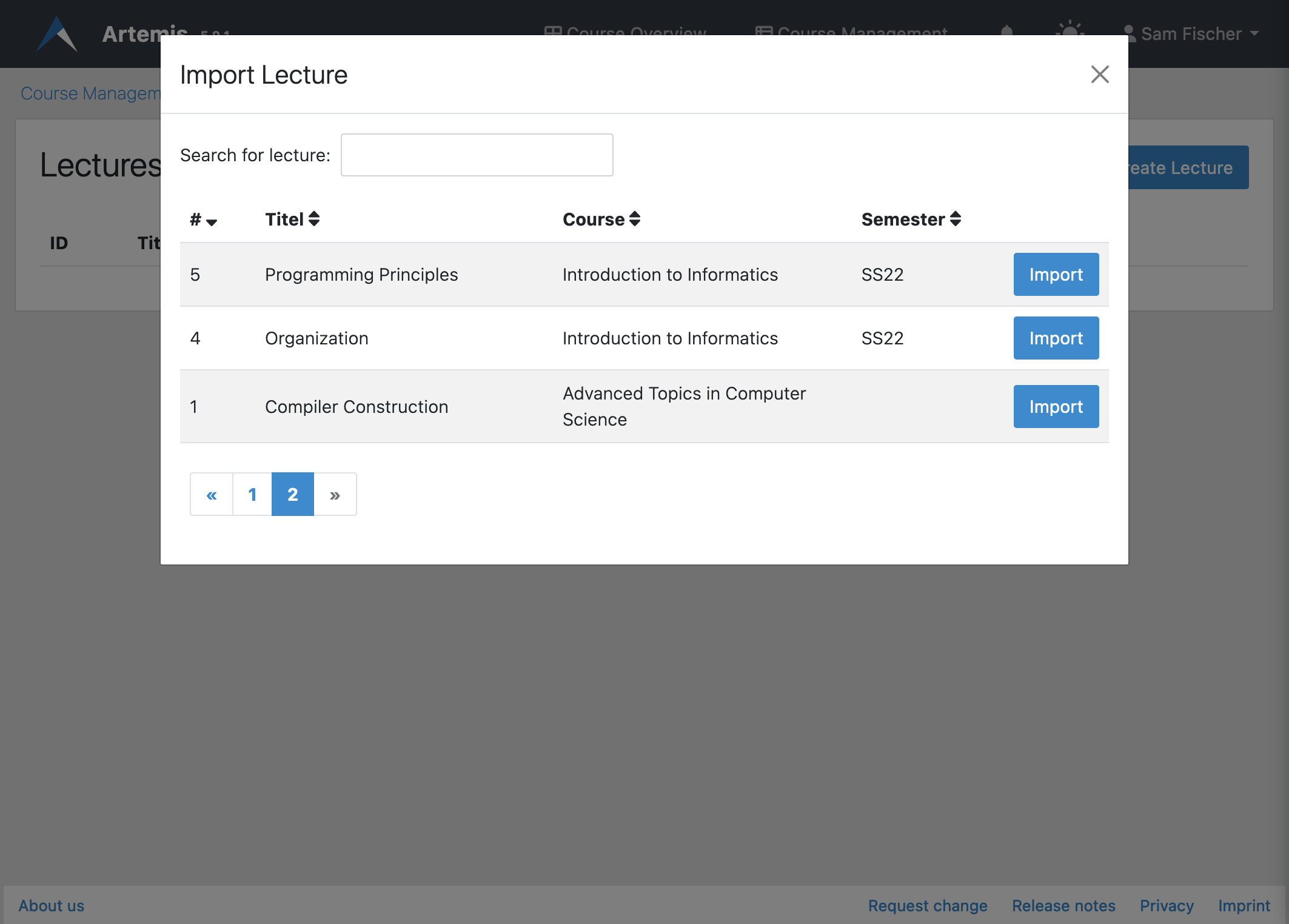
Alternatively, instructors can also import a lecture from any other course where they at least have editor access. Clicking on  opens the import modal, where instructors can search for an existing lecture and import it.
Lecture Attachments
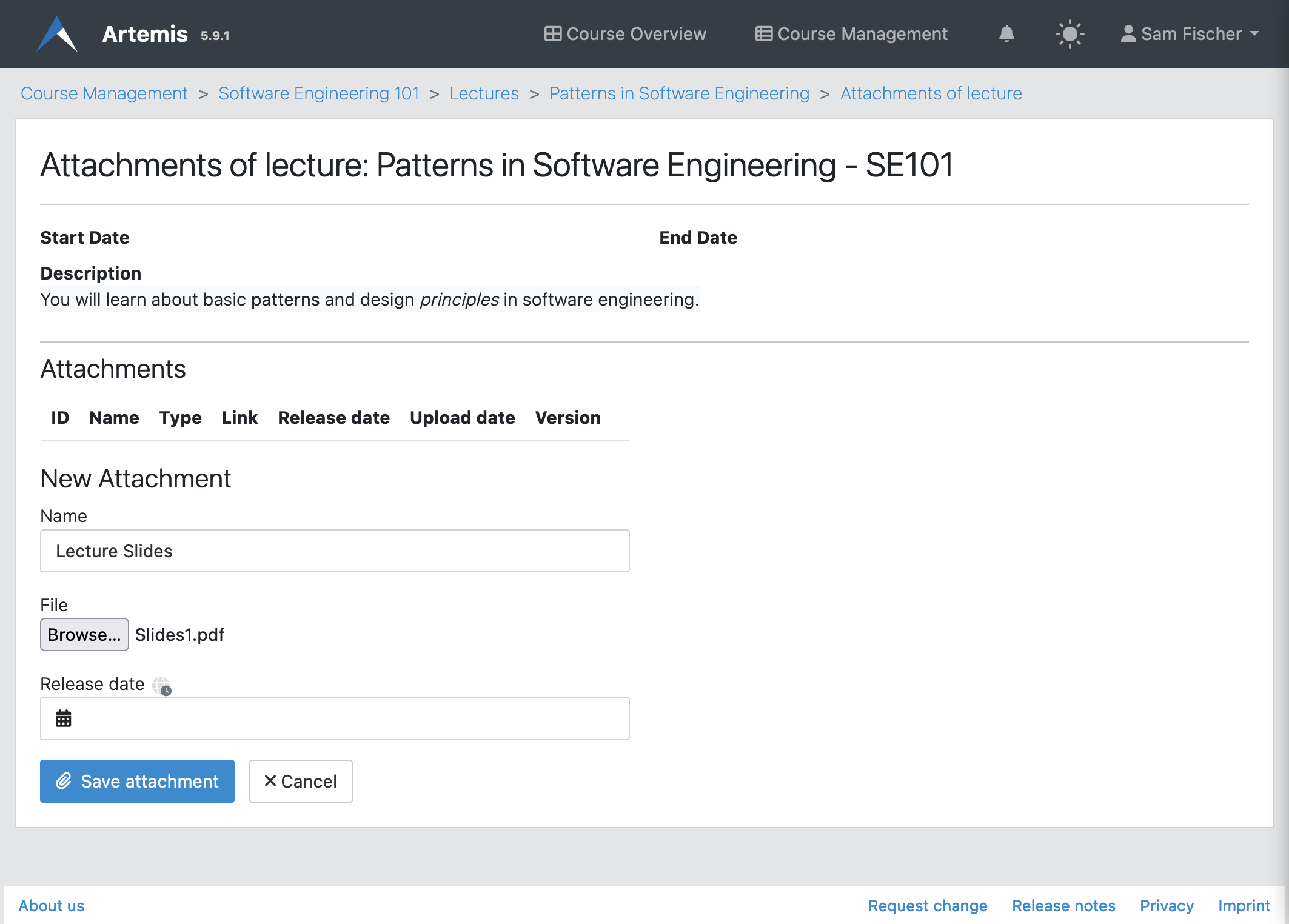
Once a lecture is created, instructors can add attachments to it. An attachment is a file (e.g., document, image) with a title and an optional release date.
Lecture Units
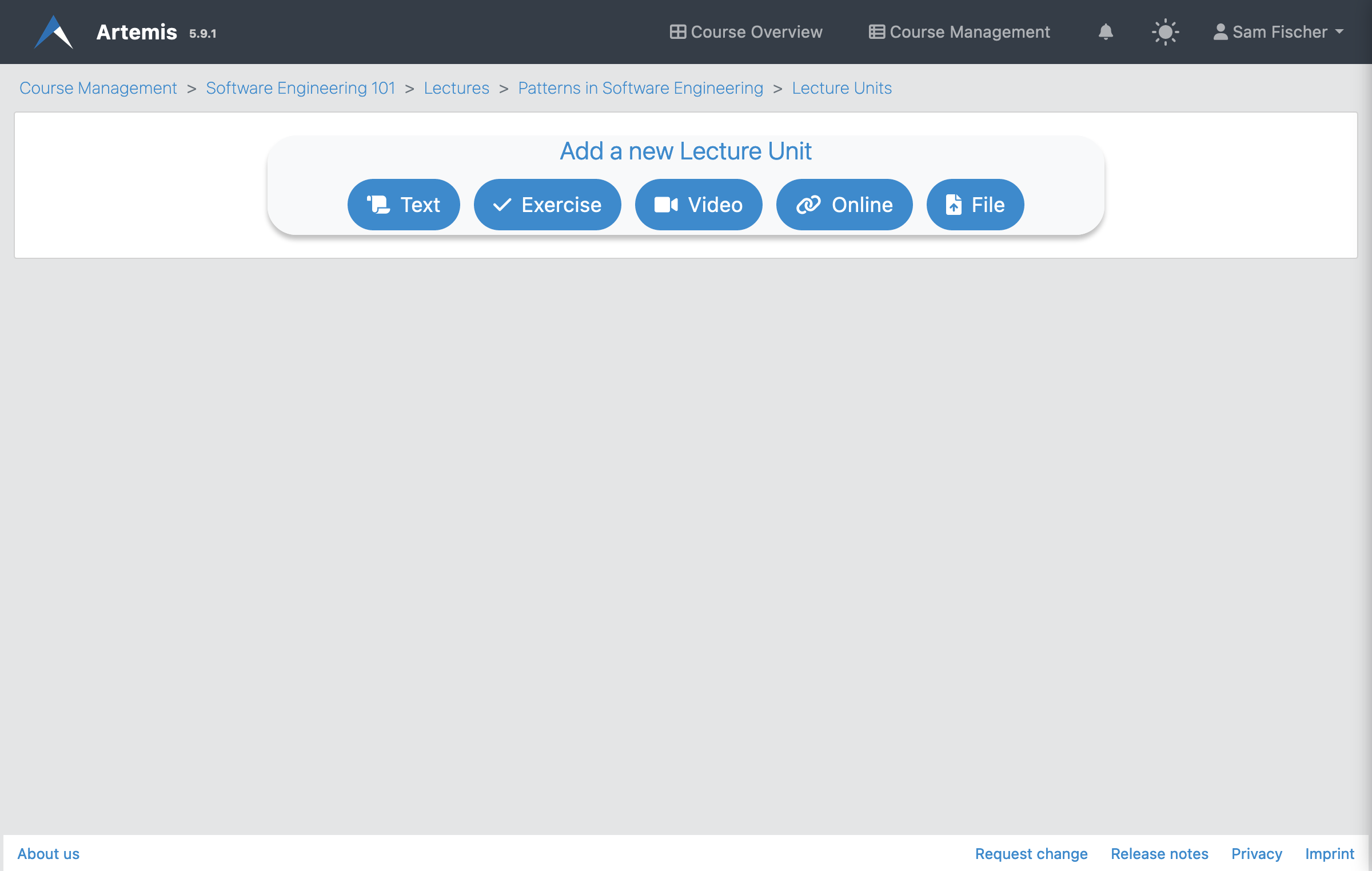
Instructors can create lecture units on the lecture unit management page.
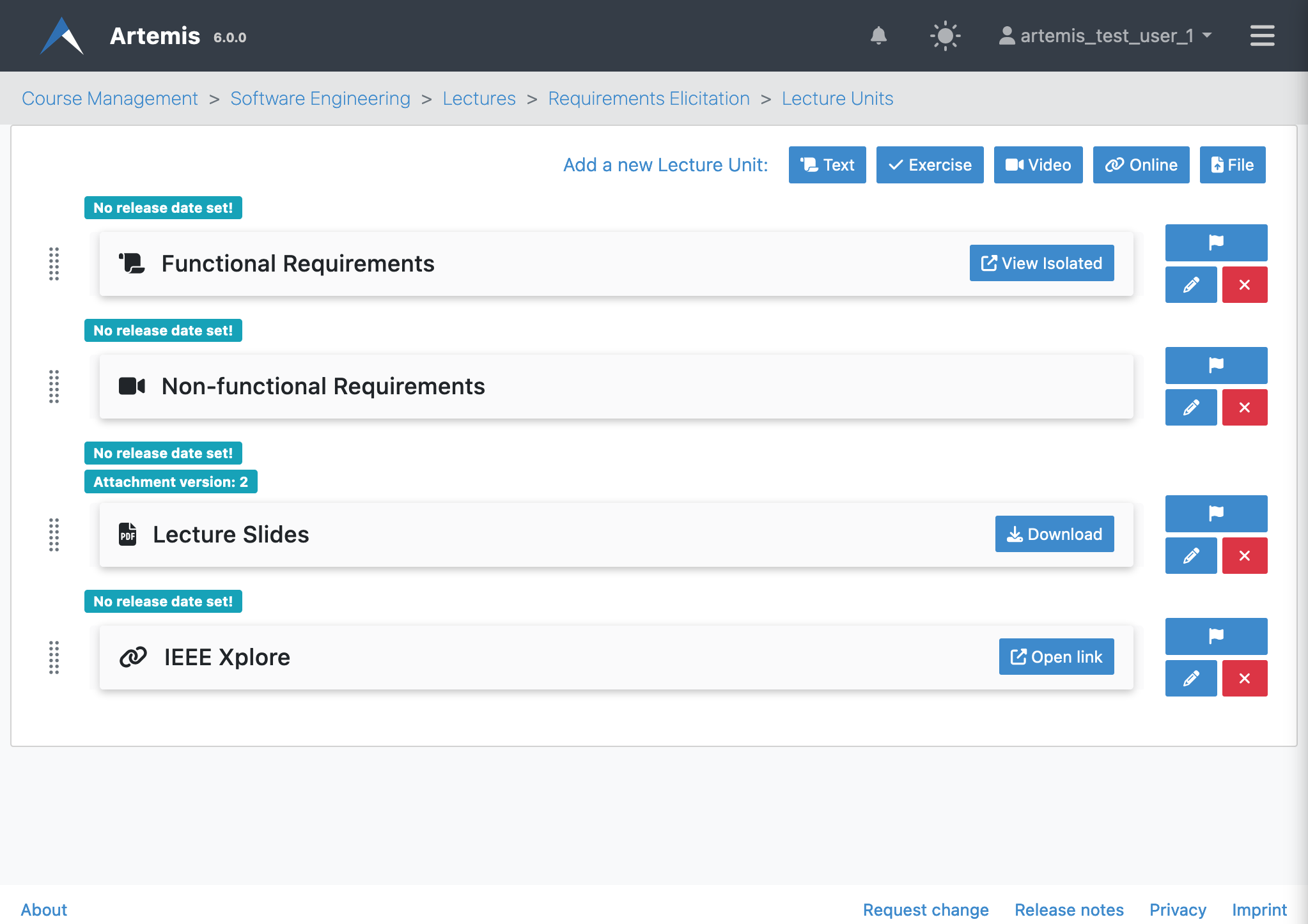
After adding lecture units, instructors may edit or delete each one with the buttons to the right of the unit. Using the arrow buttons, the order of the lecture units can be changed.
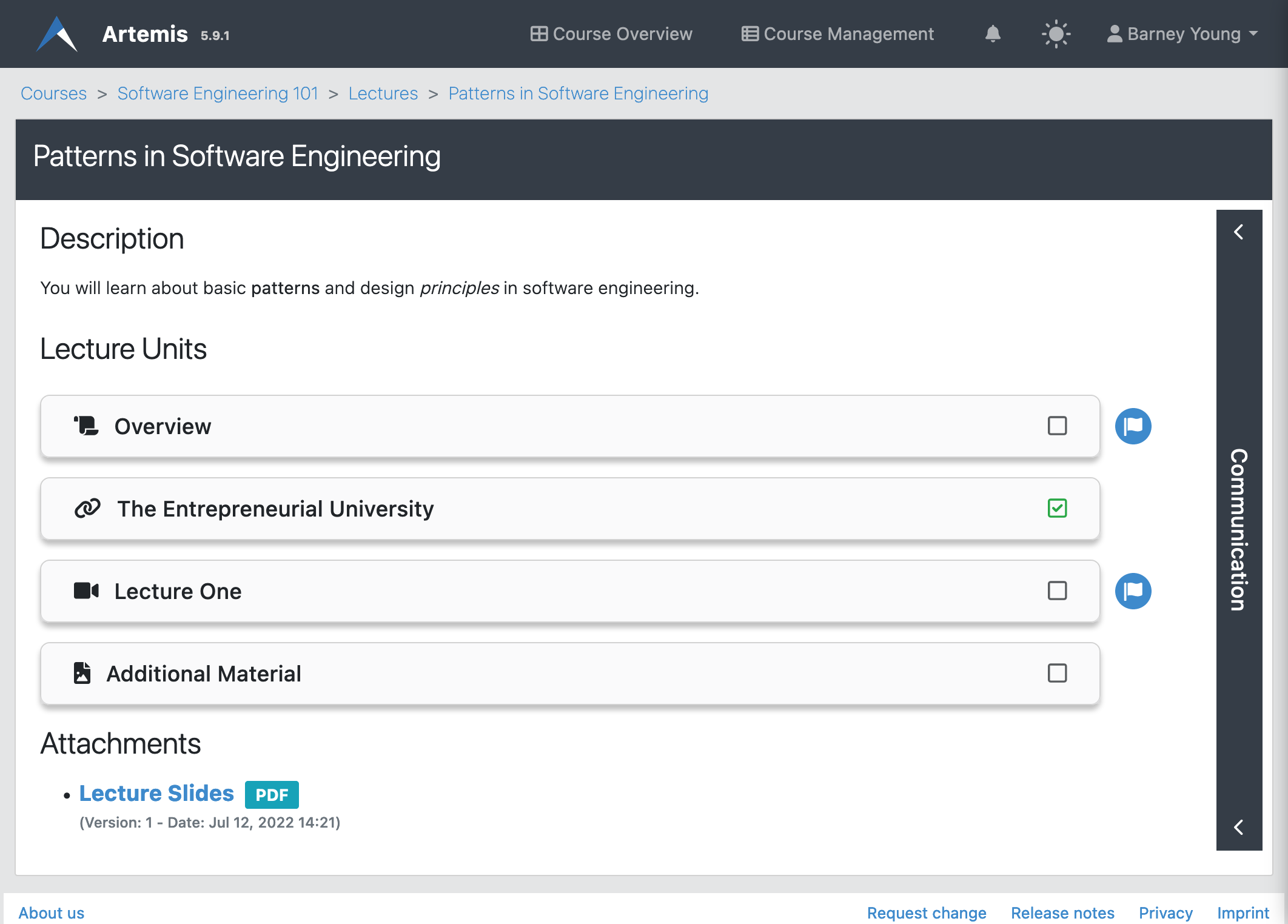
Students see all released lecture units on the lecture details page. Clicking on a unit opens its contents.
Attachment Video Unit
An attachment video unit consists of a name, file, an embedded video link, and optionally a description, a release date and a transcription. Artemis can convert the website link from common video sources to an embeddable URL using the arrow button. Students complete this unit when they watch the video for at least five minutes and download the attachment.
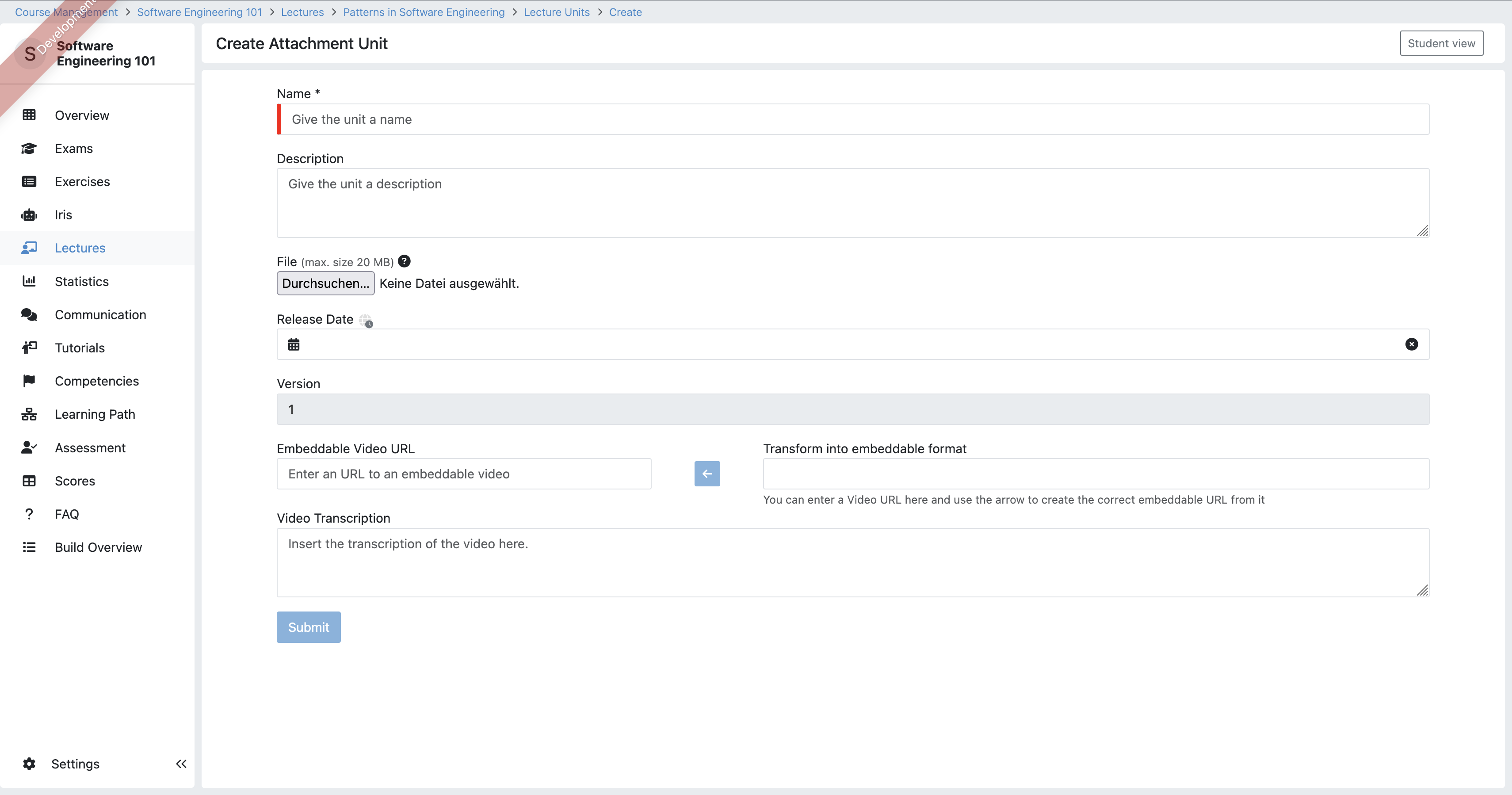
Generating Transcriptions with Nebula
If your Artemis instance is connected to Nebula, you can generate transcriptions directly in the editor:
- Create or edit the attachment video unit and paste the public TUM-Live link into the Transform into embeddable format helper.
- Click the arrow button. When Artemis resolves the playlist successfully, the Generate transcript after saving checkbox appears.
- Enable the checkbox and save the lecture unit. Artemis sends the job to Nebula and shows a toast confirming that processing started.
- Nebula processes the lecture asynchronously. Once finished, the transcription is attached to the unit and becomes visible the next time you open the editor.
Iris Integration
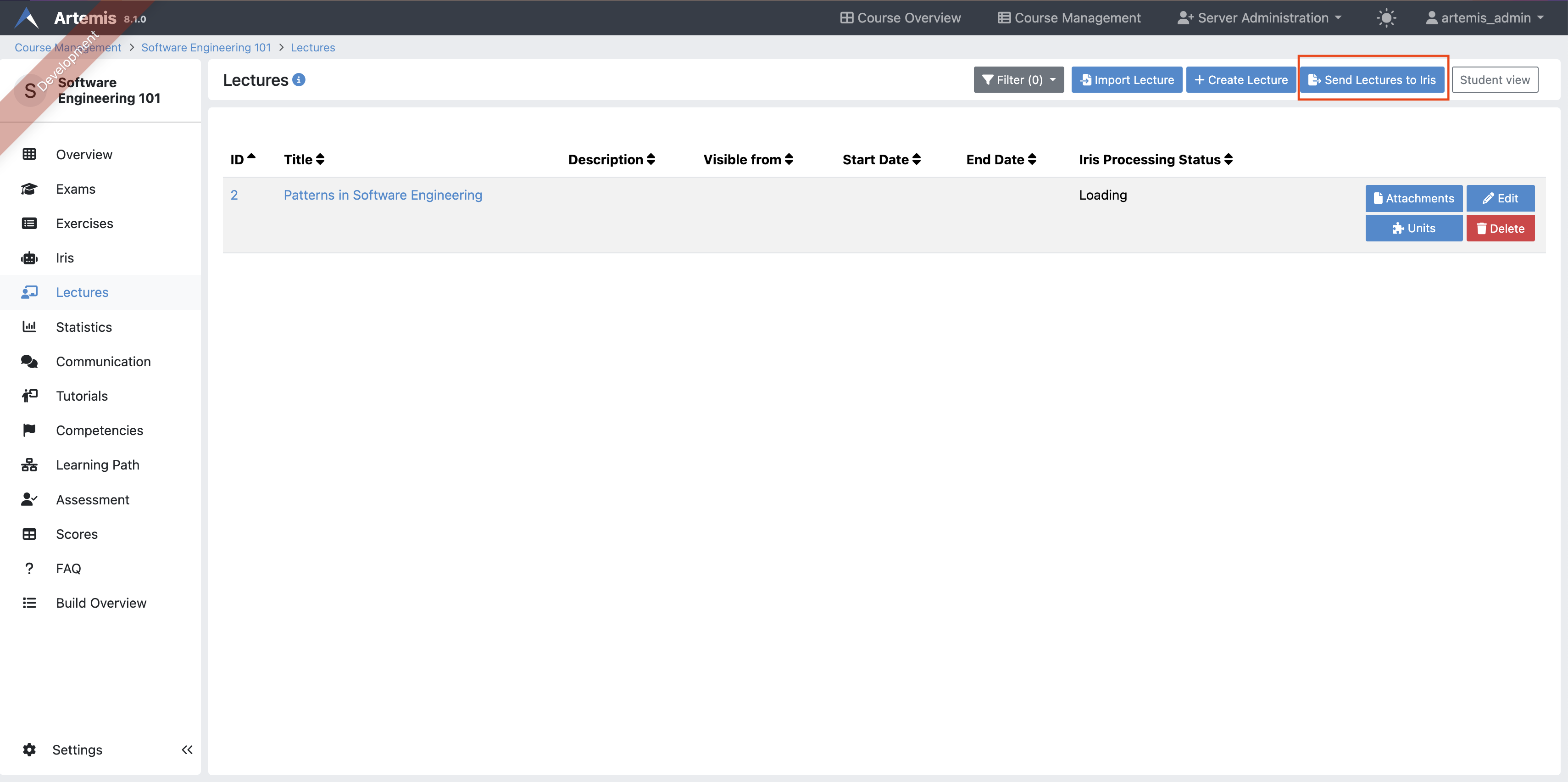
Either all Attachment Video Units of a lecture or specific Attachment Video Units can be sent to Iris, over the ingestion button in the lecture unit overview. Those transcriptions can be used to answer students' questions in the Iris chat.

Attachment Unit Management
Instructors can preview the Attachment Unit by clicking the  button.
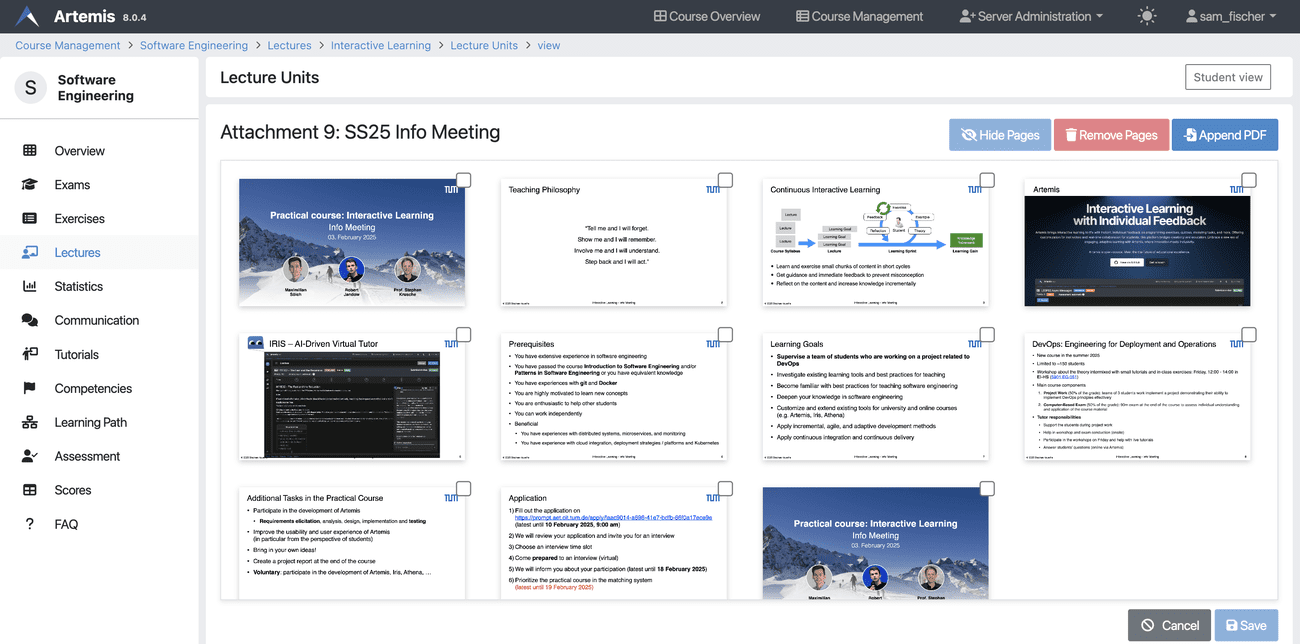
In the preview, instructors can enlarge pages, delete them, reorder them, merge new files, or hide pages. This feature enables instructors to easily edit lecture materials within the platform, without relying on external tools.
The following video shows how to use all of the mentioned features effectively.
Pages can be hidden indefinitely, until a specific date, or until an exercise's due date. Hidden pages are invisible to students and cannot be referenced in the Communication section.
The following video shows how to observe the effects of hidden pages on the Student Version and slide references.
Exercise Unit
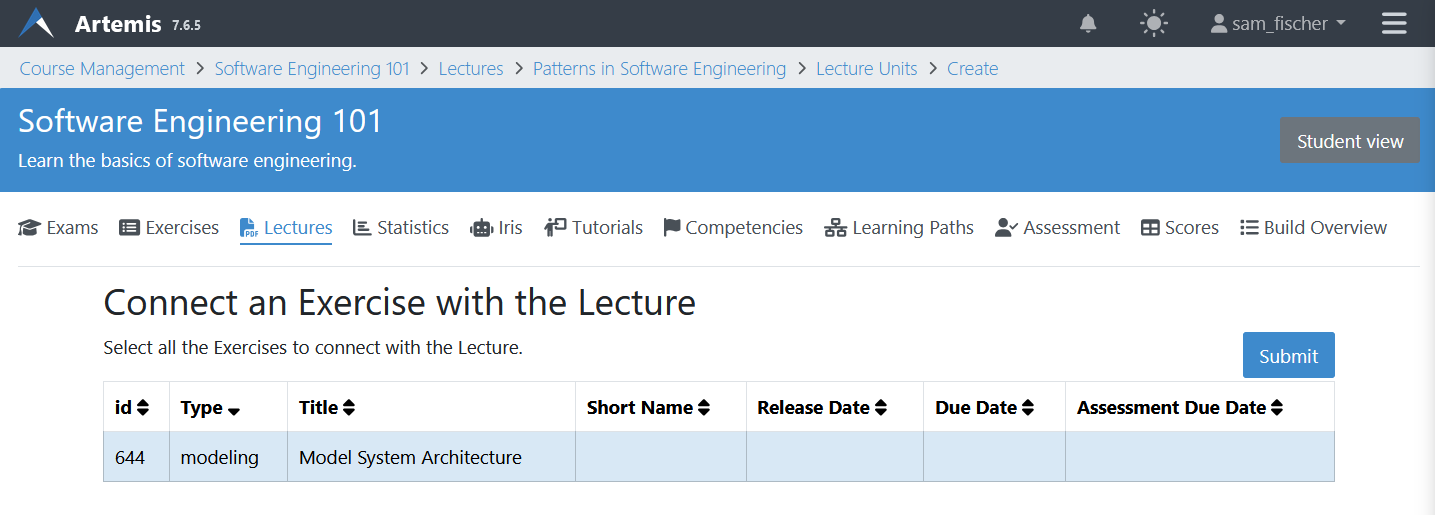
An exercise can be added as a unit to a lecture. For the exercise unit, Artemis uses the title, release date, etc. of the exercise itself. Students complete this unit when they participate in the exercise.
Online Unit
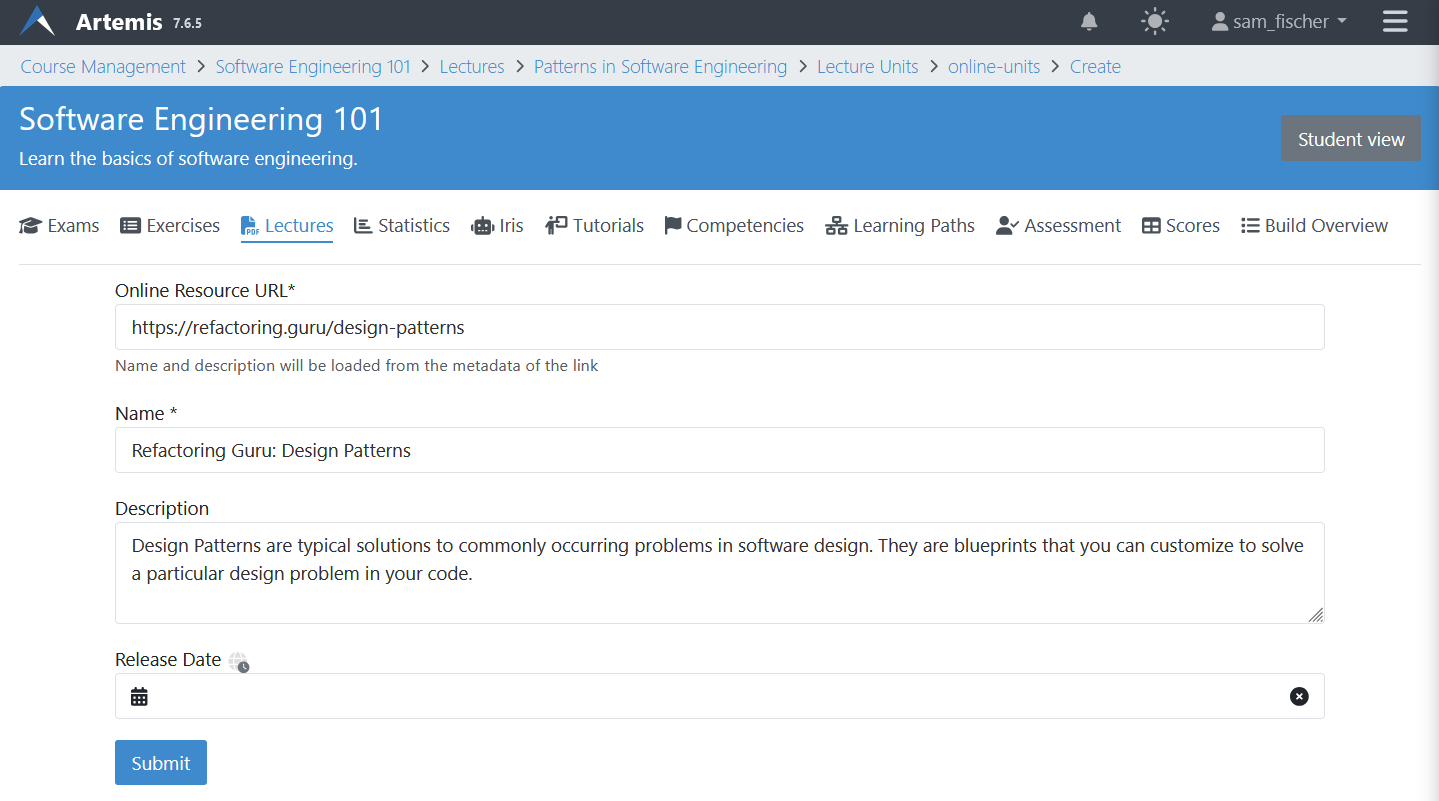
An online unit consists of a link to an external website, a name, and optionally a description and release date. Artemis automatically pre-fills the title and description from the website's metadata once the URL is set. Students complete this unit once they navigate to the external website.
Text Unit
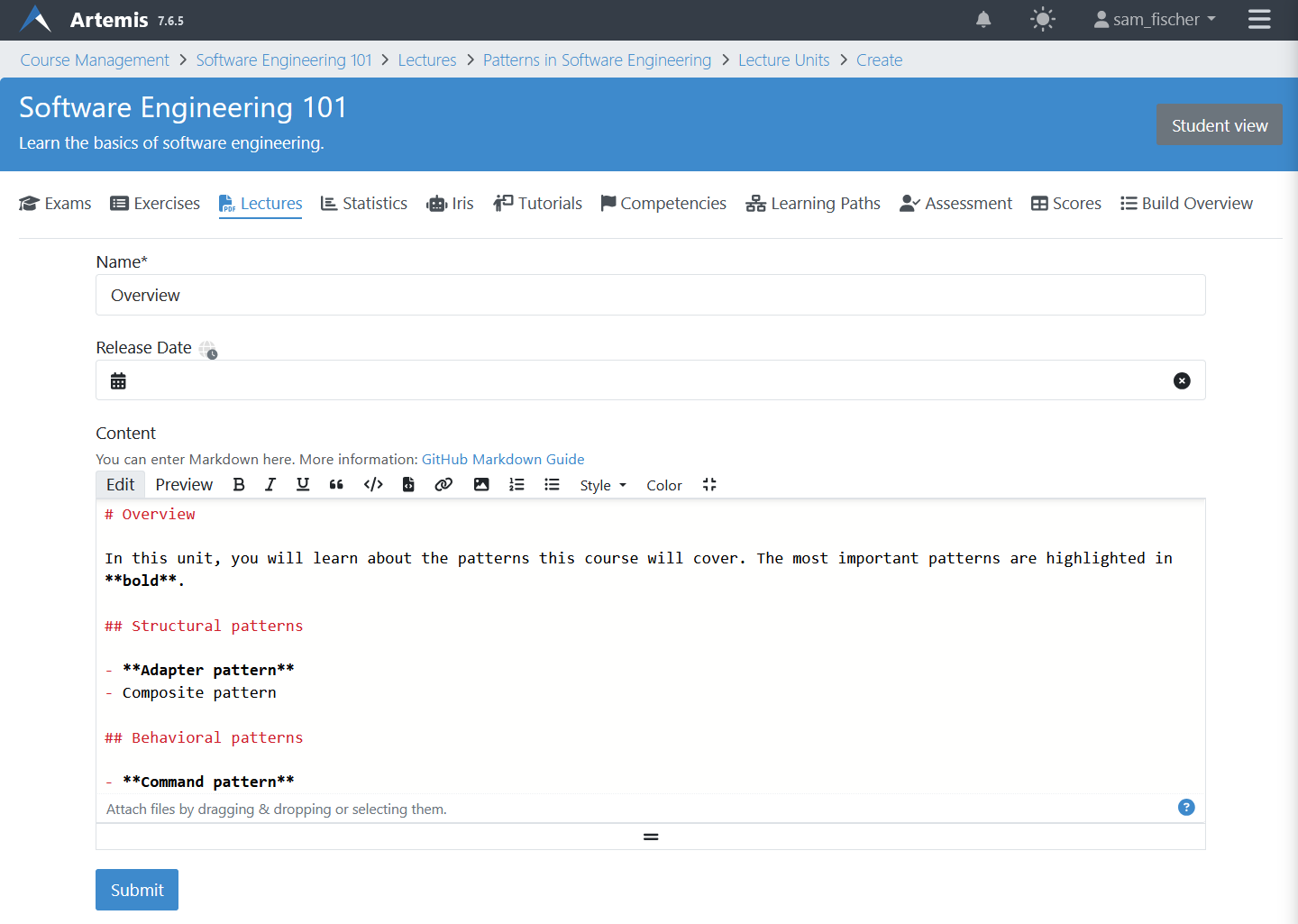
A text unit consists of a name, some rich-text content and optionally a release date. Students complete this unit as soon as they open it.
Competencies
Instructors can create competencies, which are desired learning objectives, and link lecture units to them. See Adaptive Learning for more information.
Lecture Series
For information about creating lecture series, see the Lecture Series article.