Team Exercise
Overview
Team exercises are supported for:
Team exercises allow students to collaborate and submit solutions as a group, promoting teamwork and shared learning experiences.
Setup
Creating a Team Exercise
When creating an exercise, you first need to select the mode Team. This is only available during the creation of the exercise, as it cannot be changed later on. The team size can also be configured, but it is just a recommendation that can be overridden when creating the actual teams.

Important: The team mode can only be set during exercise creation and cannot be changed afterward.
Managing Teams
Instructors can click on the  button in the course exercises page to navigate to the team management page.
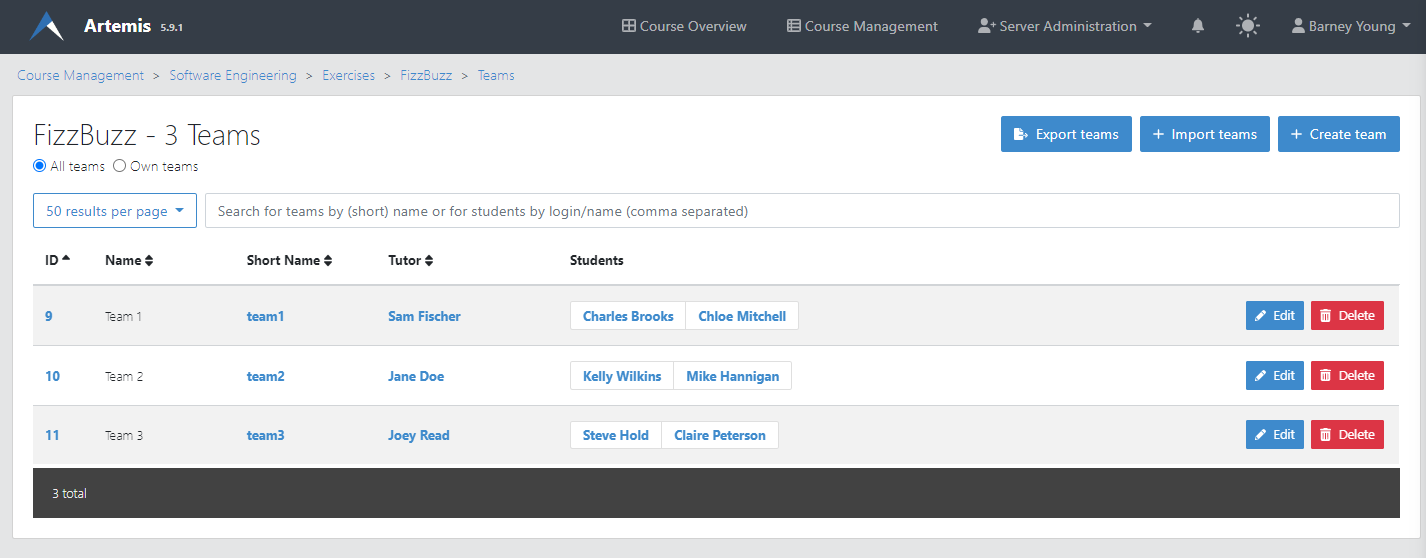
Creating Teams Manually
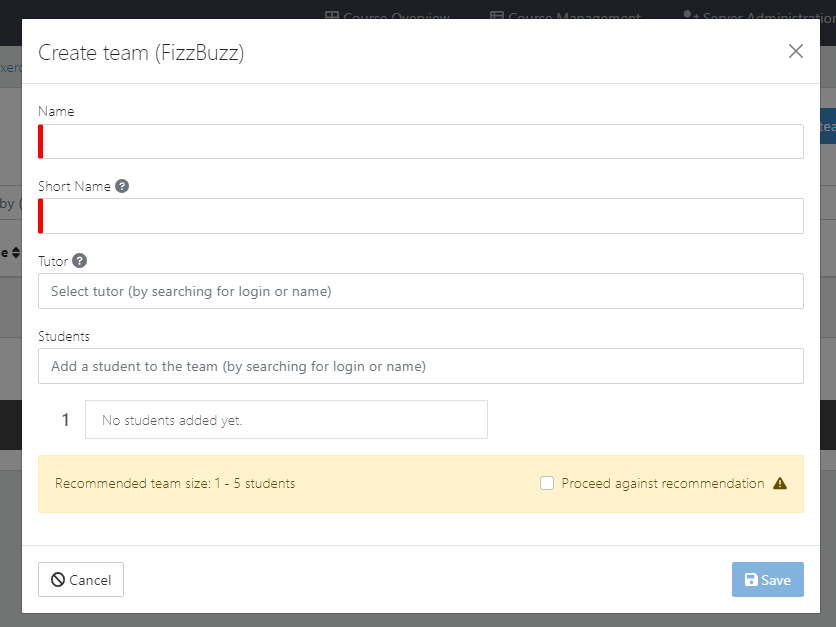
Clicking  opens the dialog shown below. To manually create a team you must define the name, short name and students for the team. Optionally, a tutor can also be assigned to the team.
Editing and Deleting Teams
Instructors can also  and
and  already existing teams.
Exporting Teams
To facilitate the process of creating teams, instructors can use the  button to export the teams in an exercise to a file, which can then be imported in other exercises.
Exporting teams is useful when you want to reuse the same team structure across multiple exercises in a course.
Importing Teams
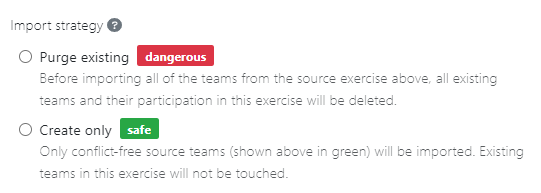
To import teams into an exercise, instructors can use the  button. This allows them to choose between importing from a file, or importing directly from another exercise in the course. In both cases, you must choose if you want to delete all the existing teams, or only create new teams, as shown below:
Collaboration
When working on a team exercise, students can work collaboratively using the live editors. This is available for Modeling exercises and Textual exercises.
The live editors show the status of all the team members, and allow students to simultaneously edit the same exercise:
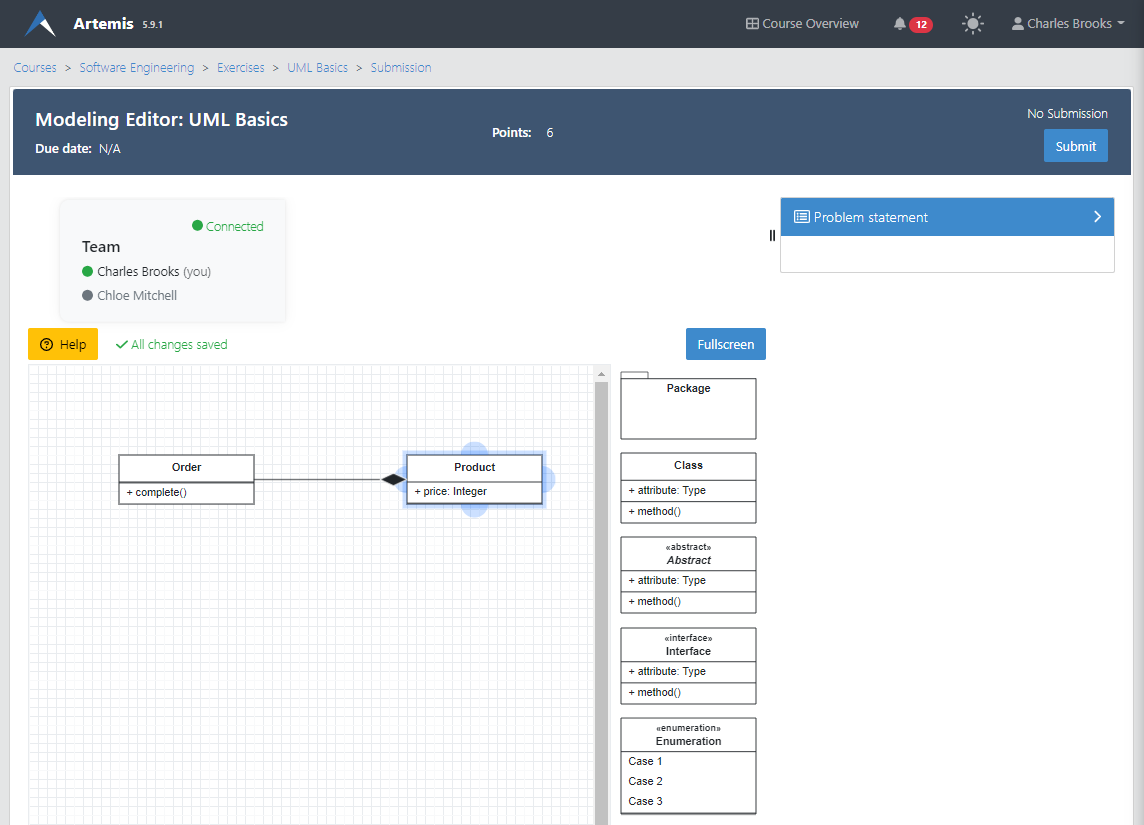
The live editors provide real-time collaboration features, allowing team members to see each other's changes instantly.
Team Overview
The same team can be shared for multiple exercises.
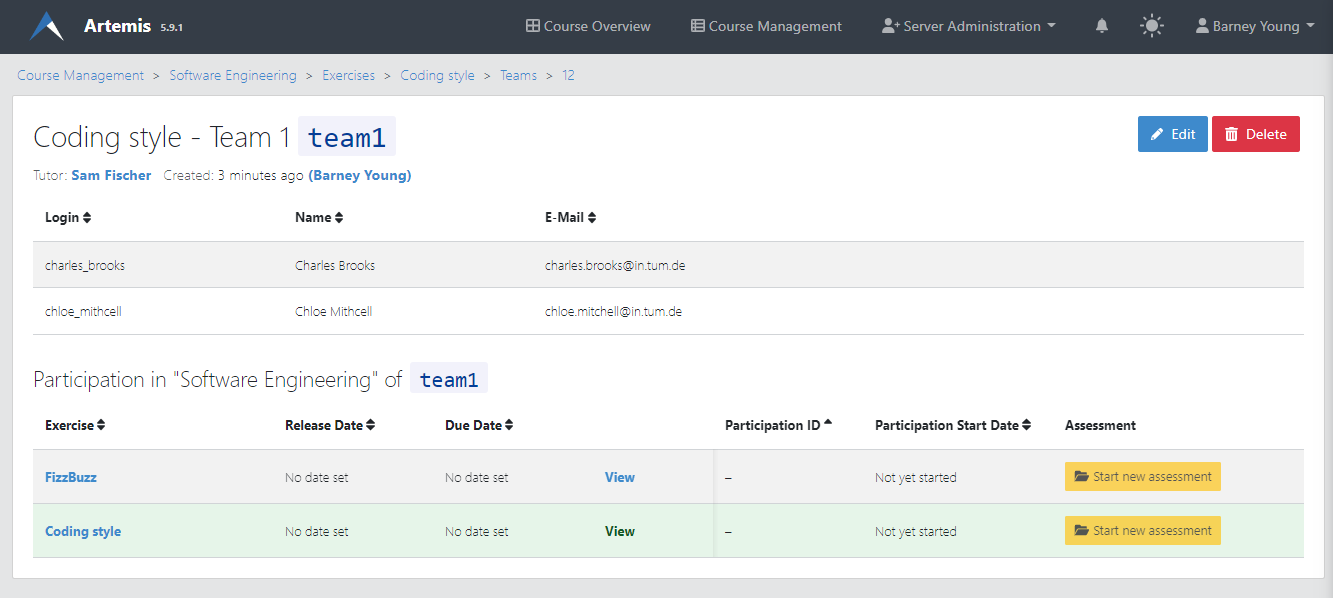
Viewing the page for a single team allows students, tutors and instructors to get an overview of all the exercises for that team along with their current status.
To access the team overview page, users can click on  or on the team's short name.