Manage Positions
The My Positions page provides comprehensive tools for professors to oversee and manage all their created doctorate positions through a centralized dashboard.
📋 My Positions - Management Dashboard
This is the central command center for all position management activities.
- Displays all positions in a structured table format with comprehensive status tracking and timeline information
- Features dynamic action buttons that adapt based on current position state and lifecycle stage
- Shows visual status indicators with color-coded badges for instant assessment of position states
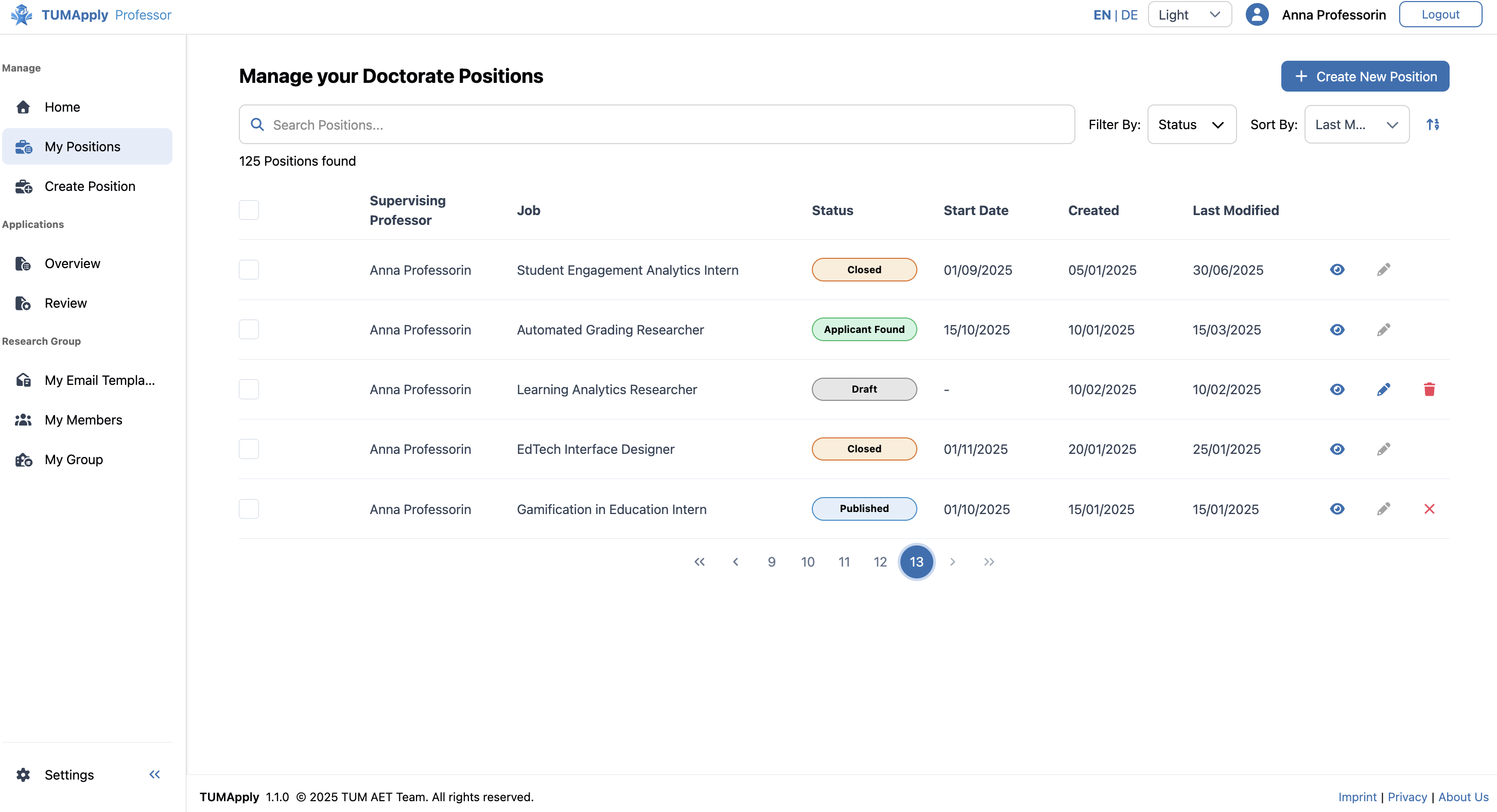
Comprehensive Status System:
- 🟢 Published: Live positions actively accepting applications from qualified candidates
- 🟠 Applicant Found: Suitable candidate has been identified, position is no longer actively recruiting
- 🔴 Closed: Position no longer accepting applications, all applicants have been notified
- ⚫ Draft: Position in development phase, not yet visible to applicants
Context-Sensitive Action Controls:
- View: Access complete position details and current status (available for all positions regardless of state)
- Edit: Modify position specifications, requirements, and details (draft positions only)
- Delete: Permanently remove positions that haven't been published (draft positions only)
- Close: End application acceptance period and automatically reject all unreviewed applications and notify all applicants (published positions only)
🔍 Position Details
Used for comprehensive position review with full management capabilities and administrative controls.
- Shows current position status prominently displayed with clear visual indicators
- Provides enhanced information display including all details visible to applicants
- Features status-dependent action buttons matching capabilities available in the dashboard interface
- Includes administrative context and editing access not available in the applicant view
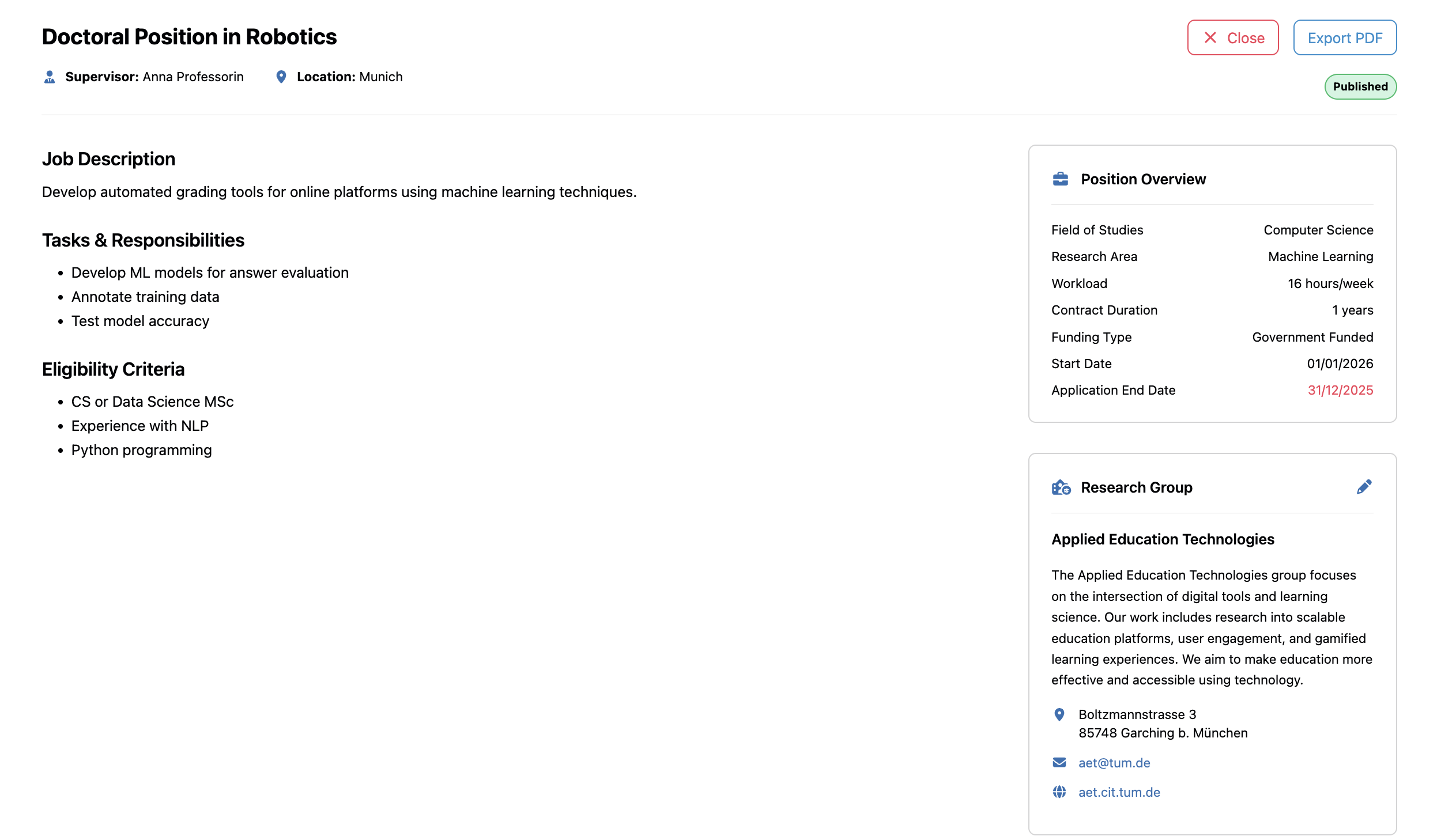
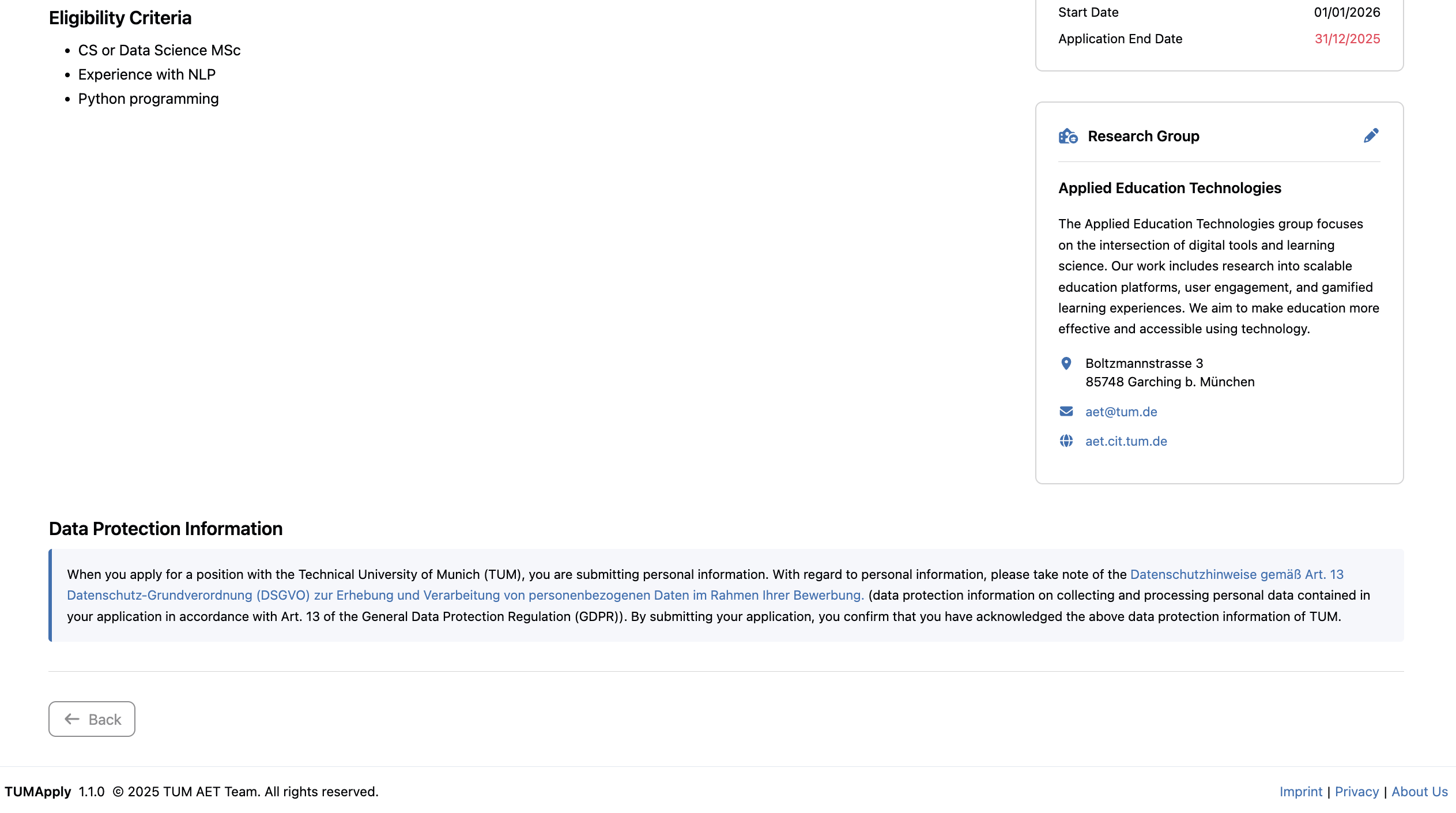
Enhanced Management Features:
- Status Display: Current position state with timestamp information
- Management Actions: Context-appropriate controls for position lifecycle management
- Administrative Details: Creation date and last modification date are displayed for oversight
- Applicant Perspective Toggle: View position as it appears to potential candidates
✏️ Position Editing - Refinement Interface
Comprehensive editing system for updating and improving unpublished positions.
- Pre-filled forms containing all previously saved information for efficient updating
- Multi-step editing process matching the job creation process for consistency
This integrated management system enables efficient oversight of the complete position lifecycle from creation through successful candidate placement.
⚙️ Steps for Managing Positions
This document outlines key steps for managing positions via the position management dashboard.
📌 Prerequisites
- All steps require professor account access
- Position management capabilities vary based on current position status
📊 Step 1: My Positions Dashboard Overview
Goal: Access and navigate the centralized management dashboard to monitor all your positions.
Steps:
- Navigate to "My Positions" from the sidebar menu
- Review the position table displaying all your created positions with:
- Position titles and supervising professor name
- Current status with color-coded visual indicators
- Estimated start date of position
- Creation dates and last modification timestamps
- Context-sensitive action buttons
- Use the status indicators to quickly assess position states:
- Draft positions needing completion or publication
- Published positions accepting applications
- Positions that have found a suitable applicant
- Closed positions that were previously published
- Access quick actions directly from the table:
- Click "View" to see detailed position information
- Use "Edit" for draft positions needing updates
- Select "Delete" to remove unwanted draft positions
- Choose "Close" to reject all applications for published positions
Video:
🔍 Step 2: Viewing Job Details
Goal: Access comprehensive position information with professor management capabilities.
Steps:
- From the My Positions dashboard, click "View" on any position
- Review the enhanced position details including:
- Current status prominently displayed at the top
- Complete position information as seen by applicants
- Administrative details like creation and modification dates
- Research group information and contact details
- Access management controls directly from the detail page:
- Status-appropriate action buttons based on current position state
- Quick navigation back to the previous page
- Direct access to editing functionality for draft positions
Video:
✏️ Step 3: Editing and Updating Existing Positions
Goal: Modify position details to improve clarity, update requirements, or reflect changed circumstances.
Steps:
- From the dashboard or position details page, click "Edit" to access the Position Editing Interface
- Navigate pre-filled editing forms containing all current position information:
- Step through the same multi-step process used in the job creation form
- Review each section systematically for needed updates
- Utilize auto-save functionality to preserve changes during editing
- Finalize updates:
- Review all changes in the final step
- Either publish immediately using the "Publish" button or leave the form and the position will be saved as a draft for later completion
Video:
🔒 Step 4: Closing and Deleting Positions
Goal: Properly manage position lifecycle endpoints through closure or deletion.
Steps:
- For Published Position Closure:
- From dashboard or position details, click "Close" on published positions
- Confirm closure understanding that the position will:
- Change status from "Published" to "Closed"
- Automatically reject all unreviewed applications
- Send notifications to all applicants about position closure
- Not be able to be reopened once closed
- Authorize the closure knowing that no further applications will be accepted
- Verify status change is reflected in the dashboard with updated badges
- For Draft Position Deletion:
- From dashboard or position details, click "Delete" on draft positions
- Review deletion implications understanding that:
- The position will be permanently removed from the system
- All draft content will be lost and cannot be recovered
- This action is irreversible once confirmed
- Confirm deletion only after ensuring valuable content is preserved elsewhere if needed
- Verify removal from the dashboard table
Video: