How to Apply for a Doctoral Position: Step-by-Step Guide
Getting Started
Welcome to the TUMApply Doctoral Portal application system! This guide will walk you through the complete application process, from finding a position to submitting your materials.
Step 1: Finding and Selecting a Position
- Navigate to Available Positions
- Log into the TUMApply Doctoral Portal using your credentials
- Go to the "Find Positions" section
- Browse available positions filtered by your academic background and research interests
- Select Your Position
- Click on a position that matches your qualifications
- Review the position requirements and supervisor information
- Click "Apply" to begin your application
Step 2: Application Creation - Multi-Step Process
The application form is designed as a 4-page wizard to make the process manageable and ensure you don't lose your progress.
Page 1: Personal Information
- Fill in basic details: Name, email, contact information
- Academic background: Current degree status, institution
- Required fields are marked with red asterisks (*)
- Auto-save feature: Your progress is automatically saved every few seconds
- Click "Next" to proceed (only enabled when all required fields are completed)
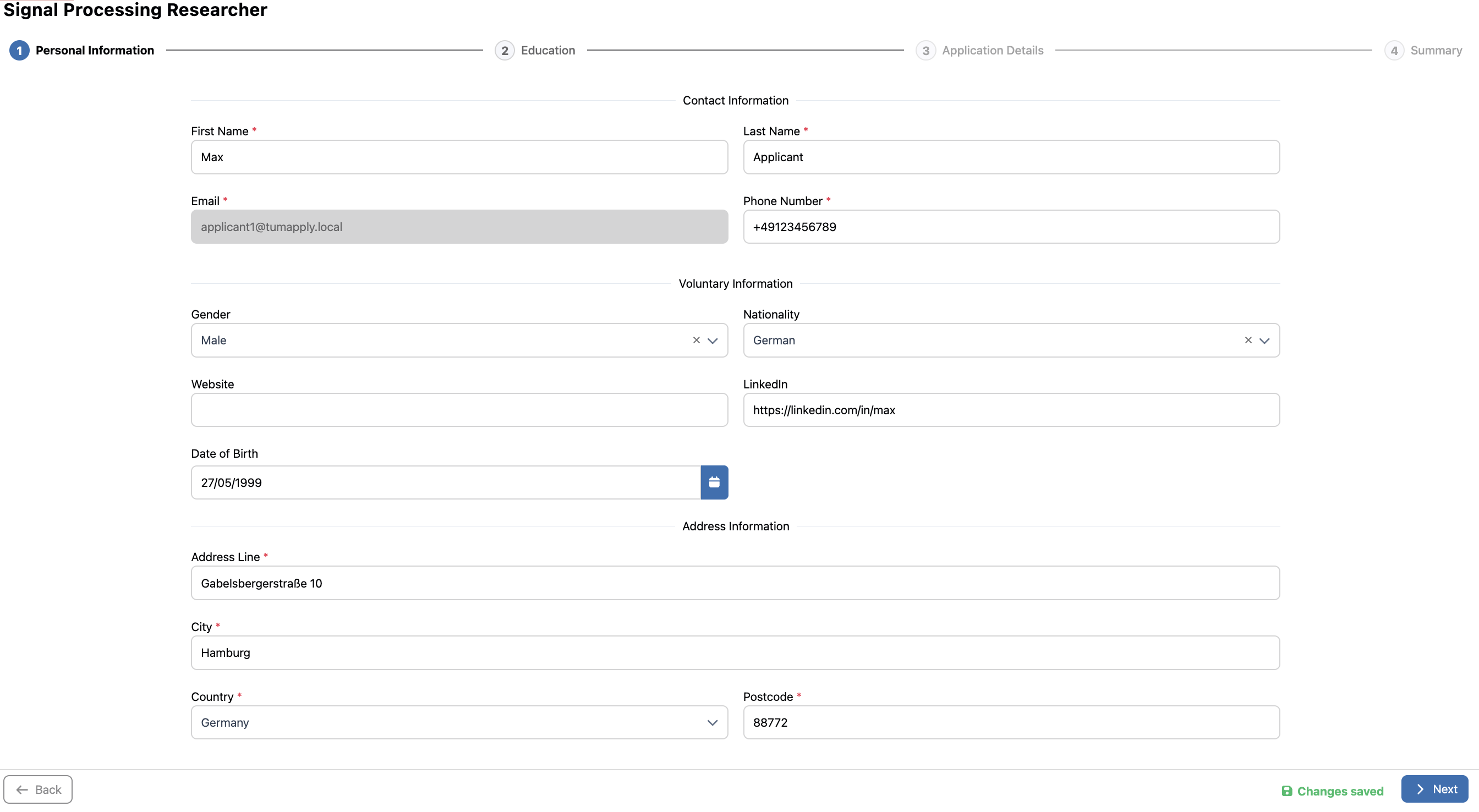
Page 2: Academic Background & Documents
- University information: Previous degrees and their grades, institutions attended
- Upload academic documents:
- Degree certificates (PDF format, max 10MB)
- Document validation: The system checks file format and size
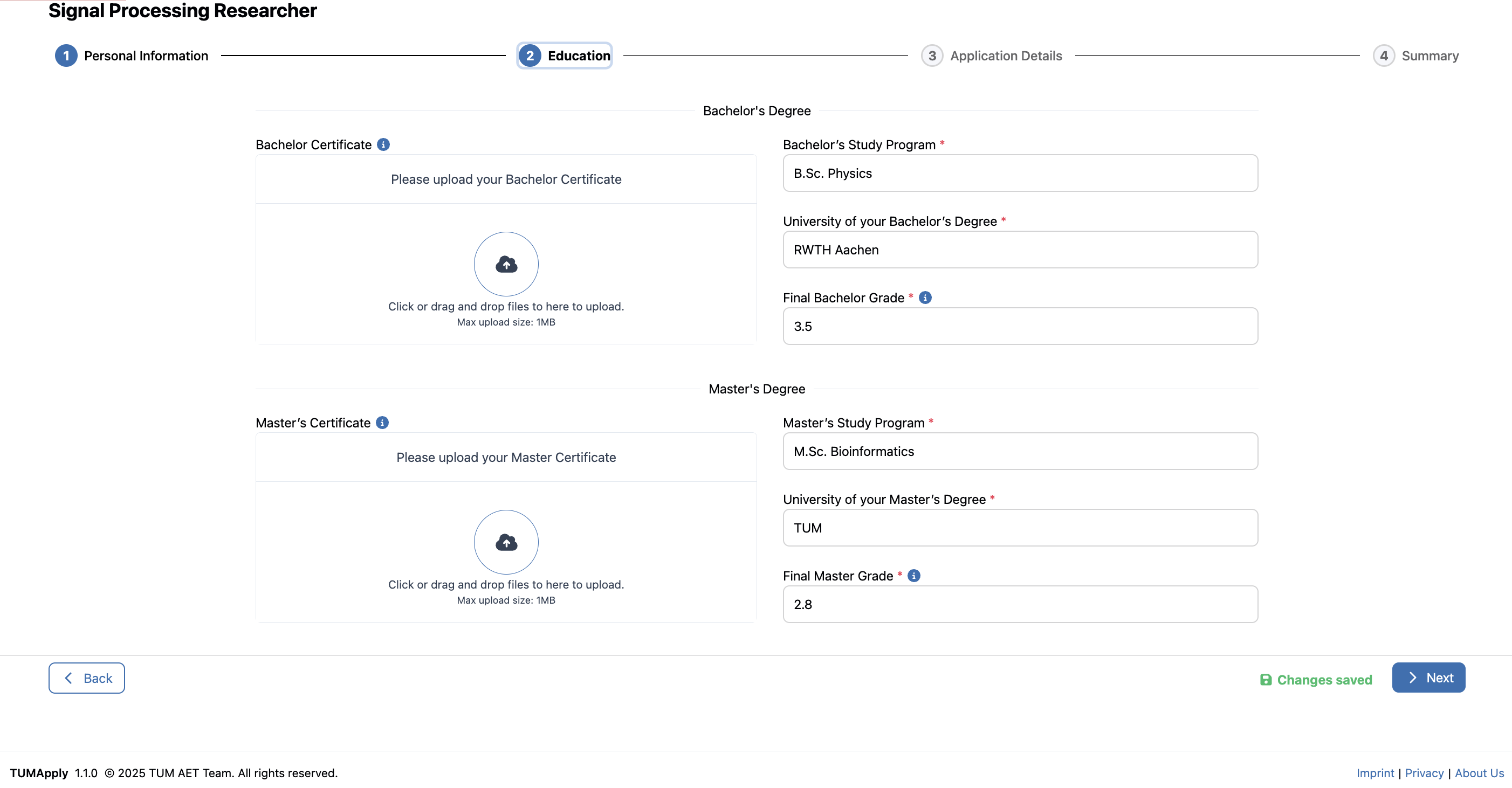
Page 3: Application Questions & Additional Documents
- Answer position-specific questions: These vary by supervisor and research area
- Upload supporting documents:
- CV/Resume
- Reference letters
- Progress indicator: Shows completion status of each section
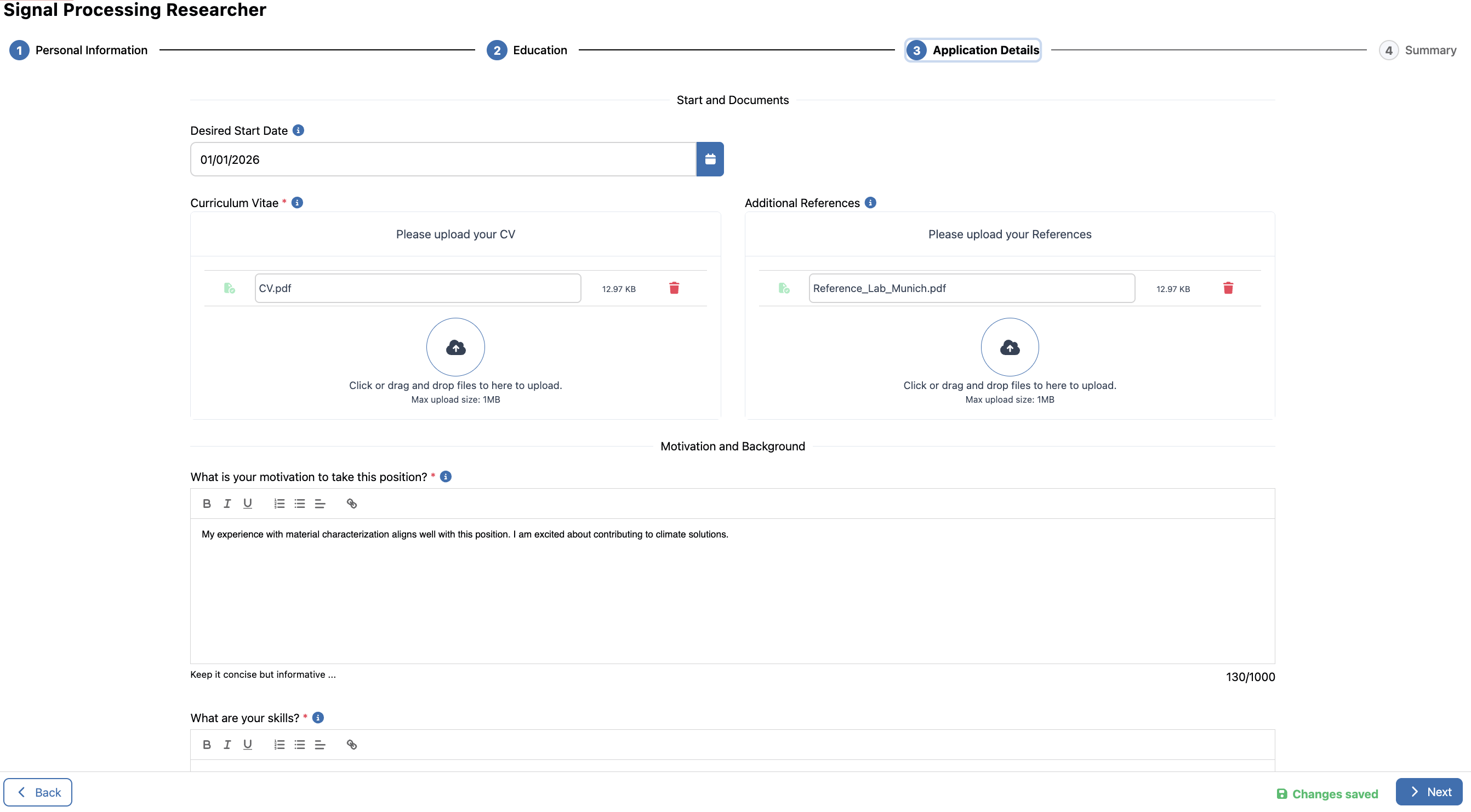
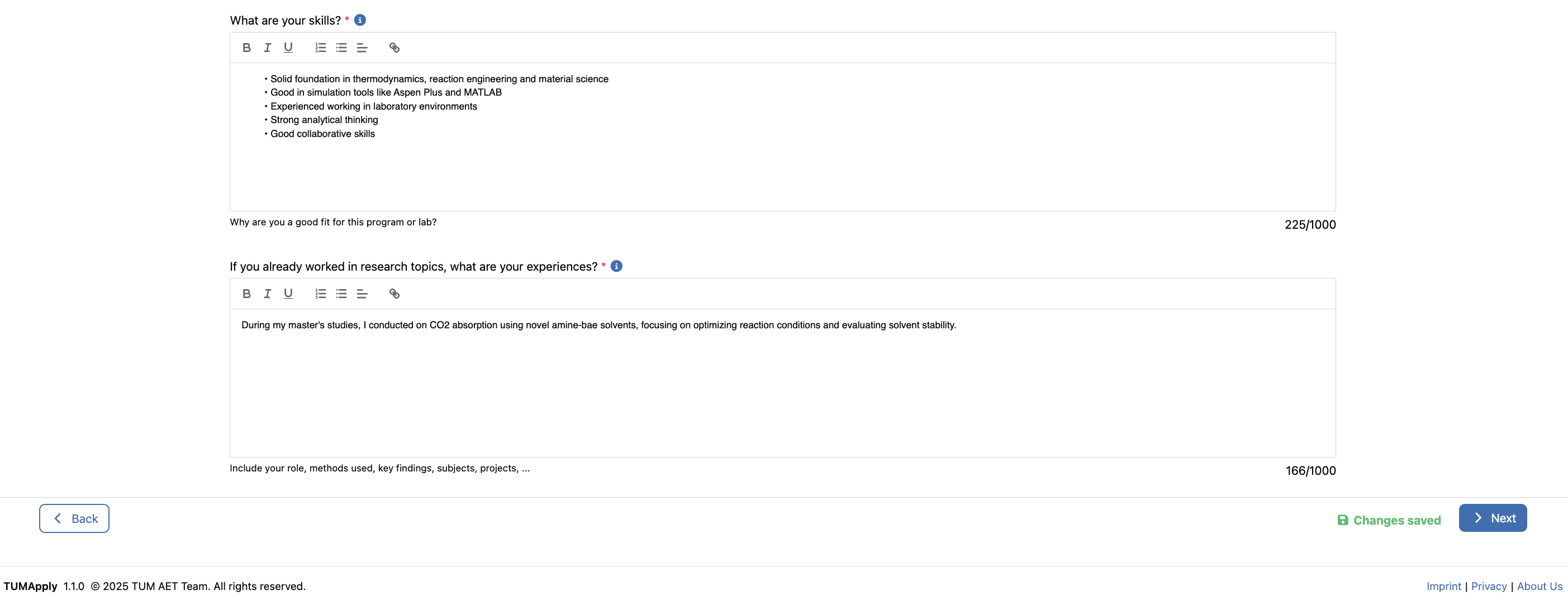
Page 4: Review & Submit
- Complete application summary: Review all entered information
- Document checklist: Verify all required documents are uploaded
- Edit capability: Click "Back" to modify any section if needed
- Final validation: System performs comprehensive check before submission
Step 3: Submission Options
You have two choices on the final page:
Option A: Submit Application
- Click "Submit Application" for final submission
- Confirmation dialog appears asking you to confirm
- Once submitted, you cannot edit the application
- Automatic notifications are sent to supervisors
- You'll receive a confirmation email with submission details
Option B: Save as Draft
- Simply exit the application form
- Application is saved with all current progress
- You can return anytime to continue editing
- Draft applications appear in your "My Applications" dashboard
Step 4: After Submission
Immediate Actions
- You're redirected to your Application Dashboard
- Submission confirmation is displayed
- Application status changes to "Submitted"
Ongoing Management
- Track progress through the application dashboard
- Monitor status updates as supervisors review your application
- Receive notifications for status changes via email
- View detailed application anytime from your dashboard
Key Features That Help You
Auto-Save Protection
- Automatic saving every 30 seconds prevents data loss
- Session persistence allows you to leave and return
- Draft recovery if your browser closes unexpectedly
Validation System
- Real-time error checking shows issues immediately
- Required field indicators clearly mark what's needed
- File format validation ensures documents upload correctly
- Progress tracking shows completion status
User-Friendly Design
- Step-by-step guidance prevents overwhelming forms
- Clear navigation with Previous/Next buttons
- Visual progress indicator shows where you are in the process
- Help tooltips provide guidance for complex fields
Tips for Success
- Prepare documents in advance: Have all files ready in PDF format
- Use a stable internet connection: Prevents upload interruptions
- Review requirements carefully: Each position may have specific needs
- Take your time: The auto-save feature means you don't need to rush
- Preview before submitting: Use the summary page to double-check everything
Need Help?
- In-form guidance: Look for help icons (?) next to complex fields
- Technical support: Contact the portal administrators for technical issues