Application Review
The Applications - Review page is your workspace for reviewing and managing applications. It provides a structured overview, inline access to documents, and simple tools for recording ratings, comments, and decisions.
⚙️ Features
-
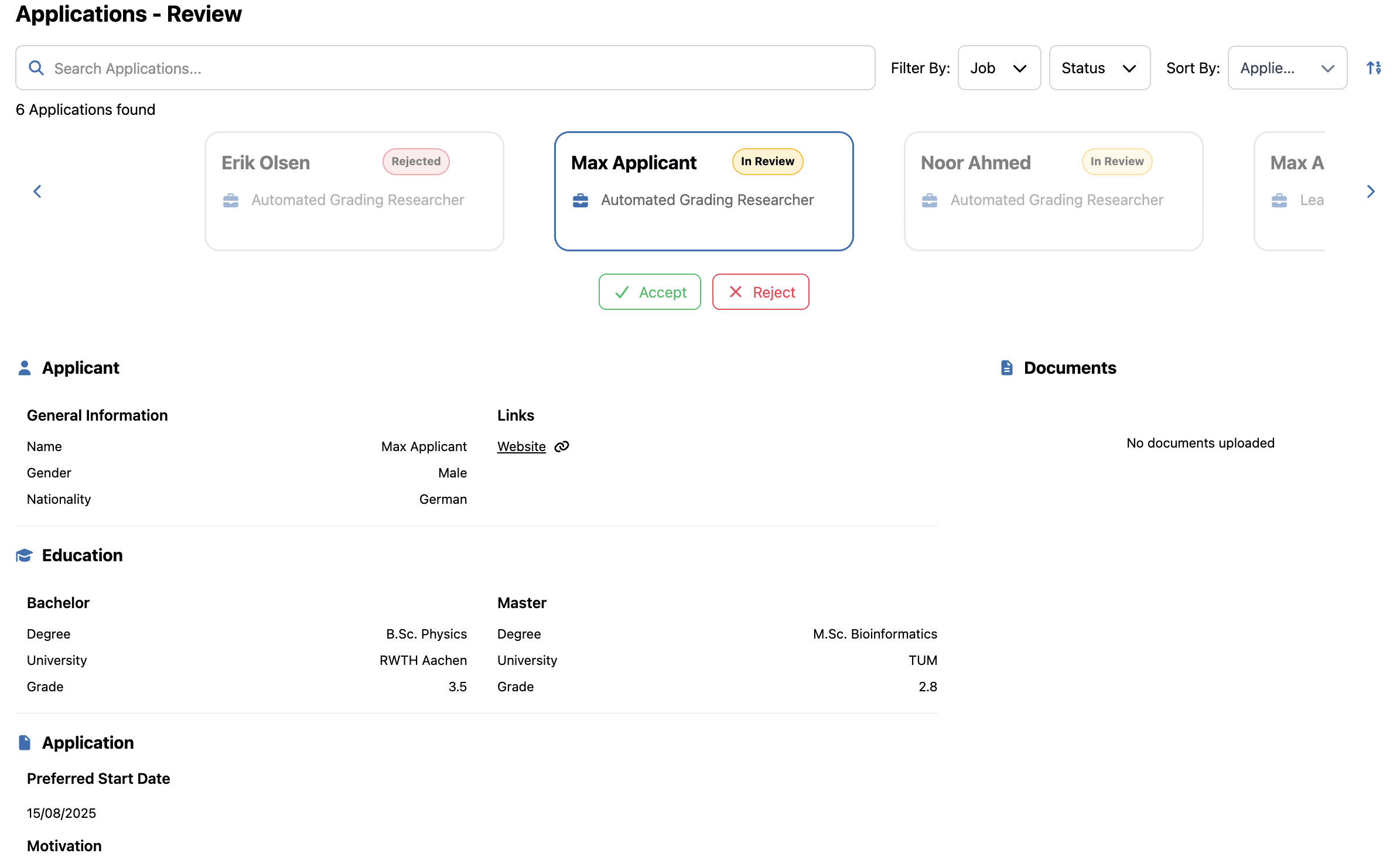
Overview dashboard: See all applications for your open positions, with color-coded status labels.
-
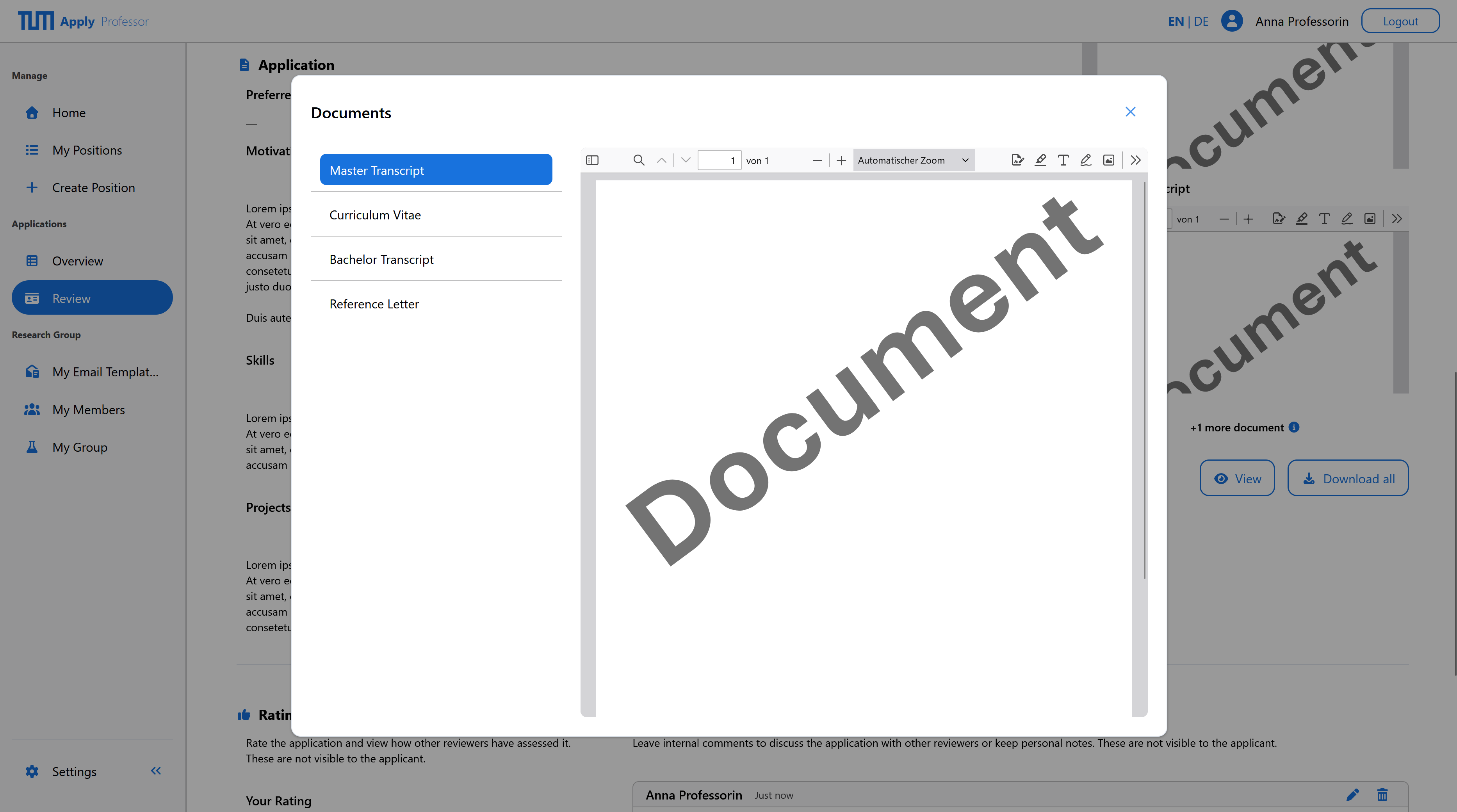
Inline document viewer: Open CVs, transcripts, and other documents directly in the browser without downloads.
-
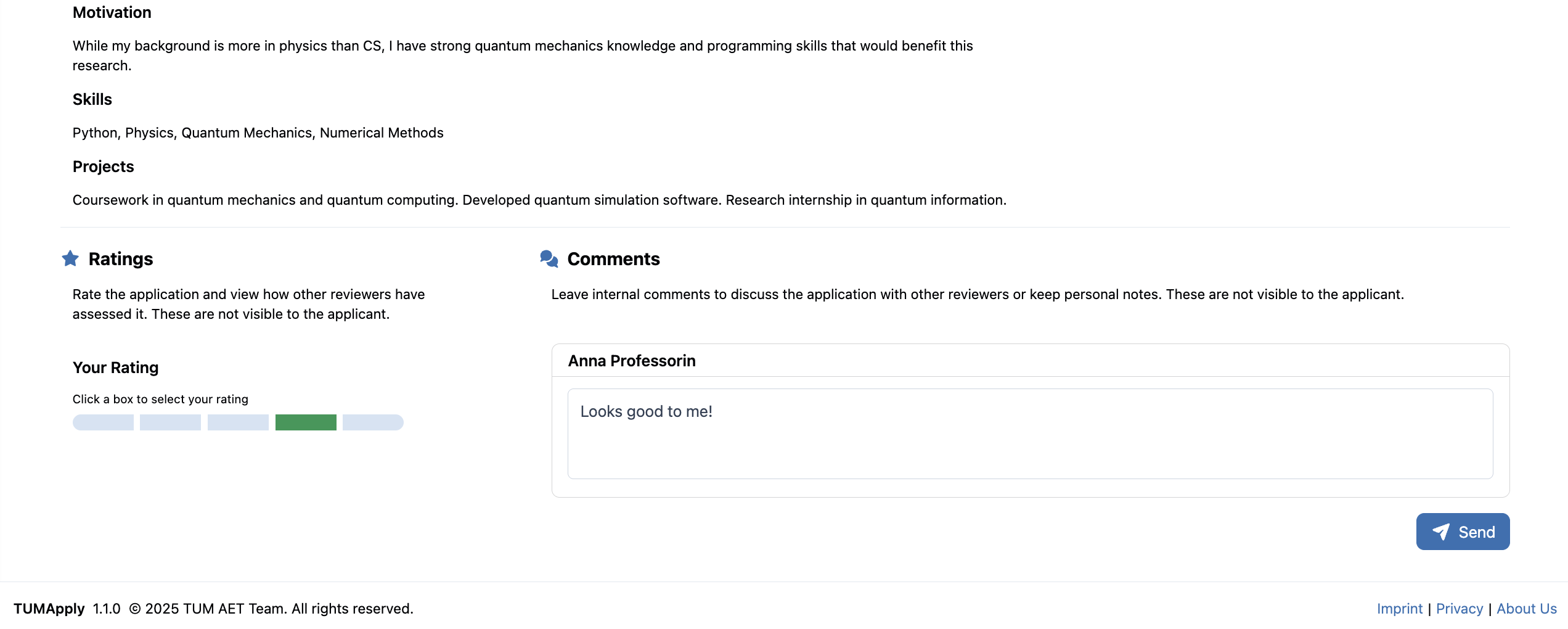
Structured details: Applicant information (education, background, motivation) is presented in a clear, comparable layout.
-
Ratings and comments: Record your own evaluations and view input from colleagues in your research group.
-
Ratings are selected from: Poor, Fair, Satisfactory, Good, Excellent.
-
Ratings and comments are internal only — applicants never see them.
-
Carousel navigation: Move quickly between applications without returning to the overview.
-
Decision dialogs: Accept or reject applicants through a guided dialog that confirms your choice and prepares communication.
-
Email notifications: Send multilingual acceptance or rejection messages with customizable templates.
-
Filtering and sorting: Focus on applications by status, rating, or submission date.
-
Documents download: Download a ZIP containing all documents for an application.
⚠️ Application Status System
- ⚪ Unopened: Submitted but not yet opened.
- 🟡 In Review: Currently being evaluated.
- 🟢 Accepted: Approved; applicant has been notified.
- 🔴 Rejected: Declined; applicant has been notified.
📄 Documents
On the review page, you will see a preview of the most relevant documents (e.g., CV, transcripts) directly inline. This makes it easy to assess applicants without leaving the page.
If you want to view all submitted documents in full size, click the View button in the document section. A dedicated document viewer will open, allowing you to navigate through every file submitted by the applicant.
For offline access or sharing within your group, use the Download All button. This will create a ZIP archive containing all documents submitted with the application.
⚙️ Steps for Reviewing an Application
Follow these steps to evaluate and manage applications.
📌 Prerequisites
- You are logged in to TUMApply.
- You have professor access and belong to a research group.
- At least one applicant has submitted an application.
🧭 How to Get There
There are two ways to access the Applications - Review page:
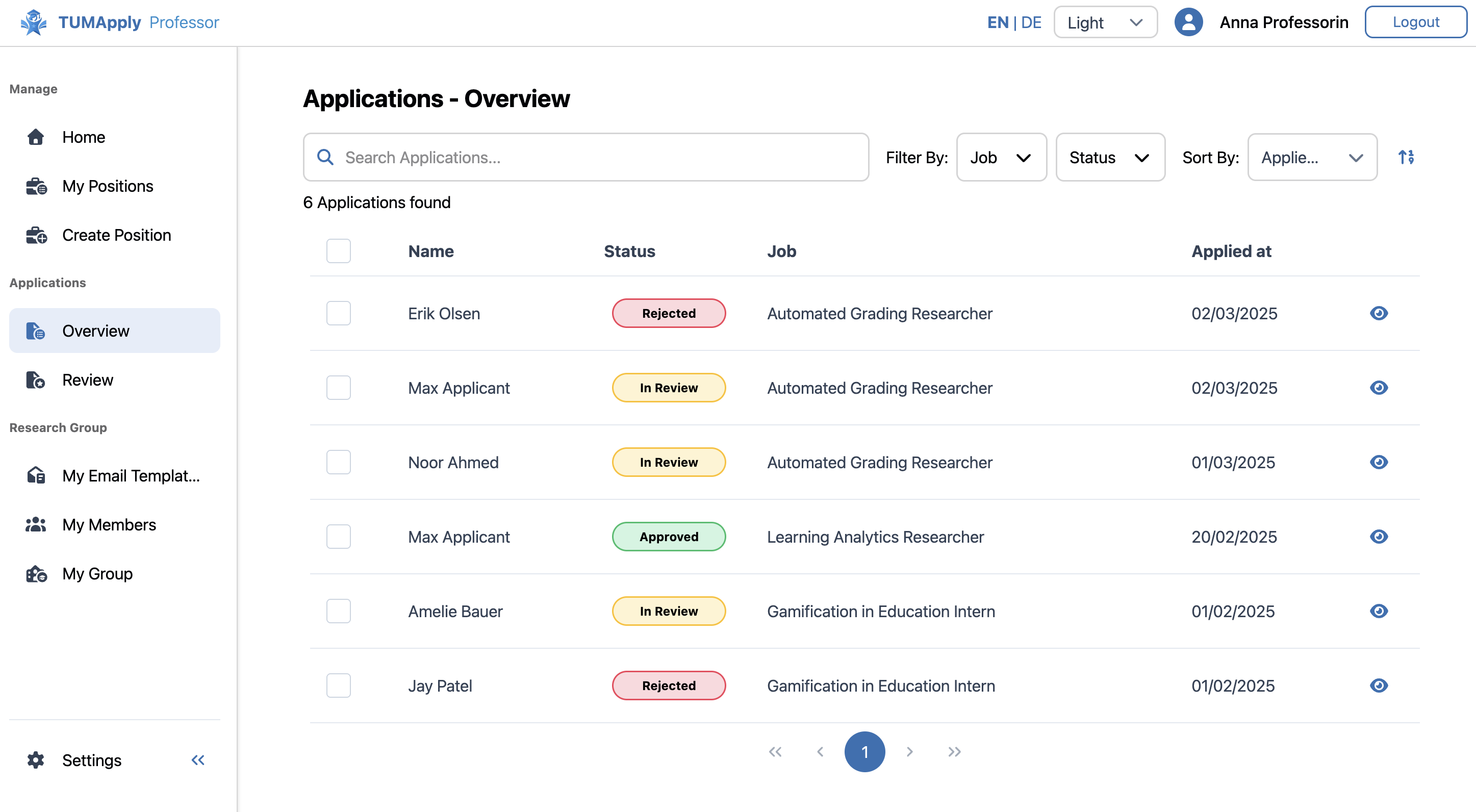
- From the Applications Overview page
On the Applications Overview page, click More on a specific application to jump directly to its review.
- From the sidebar navigation
Open the sidebar and select Applications → Review to start from the beginning of the list.
▶️ Step-by-Step
- Open the Applications Overview Page
Go to the Review tab. You’ll see all applications for your positions.
- Select an applicant
Click on the More button of an application to open the detailed review view.
- Inspect documents
Use the inline viewer to read submitted files (CV, transcripts, letters). For full access, click View All or Download All.
- Review applicant profile
Look at structured data — education, previous experience, and motivation statements.
- Provide a rating
Choose from the rating scale: Poor, Fair, Satisfactory, Good, Excellent. (Note: Ratings are only visible to your research group, not to the applicant.)
- Leave comments
Add qualitative feedback or observations. (Comments are also internal and not shared with applicants.)
- Make a decision
Use the Accept or Reject buttons under the carousel. A confirmation dialog will appear.
- If you accept, you can optionally close the position and notify the applicant.
- If you reject, select a reason and confirm.
- Notify the applicant
The dialog includes a Notify Applicant checkbox (pre-checked). You may uncheck if you wish to send a message later or externally.
- Continue with next applications
Use the carousel to move to the next applicant seamlessly.
- Track status changes
After decisions, application statuses update automatically (e.g. “In Review” → “Accepted” or “Rejected”).
🎥 Help Video
For a visual walkthrough of the review workflow, check out this video:
Keep your browser window wide enough to show details, documents, and the rating panel side by side — this reduces scrolling and speeds up your review workflow.