Favorites
LEARNApp lets you save both individual activities and complete recommendation sets for quick access later. Saved items can be found under the Favorites tab in the navigation bar or in your Profile.
🔐 You need to log in before you can save activities or recommendations.
Steps for Managing Favorites
- Save an activity: Tap the empty heart icon 🤍 next to an activity in the Search tab to add it to your favorites.
- Save a recommendation: Tap the empty heart icon 🤍 next to a recommendation in the Plan tab to save the entire activity set. When saving a recommendation, you can assign a custom name to make it easier to find later.
- Open Favorites tab from the navigation bar to access your favorites. The page contains two tabs:
- Activities: Displays all saved individual activities.
- Recommendations: Displays all saved activity sets you created.
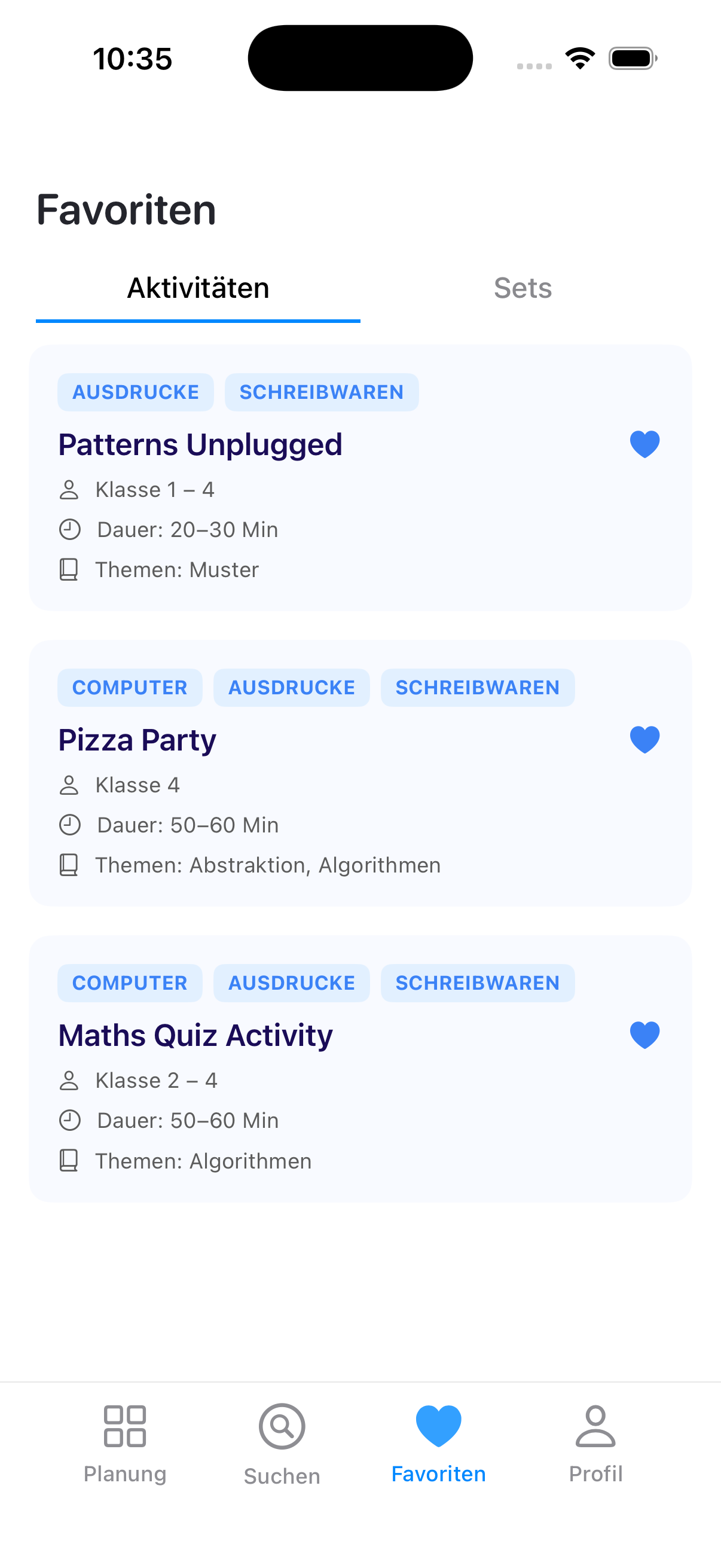
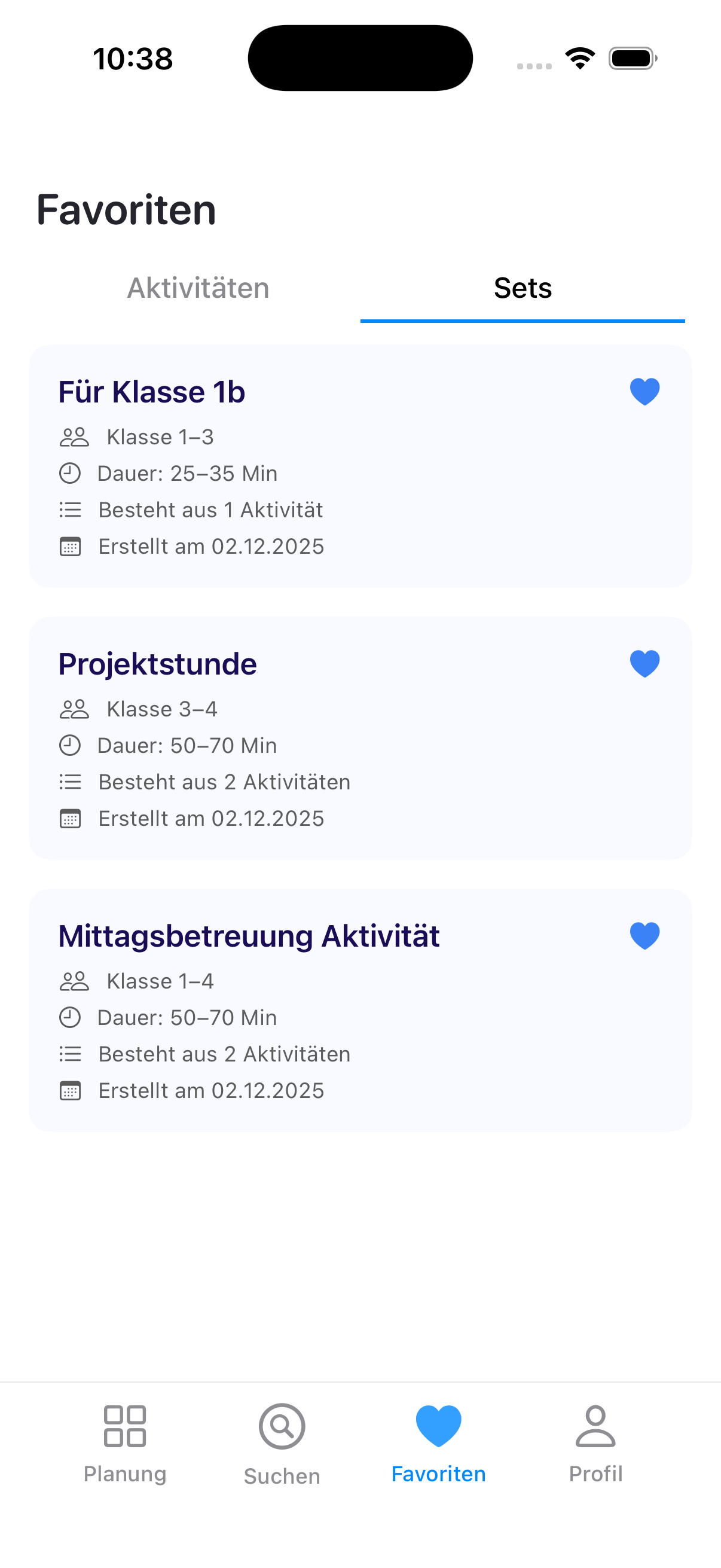
Favorite Activities Tab (left) and Favorite Sets Tab (right)
- Tap any favorite - whether an activity or a recommendation - to open its detailed view.
- Tap the filled heart icon 💙 to eliminate the item from the favorites list.
💡 Tip
- Give each recommendation a clear, descriptive name when saving to easily find it later for reuse in future lessons.
- Regularly review your favorites to keep them organized and relevant.