Create Positions
The Job Creation Form provides comprehensive tools for professors to develop compelling doctorate position listings through a structured, multi-step process that ensures all essential information is captured effectively.
📝 Position Creation - Multi-Step Form
This is the comprehensive creation interface for developing new doctorate positions.
- Step-by-step wizard guiding through all required sections with clear navigation
- Auto-save functionality to prevent data loss during the creation process
- Form validation system with real-time error checking and required field indicators
- Draft saving capability allowing positions to be completed over multiple sessions
Step 1: Basic Information
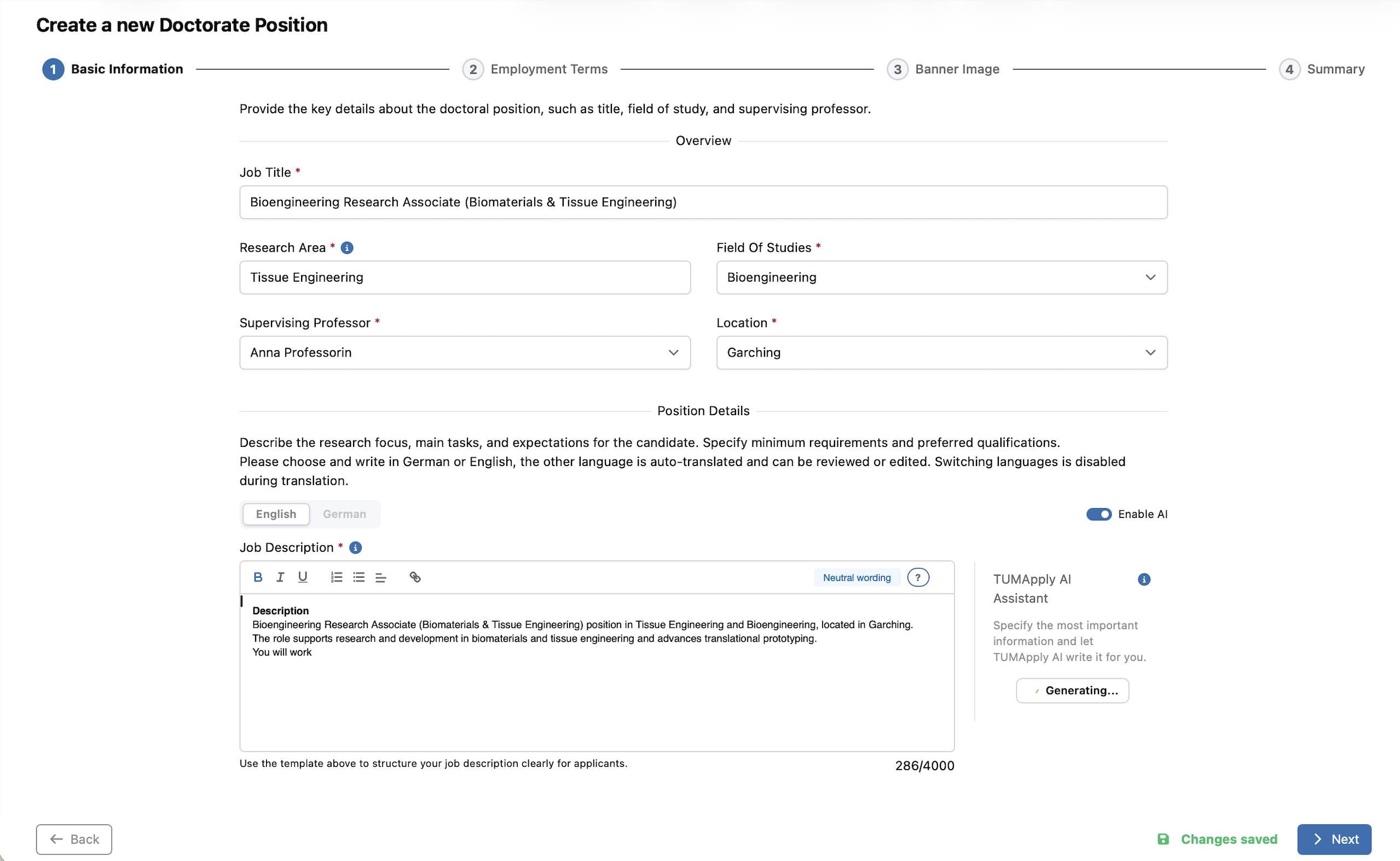
Step 1: Basic Information
- Position Overview: Job Title, Research Area, Field of Studies, Location, and Supervising Professor. Required fields are marked with red asterisks.
- Subject Area Visibility: The selected field of studies is also used for applicant subject-area subscriptions. When the position is published, applicants with matching subscriptions can receive notification emails about the new posting.
- Job Description: Rich-text editor for a comprehensive research project explanation. Includes formatting tools for professional presentation (Tasks & Responsibilities, Eligibility Criteria).
- TUMApply AI Assistant: Toggle "Enable AI" to open the AI panel. Easily generate or rewrite the job description based on inputs or rough bullet points.
- Multilingual Support: Write the description in either German or English; the system translates it automatically.
- Validation System: Users can only proceed using the "Next" button after completing required fields.
Step 2: Employment Terms
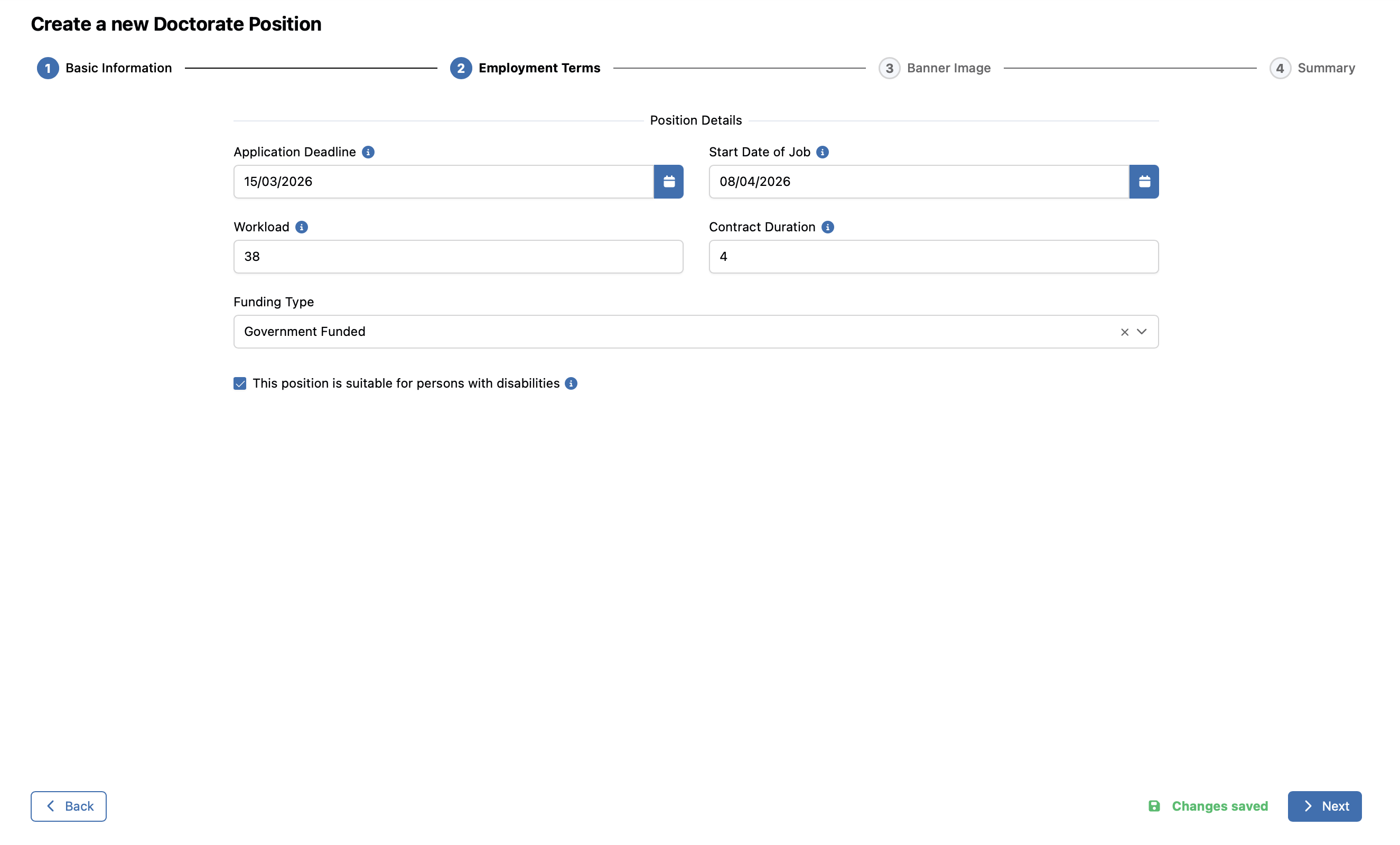
Step 2: Employment Terms
- Timeline Configuration: Set the Application Deadline and targeted Start Date.
- Workload & Duration: Define workload in hours/week (up to 40) and contract duration in years (up to 6).
- Funding & Extras: Specify Funding Type and indicate whether the position is suitable for persons with disabilities.
Step 3: Banner Image
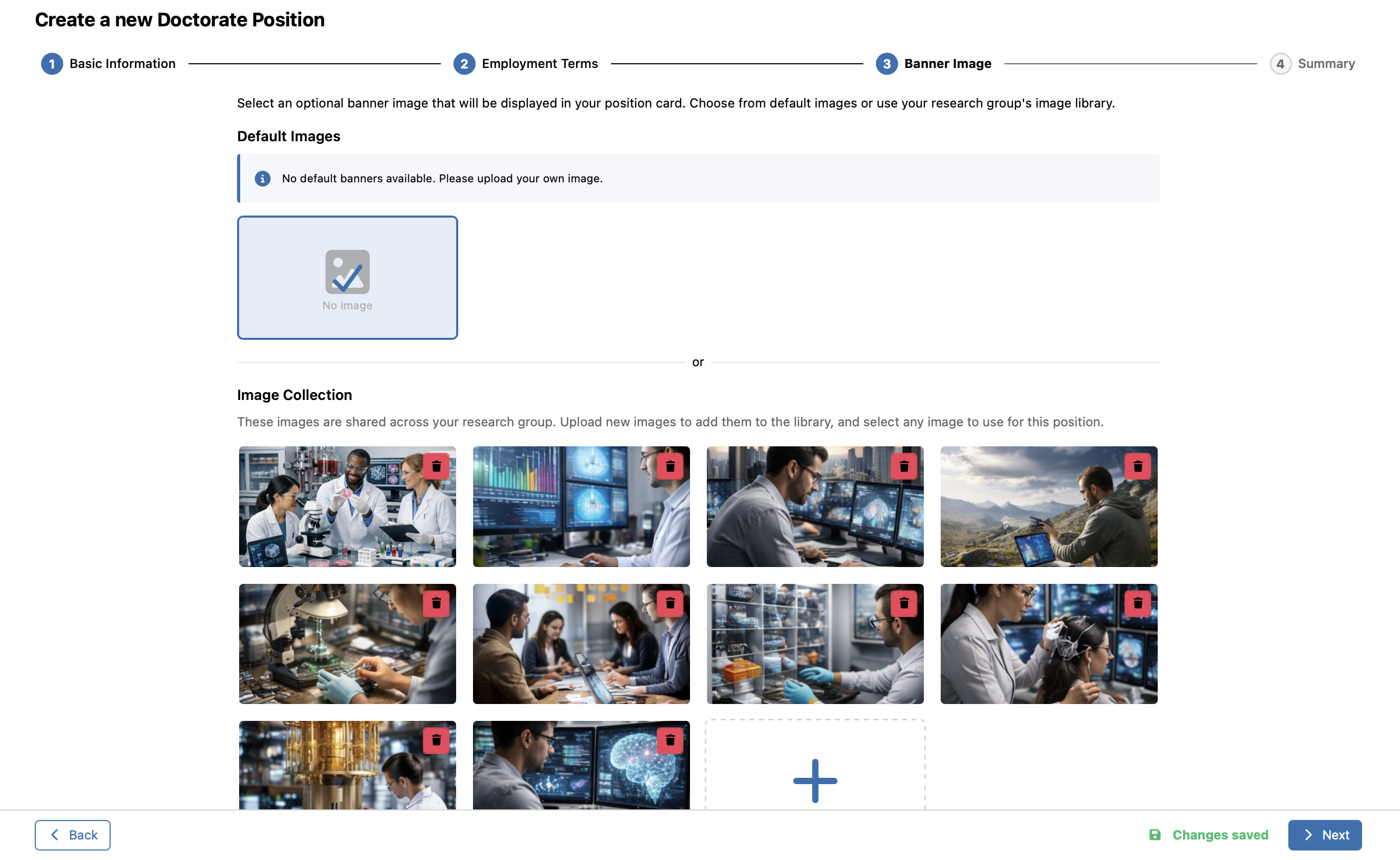
Step 3: Banner Image
- Default Images: Pick from default banner images provided by the system.
- Image Collection: Use or upload custom images specific to your research group.
- Upload Capability: Accepted formats include JPG, JPEG, and PNG (recommended 16:9 ratio, max 5MB).
Step 4: Review & Publish
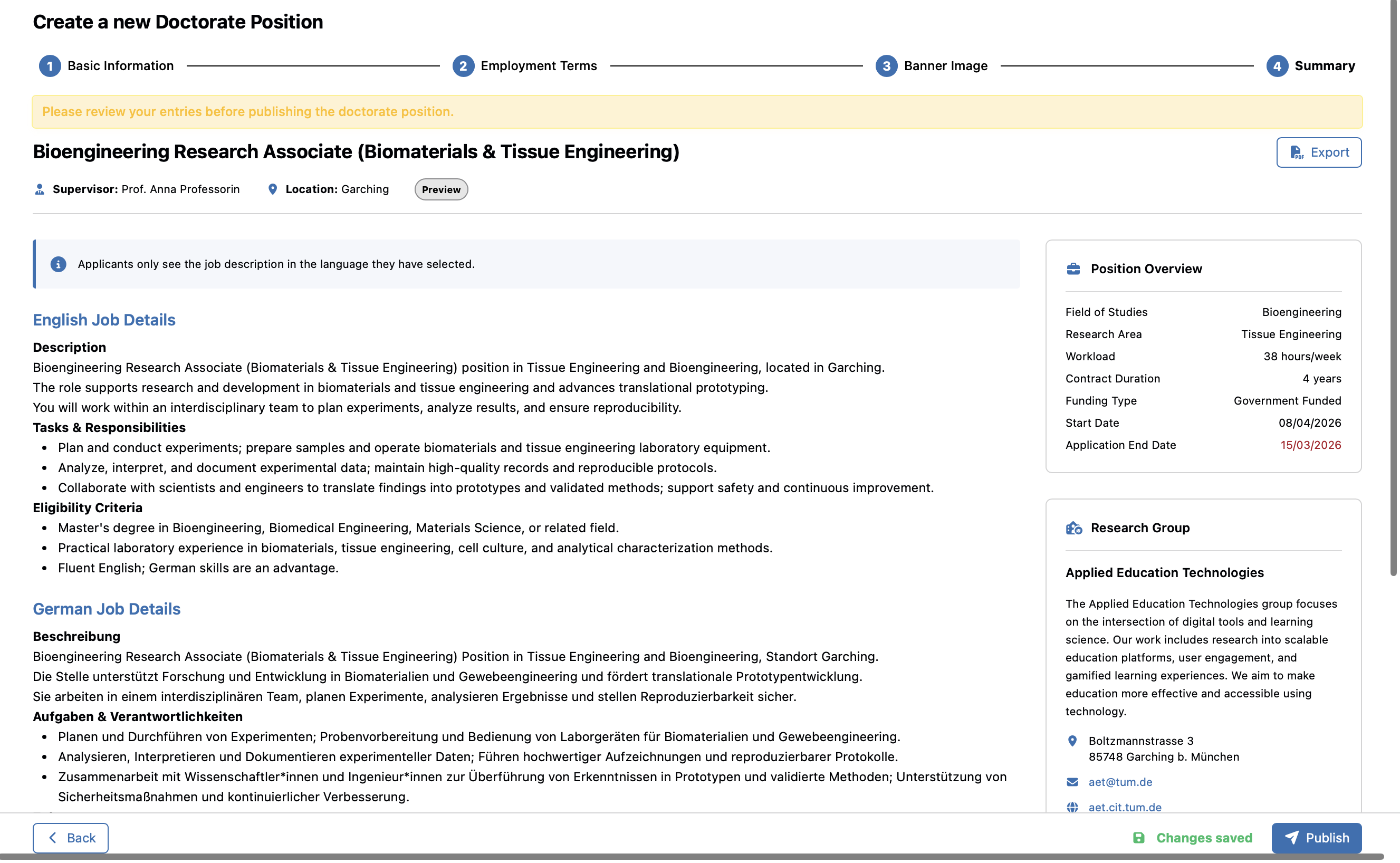
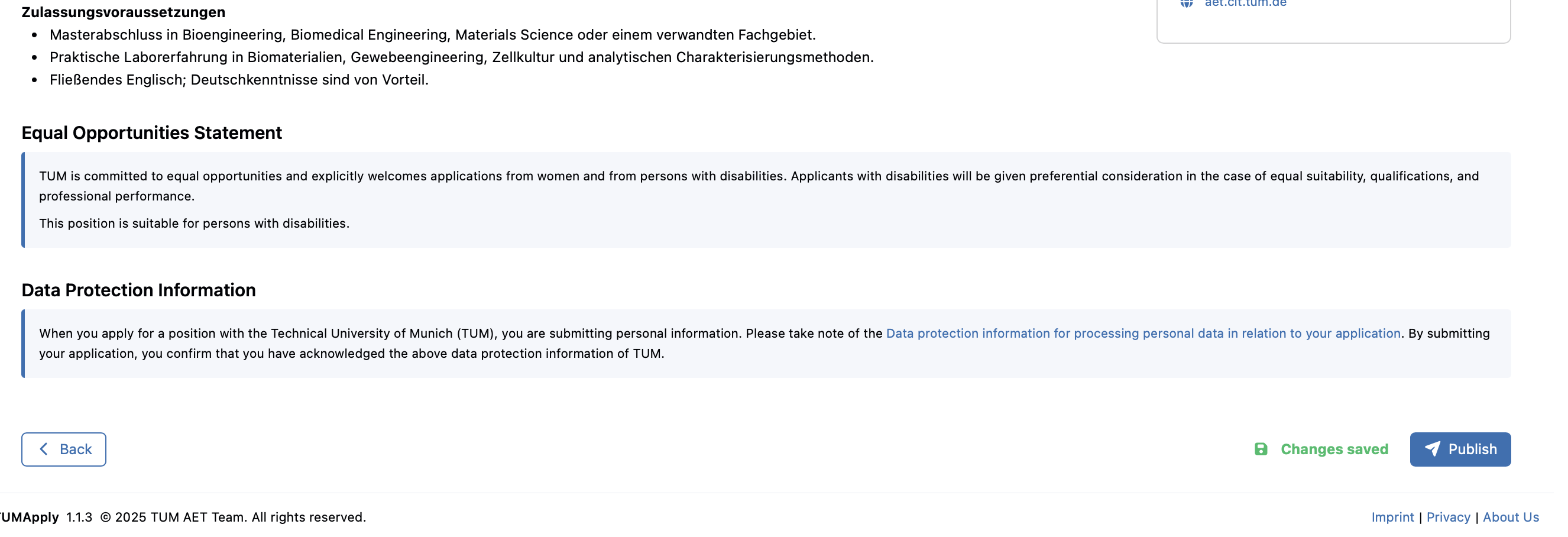
Step 4: Review Job Details
- Final Review: Comprehensive preview of complete position before publication
- Data Protection Compliance: Mandatory checkbox for Data Privacy Terms agreement
- Publication Options: Option to publish immediately using "Publish" button or press "Back" to edit any mistakes
This creation system ensures comprehensive position development while maintaining institutional standards and regulatory compliance.
⚙️ Steps for Creating Jobs
This document outlines key steps for creating and publishing doctorate positions.
📌 Prerequisites
- All steps require professor account access with position creation permissions
📝 Step 1: Creating New Positions from Scratch
Goal: Develop comprehensive position listings with all required information through the structured creation process.
Steps:
- Navigate to "My positions" from the sidebar menu
- Click the "Create Position" button located at the top right
- Complete Step 1 - Basic Information:
- Fill out position overview details such as title, area, and location.
- Choose the field of studies carefully, because it is used to match applicant subject-area subscriptions for publication notifications.
- Provide the job description manually or use the TUMApply AI Assistant to automatically draft or rewrite the description.
- Complete Step 2 - Employment Terms:
- Enter timeline dates (start date, deadline).
- Define workload, contract duration, and funding type.
- Indicate equal opportunities suitability.
- Complete Step 3 - Banner Image:
- Select an image from the default gallery or your research group's uploads.
- Alternatively, upload a new banner image.
- Complete Step 4 - Review Job Details:
- Preview the complete position as it will appear to applicants.
- Ensure all information and translations are accurate.
- Make any necessary edits by navigating back to previous steps.
- Finalize the position:
- Either publish immediately using the "Publish" button or leave the form and the position will be saved as a draft for later completion
- Publishing can trigger notification emails to applicants whose subject-area subscriptions match the selected field of studies
- Positions that are saved as drafts are not visible to applicants