Settings
The Settings area is the central place for managing your applicant profile in TUMApply. It is organized as a tab-based interface so that account preferences, notifications, and reusable application data are separated clearly.
For applicants, the available tabs are:
- General
- Notifications
- Application Information
- Qualifications
General
The General tab contains your account-level preferences and profile options.
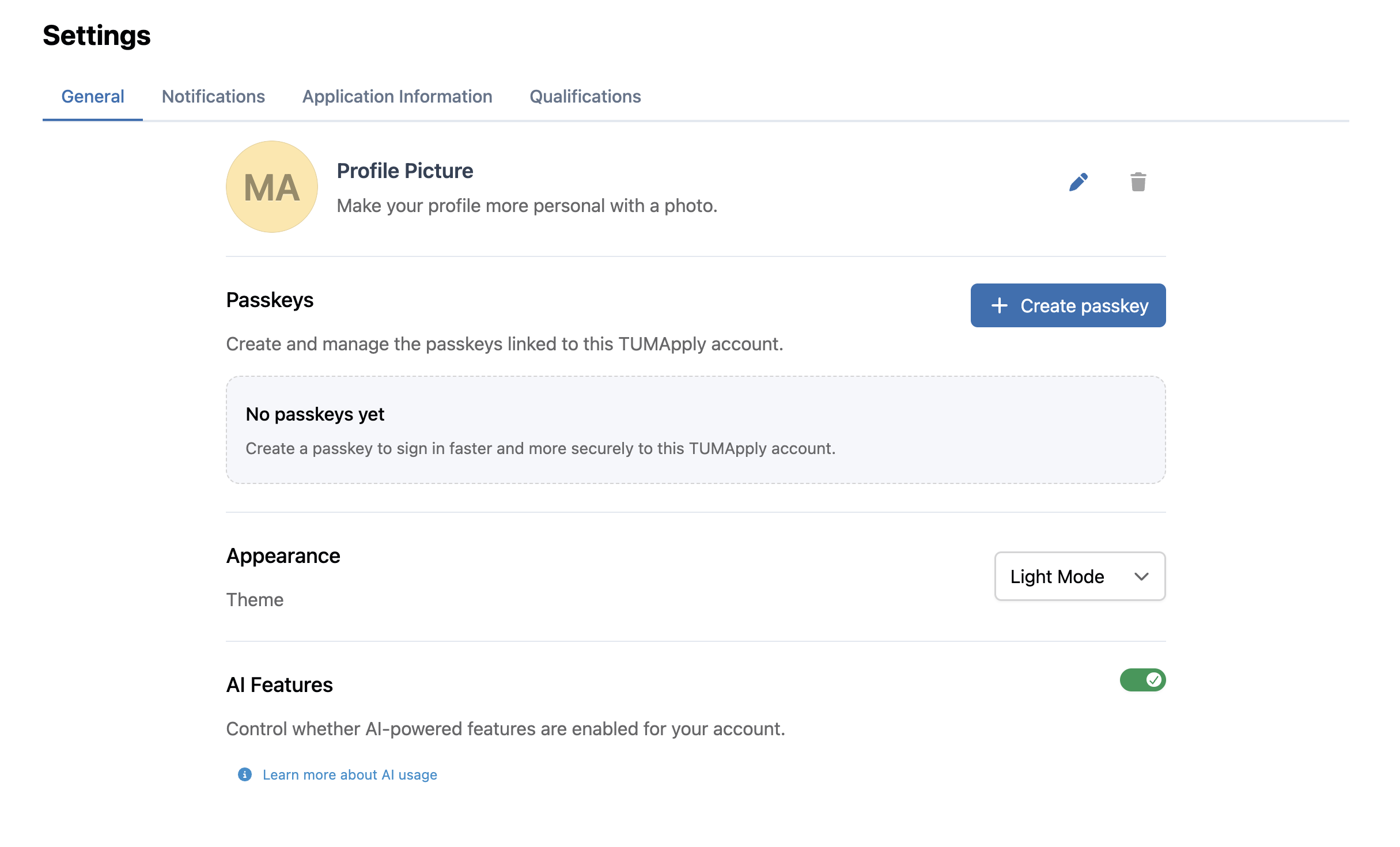
Profile Picture
You can personalize your account by adding a profile picture.
- Click your profile picture area or the edit icon to upload a new image
- Supported file types are JPEG, JPG, and PNG
- The maximum file size is 5 MB
- After selecting a file, you can crop it before saving
- You can remove your current picture again at any time
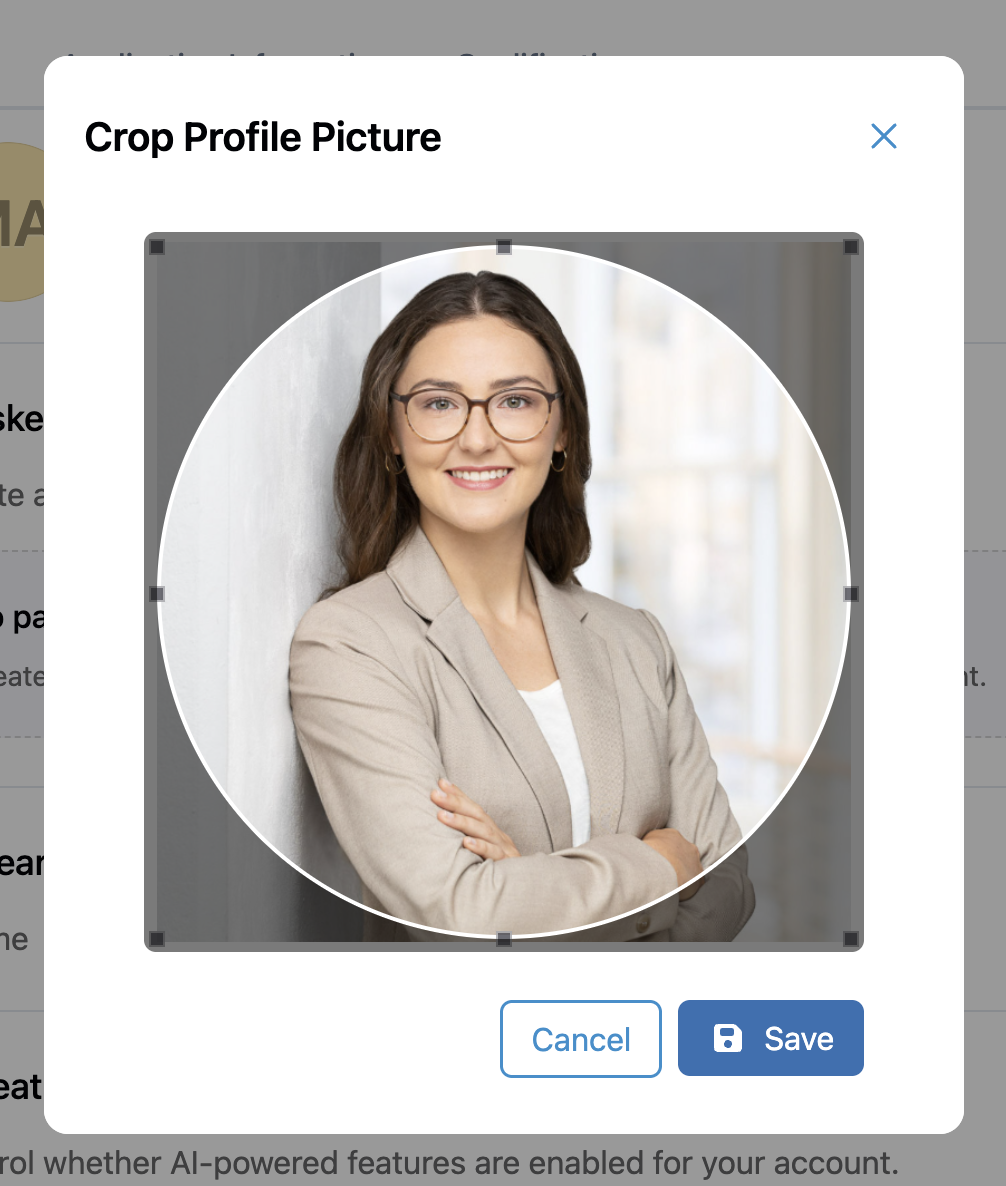
Your profile picture is then used anywhere TUMApply shows your user avatar.
Other General Settings
The General tab also includes:
- Passkeys for faster and more secure sign-in
- Appearance settings for choosing a theme
- AI Features consent settings for applicant-side AI support
Notifications
The Notifications tab controls which emails you want to receive from TUMApply.
Application Emails
Applicants can manage email notifications for:
- Application Submission emails when an application is submitted or withdrawn
- Application Outcome emails when an application is accepted or rejected
Subject Area Job Alerts
You can also subscribe to emails about newly published job postings in selected subject areas.
- Enable the subject area notification toggle
- Add one or more subject areas to your selection
- Remove subject areas again whenever your interests change
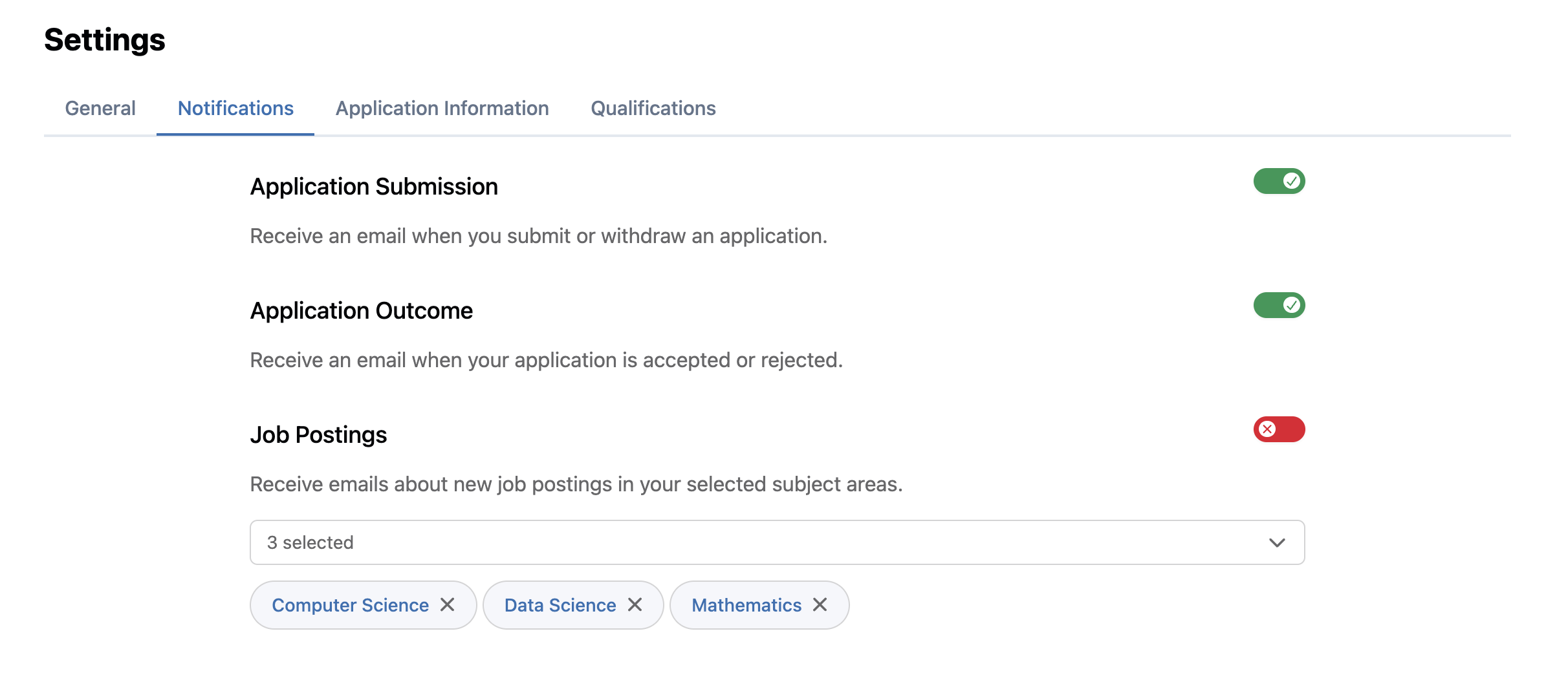
This is useful if you want to monitor new openings without checking the job overview manually every day.
Application Information
The Application Information tab stores reusable personal information for future applications.
This includes:
- Name and contact details
- Voluntary personal information such as nationality, gender, and date of birth
- Website and LinkedIn profile
- Address information
- Your stored CV
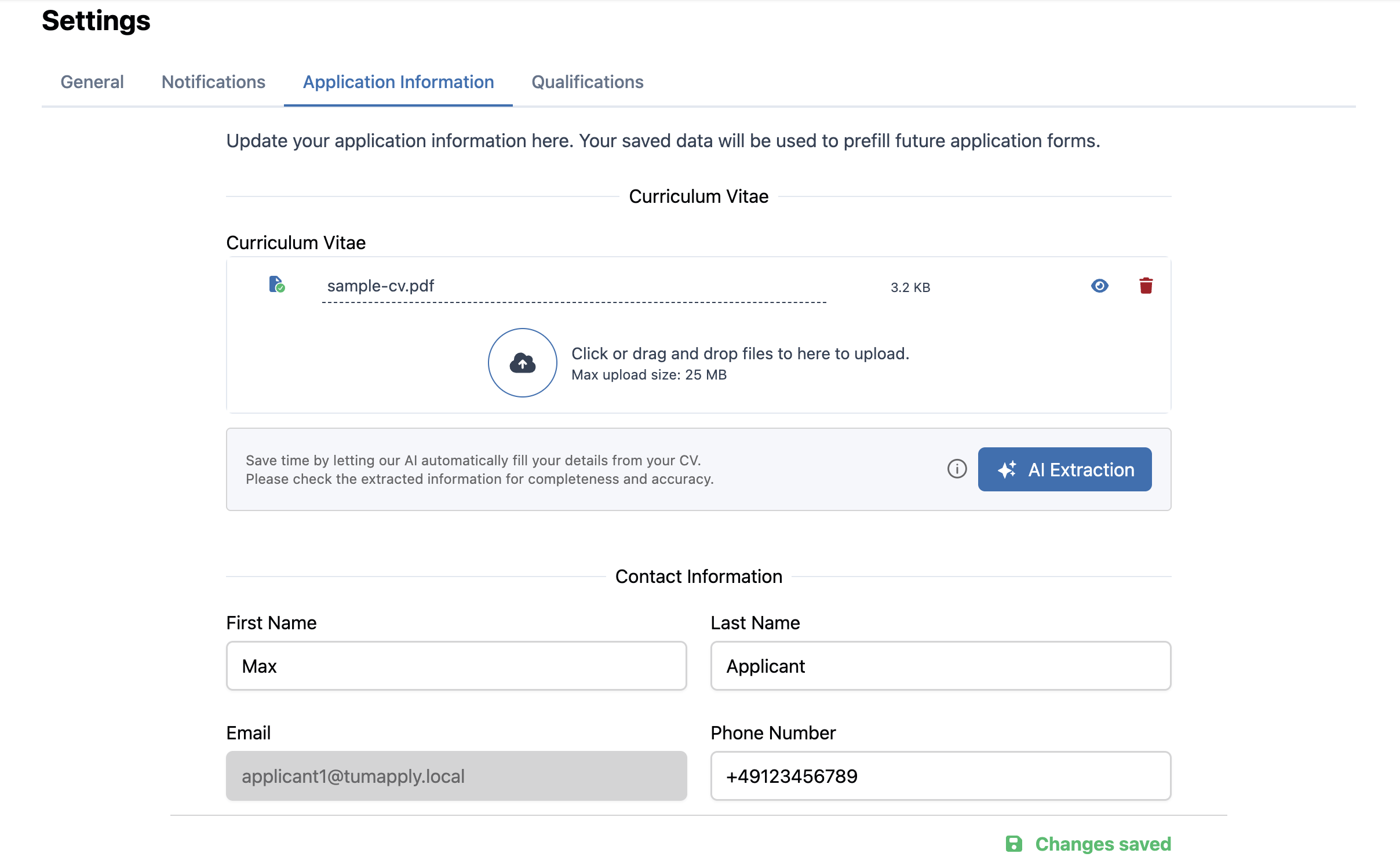
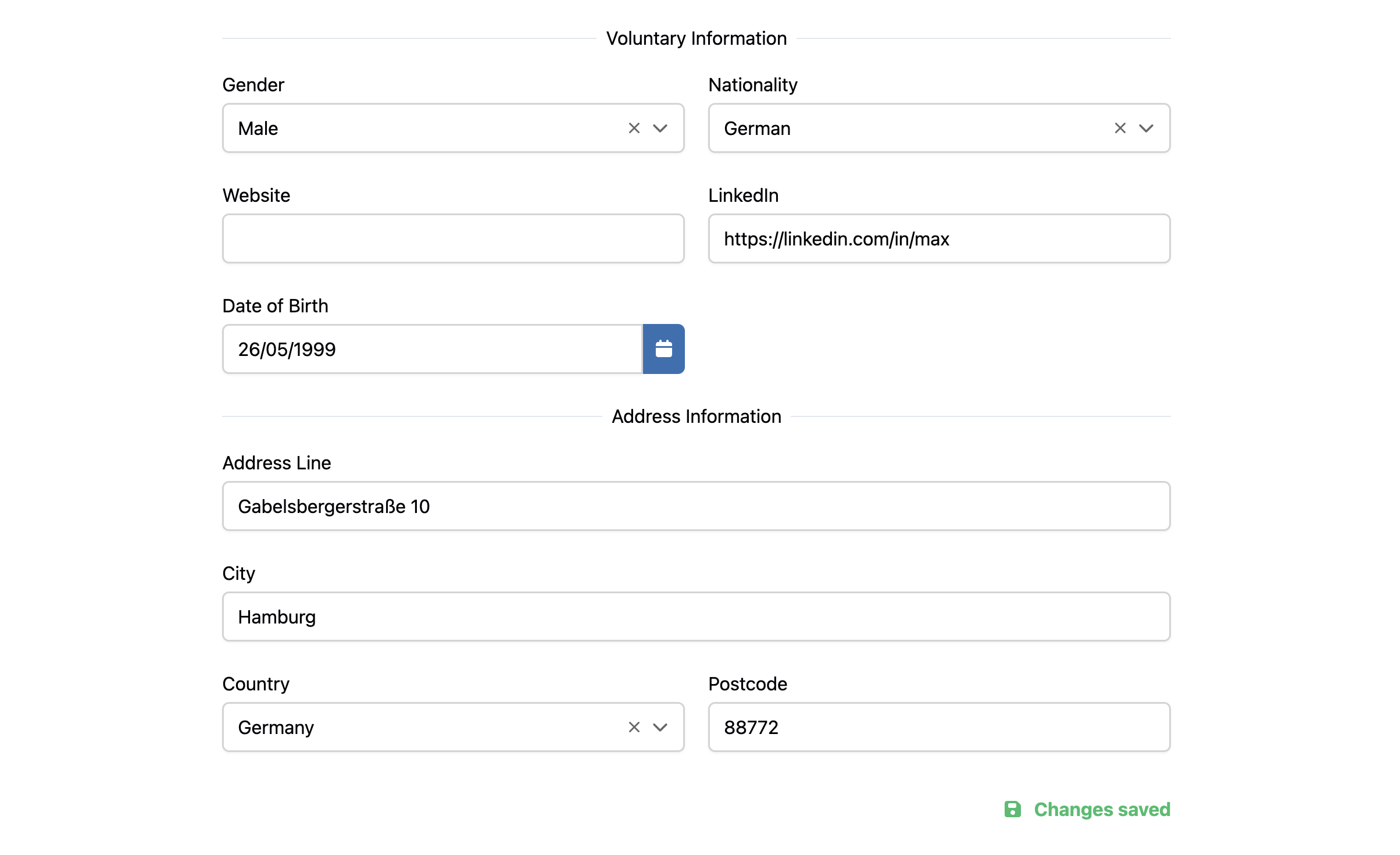
Changes are saved automatically and are intended to prefill future application forms, which reduces repeated data entry.
Changes in Settings affect your applicant profile and are used for future applications. Applications that have already been submitted are not updated retroactively.
CV Upload and AI Extraction
You can upload your CV directly in this tab. If AI features are enabled for your account, TUMApply can extract information from the CV and use it to help fill empty fields in your stored applicant profile.
Qualifications
The Qualifications tab stores reusable education-related data and supporting documents.
This includes:
- Bachelor degree information
- Master degree information
- Grades and grading-scale related data
- Transcript or degree documents
- Additional supporting documents such as references
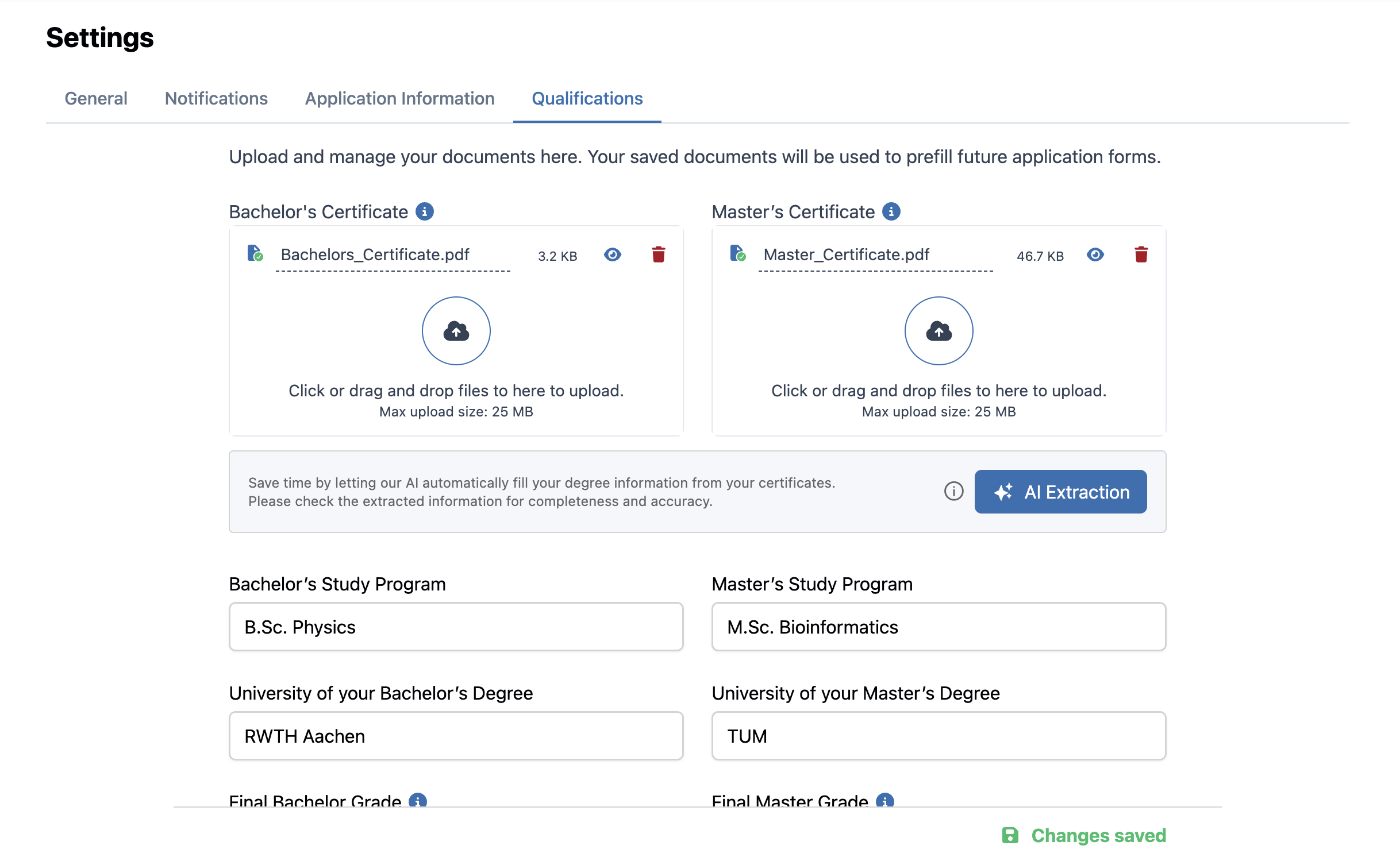
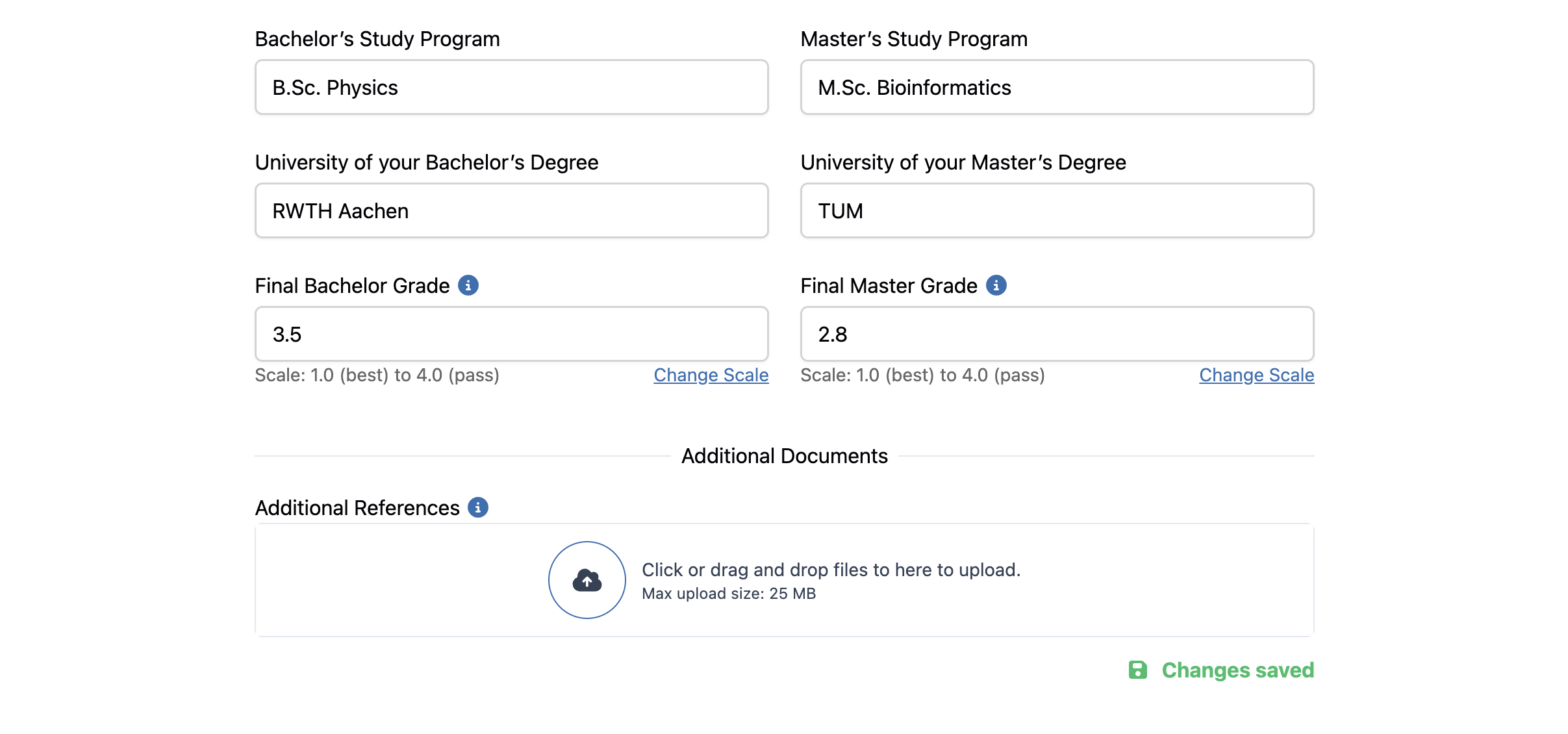
Like the Application Information tab, this data is meant to support future applications by keeping your qualifications ready in advance.
Recommended Workflow
For the smoothest application process, it helps to complete your settings before starting a new application:
- Add a profile picture if you want a personalized avatar
- Configure your email and subject-area notifications
- Fill in your Application Information
- Upload your CV and qualification documents
Once this is done, applying for positions becomes faster because important information is already available in your applicant profile.