Staying on Top of Your Applications: Your Personal Dashboard Guide
Welcome to your Application Overview page – your command center for managing all your doctoral applications at TUM! Think of this as your personal mission control where you can track, organize, and manage every application you've submitted or are working on. Whether you're applying to multiple positions or keeping tabs on a single dream opportunity, this dashboard keeps everything organized and accessible.
Getting to Your Dashboard
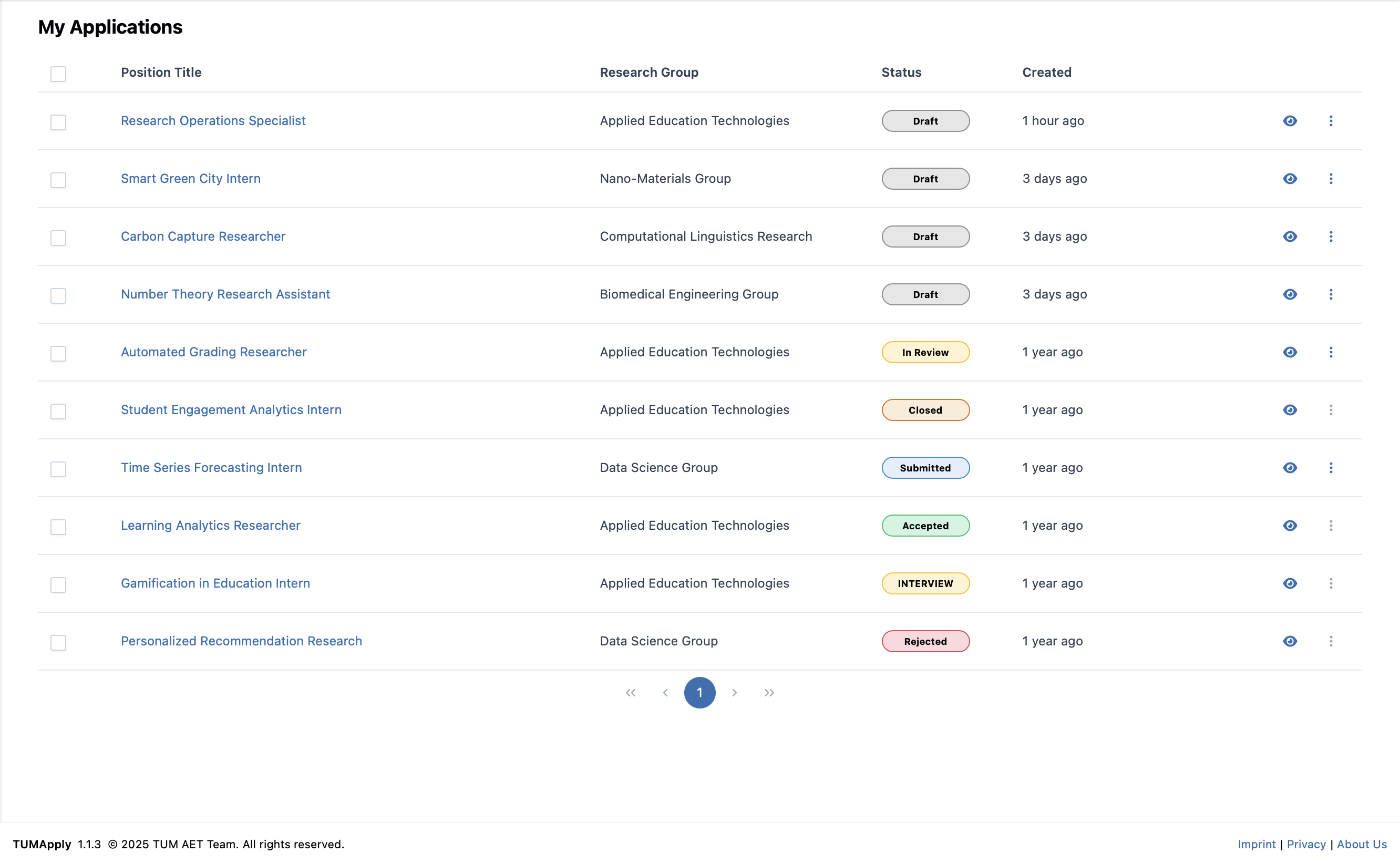
Your Application Overview is your home base in the TUMApply system:
- From anywhere in the portal: Click on "My Applications" in the main navigation
- After submitting an application: You're automatically redirected here to see your updated status
Understanding Your Application Overview Table
Your applications are displayed in a table with the following columns:
Table Columns
- Position Title: The name of the position you applied for (clickable link to the Job Details page)
- Research Group: The research group offering the position
- Status: Current state of your application (see status indicators below)
- Created: How long ago you created the application (relative time, e.g. "2 days ago")
- Actions: Available actions depending on the current application state
Application Status Indicators
- 🔵 Draft: Still working on it – you can continue editing anytime
- ⚪ Submitted: Application is complete and sent to the supervisor to be reviewed
- 🟡 In Review: The supervisor has opened and is evaluating your application
- ⚪ Interview: You have been added to the interview process
- 🟢 Accepted: Congratulations! You've been offered the position
- 🔴 Rejected: Unfortunately, this one didn't work out
- ⚫ Withdrawn: You've chosen to withdraw from this position
- ⚫ Closed: This job position was closed by the professor
Taking Action on Your Applications
Each row in the table has a View button and an Actions menu (⋮) with context-dependent options:
For Draft Applications
- View: Preview your application in a read-only format
- Edit: Jump back to where you left off in the application form – all previous work is automatically saved
- Delete: Permanently remove the draft and all associated documents (cannot be undone)
For Submitted / In Review Applications
- View: See your complete submitted application in a read-only view, including all uploaded documents
- Withdraw: Remove yourself from consideration – notifies supervisors immediately (cannot be undone)
For Accepted / Rejected / Withdrawn / Closed Applications
- View: See your complete application details in read-only mode
Pro Tips for Success
Smart Application Management
- Check regularly: Visit your dashboard at least weekly to catch updates
- Prioritize drafts: Focus on applications with the nearest deadlines first
- Keep documents current: Update your CV and transcripts across all applications if you get new achievements
- Set personal deadlines: Submit applications a few days before the official deadline
Organization Strategies
- Monitor submission patterns: Track when you submitted applications to plan follow-ups
- Clean up regularly: Delete draft applications you're no longer pursuing
Understanding the Process
Typical Application Journey
- Draft Creation: Start your application and save progress
- Document Upload: Add all required materials
- Review & Submit: Final check and submission
- Supervisor Review: Supervisor evaluates your application
- Interview: You may be invited to an interview
- Outcome: Acceptance or rejection
What Happens After Submission
- Supervisor notification: Your application appears in their review queue
- Status tracking: Updates as your application progresses through the review stages
Your Application Overview page is designed to reduce stress and keep you informed throughout the entire process. By staying organized and engaged with your dashboard, you'll never miss an important update or deadline. Remember, applying for doctoral positions is a journey – this dashboard is your trusted companion along the way!