App Admin
The App Admin role (app_admin) manages the application for its people:
users, teams and keys. An App Admin does not change the platform-level
settings (providers, policies, billing, agent sessions). These settings stay
with the Logos Admin. On the identity provider, an account
becomes an App Admin if the account has the OIDC role that is configured in
KEYCLOAK_ROLES_APP_ADMIN (see the
installation guide).
The UI shows the role badge "App Admin" in the header menu.
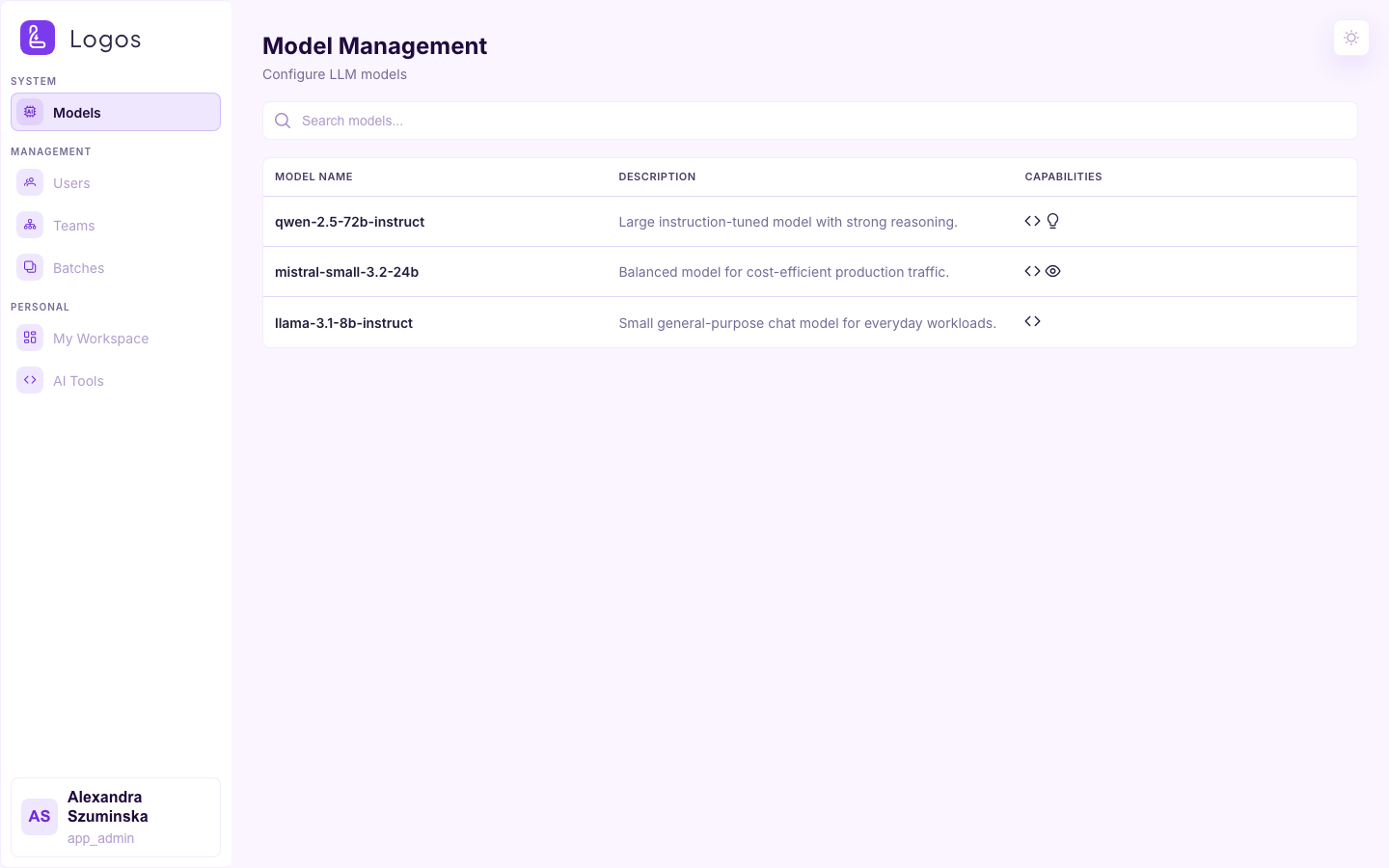
Models
This page shows the model catalogue of the deployment: the name, the description and the capabilities of each model. App Admins see the list. They do not see the operator controls for each model (weights, aliases, add and delete).
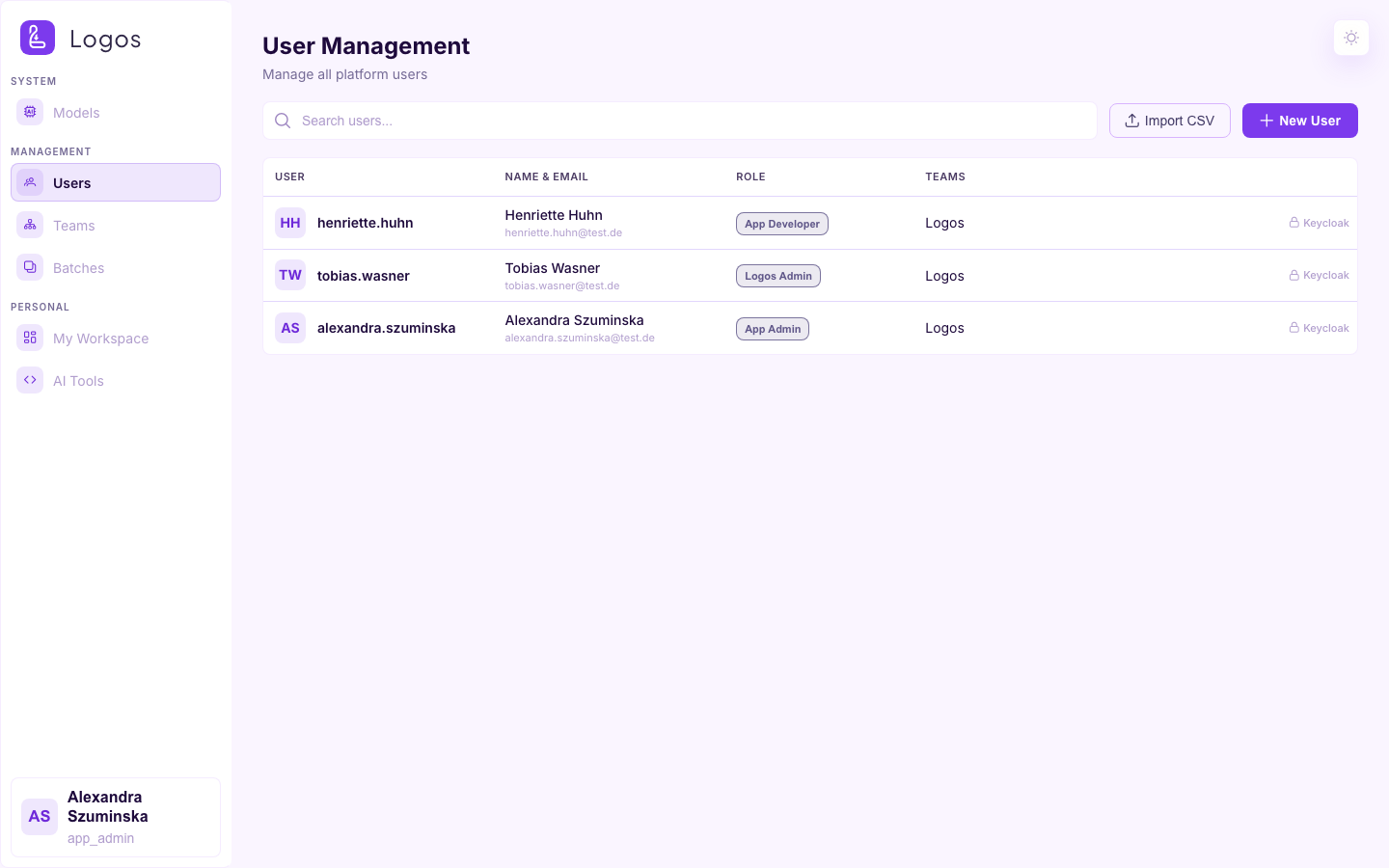
Users
This page shows the users of the deployment, with their role, teams and status. An App Admin can create users and assign them to teams. An App Admin can create only App Developers, and no higher roles.
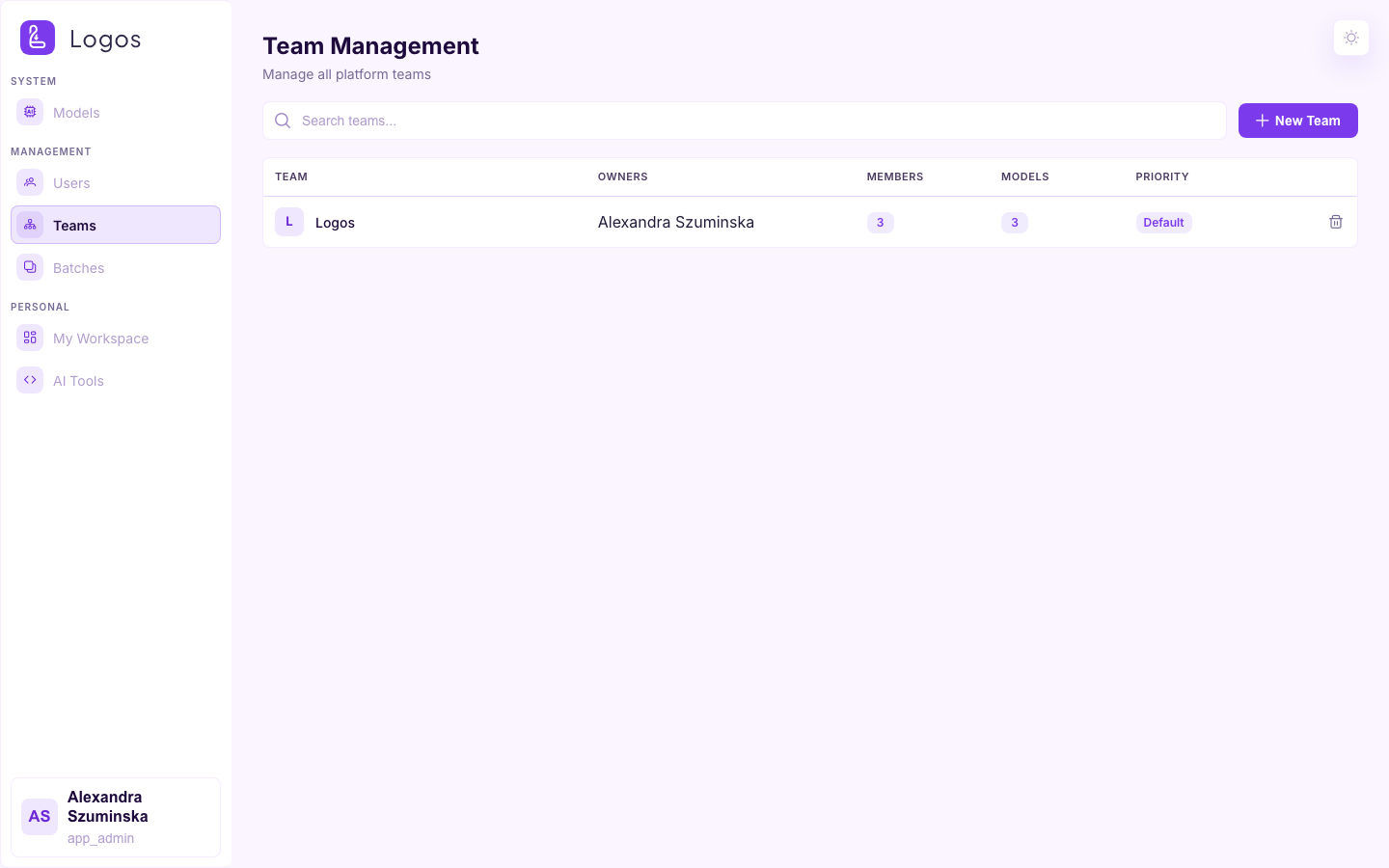
Teams
This page shows the teams, their owners and their members. For the teams that they own, App Admins can create teams, add members and manage the API keys of the team.
When you open a team, the page shows the detail view of the team. Owners and Logos Admins see all the tabs that follow. Other members see only Overview and Members.
Overview
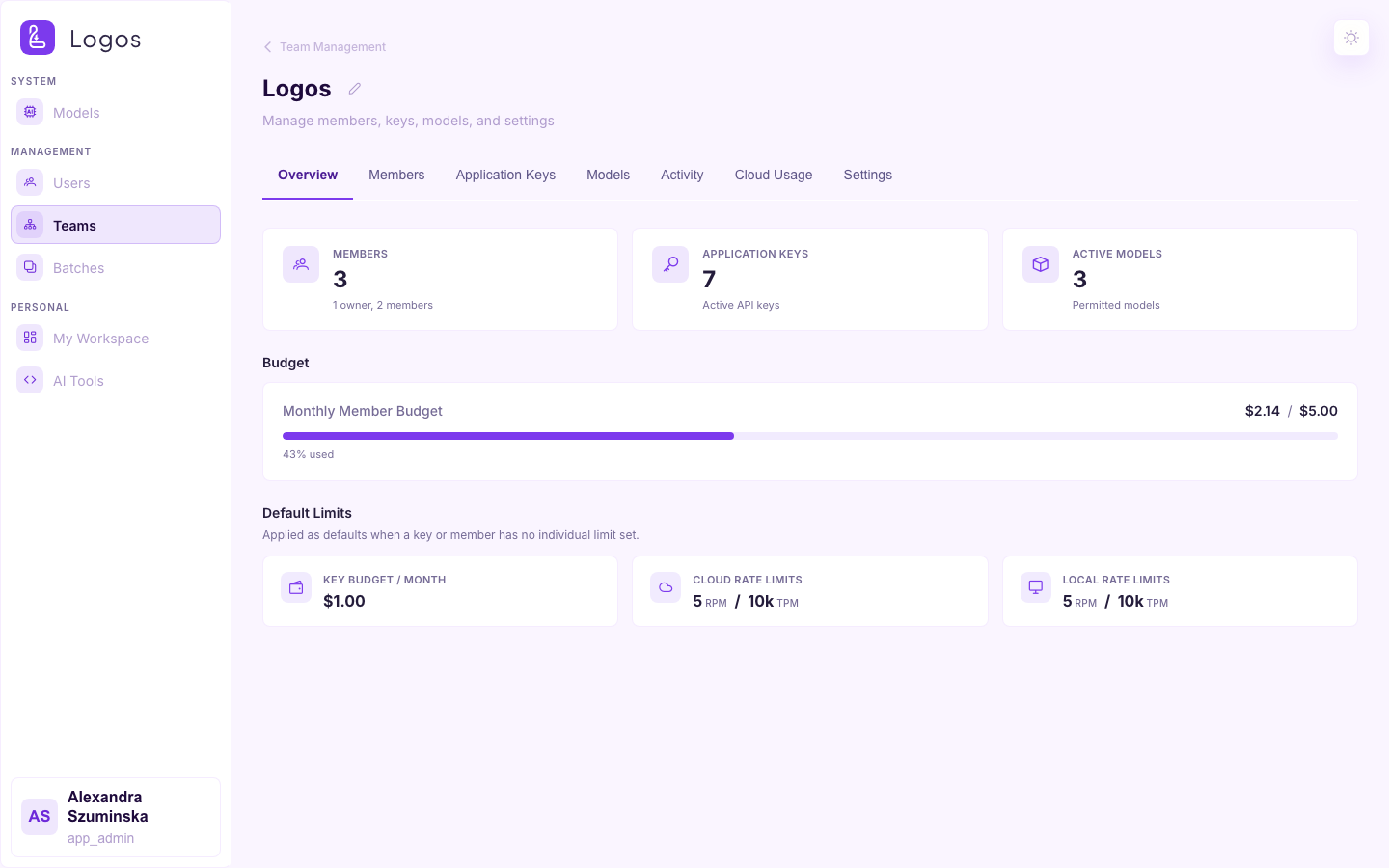
This tab shows the number of members, the active keys, the permitted models and the budget use of the members. It also shows the defaults that apply when a key or a member has no individual limit.
Members
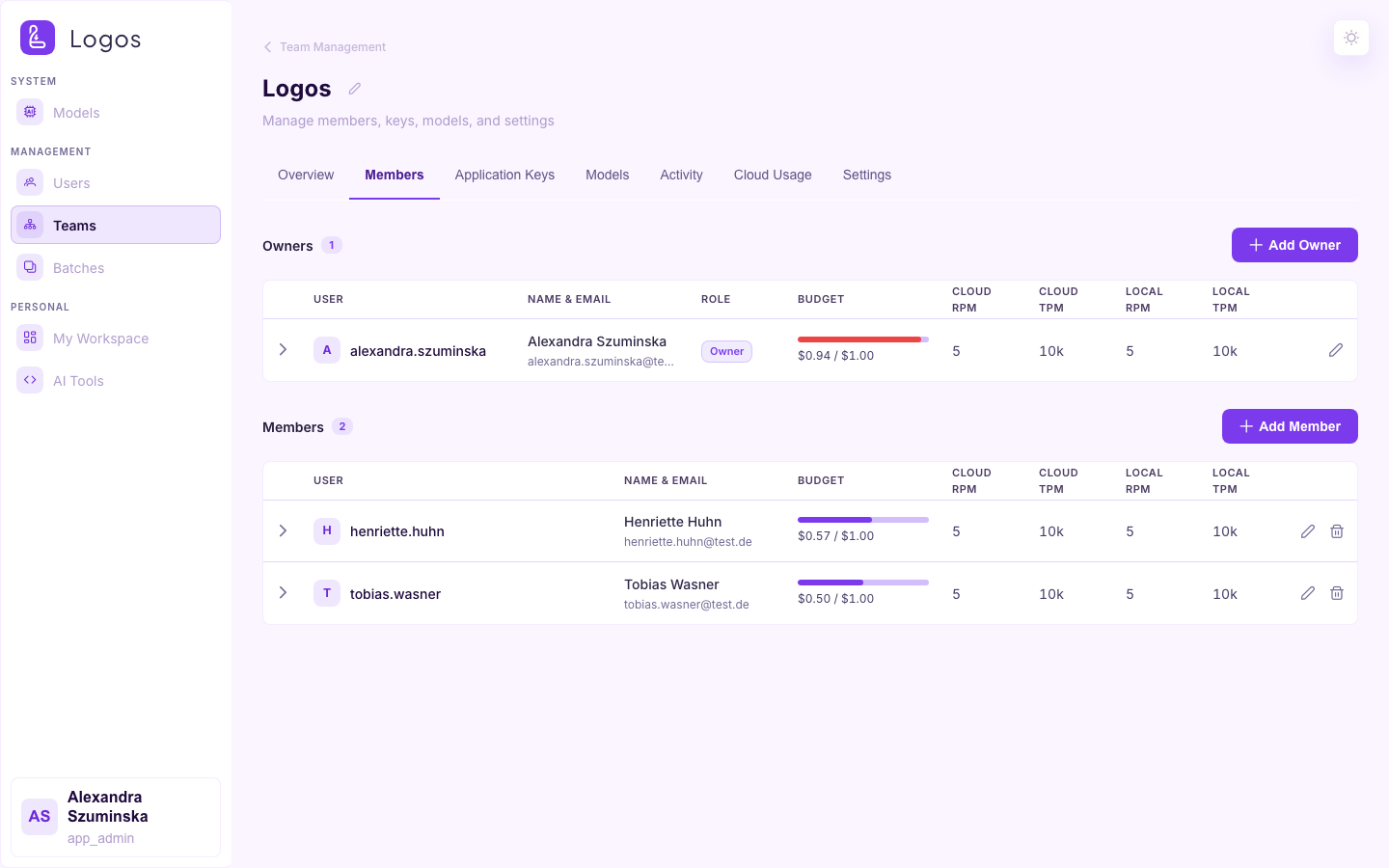
This tab shows the owners and the members, with budget and rate-limit overrides for each person. Add or remove people here. If a Keycloak group is linked to the team, then you cannot remove the members that Keycloak added. Logos makes these members agree with the group at each login.
Application Keys
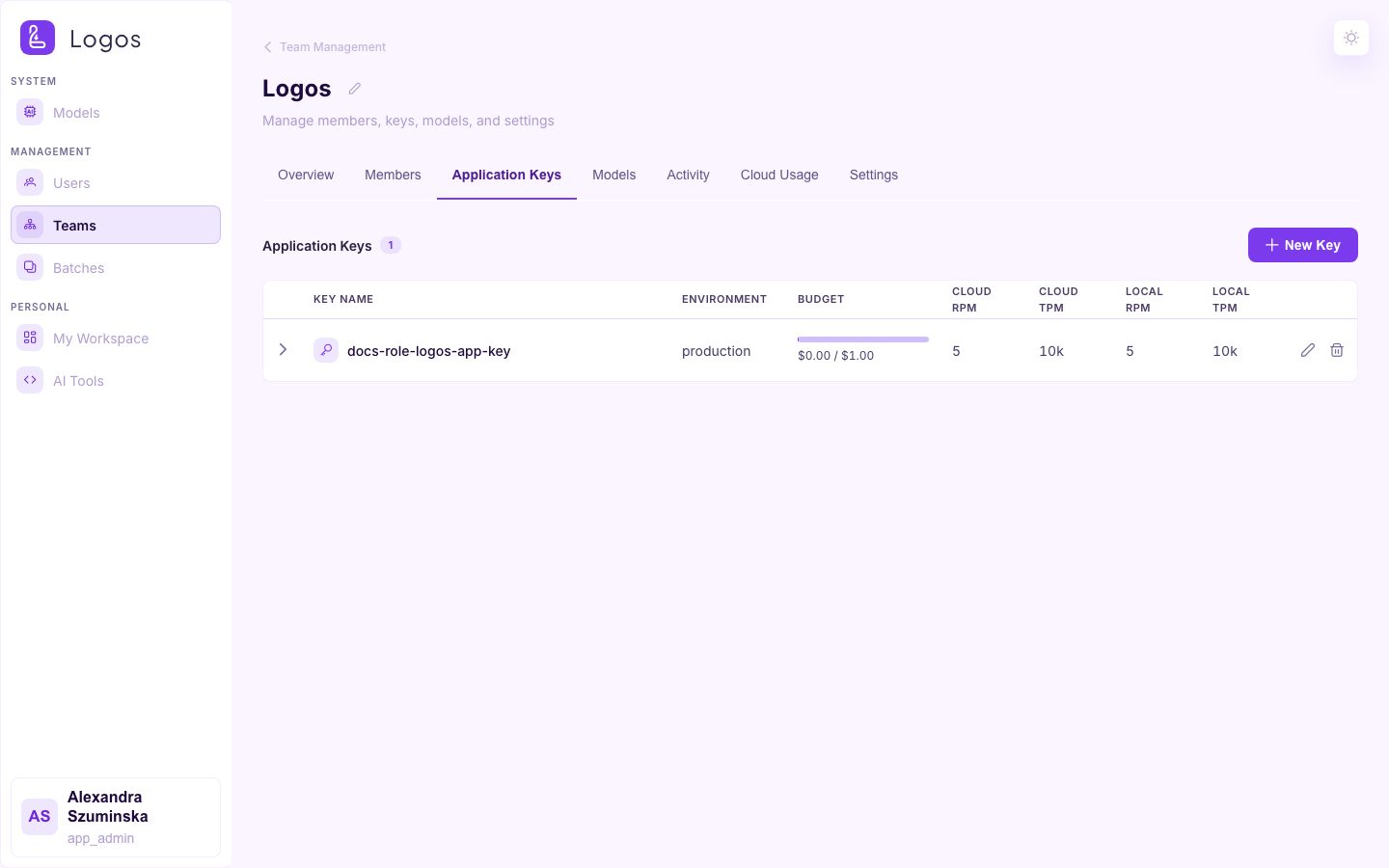
This tab shows the application (service) keys of the team. You can create, rotate and revoke keys. You can also set limits and model permissions for each key.
Repositories
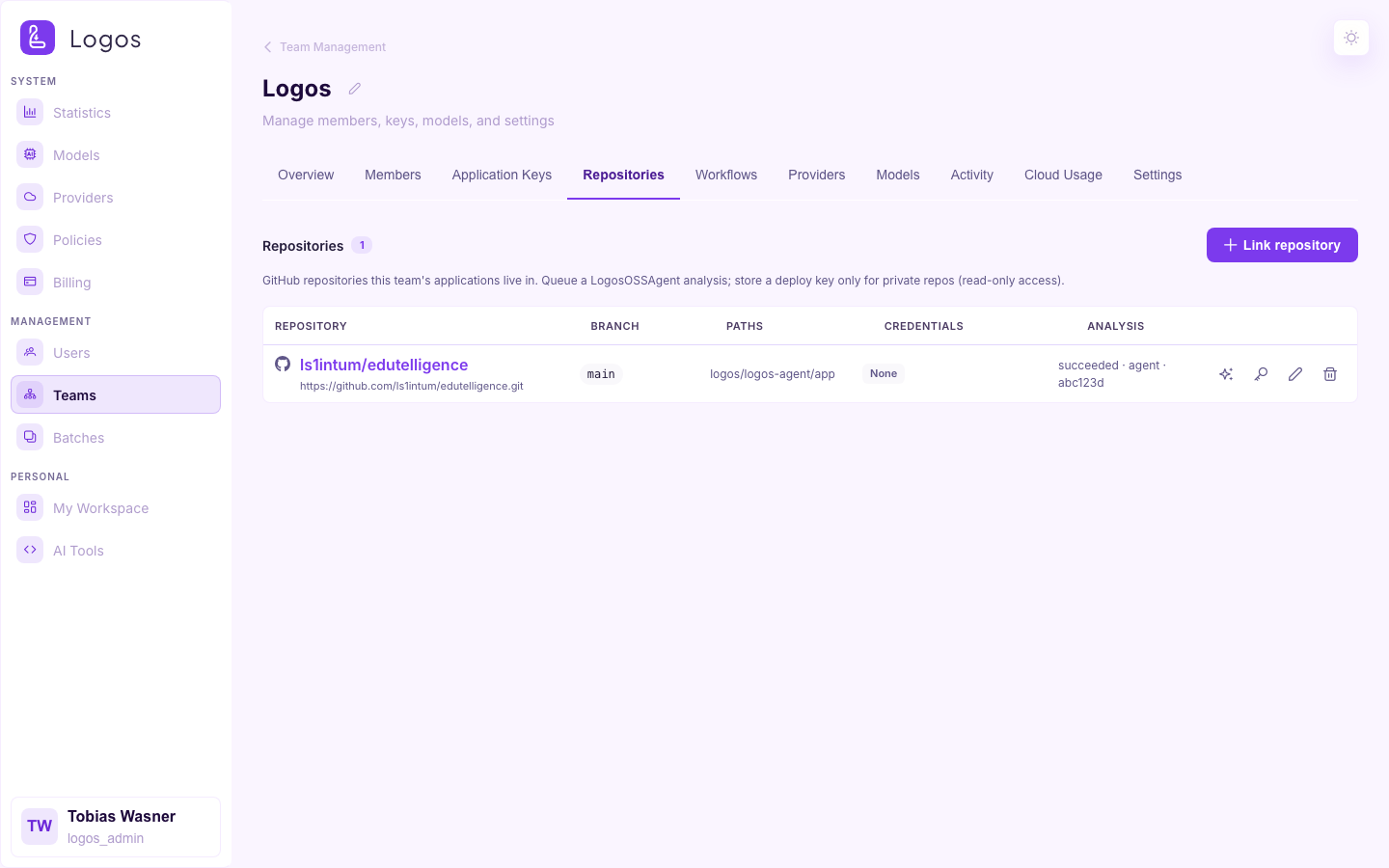
This tab shows the GitHub repositories that contain the applications of the team. Owners link a repository URL, a branch and optional path filters. For private repositories, owners can paste a read-only deploy key. LogosOSSAgent finds a newly linked repository automatically within a few minutes. To start an analysis sooner, queue it on the same tab. You can queue only one analysis at a time. Logos refuses a second request while an analysis is queued or runs. Each night, LogosOSSAgent analyzes again each repository whose branch has new commits. It does not analyze a repository that has no change.
Workflows
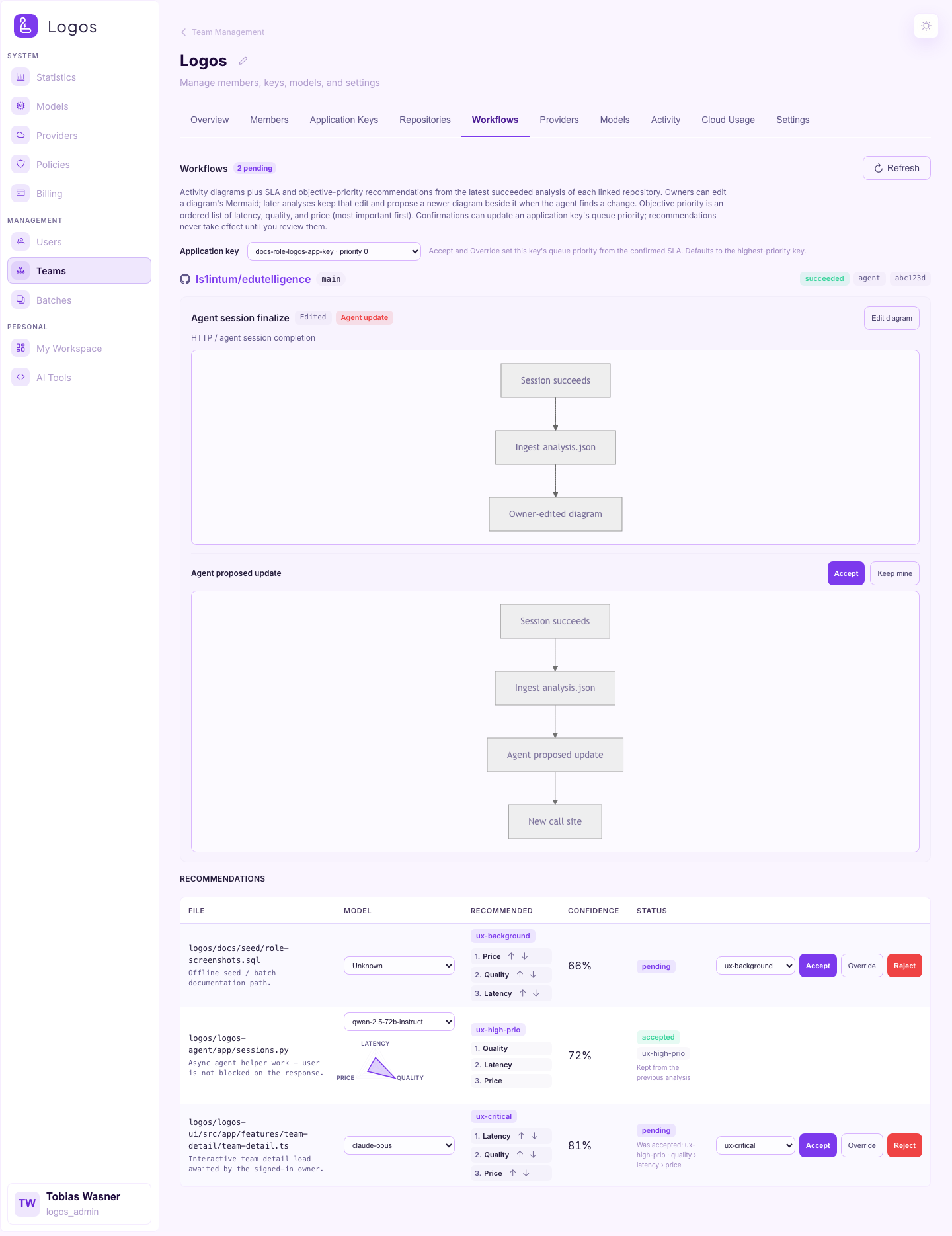
This tab shows the latest AI-workflow analyses for the linked repositories of the team. It shows Mermaid diagrams of the flows that the analysis found. It also shows recommendations for each call: the SLO and the objective priority (the order of latency, quality and price). Owners and Logos Admins can edit the Mermaid diagram of a workflow. Later analyses keep that edit. If the agent draws a different diagram, the tab shows an Agent update next to the edit. Then you can select Accept for the proposal or Keep mine. Owners can also Accept a recommendation, Override the SLO or the priority order, or Reject the recommendation.
The Application key picker above the recommendations applies to every Accept and Override on the tab. The default is the key of the team with the highest priority (usually the production key). If you select No key, the key priorities do not change. When you accept or override a recommendation, Logos sets the queue priority of that key from the confirmed SLO. Thus the orchestrator serves the traffic as the SLO requires.
A new analysis proposes changes and does not overwrite your decisions. If it recommends what you already accepted, overrode or rejected for a call site, Logos keeps your decision ("Kept from the previous analysis"). If it recommends something different, the call site is pending again. The tab then shows the earlier decision next to the new proposal ("Was accepted: ux-critical · latency › quality › price"). The key priorities change only after you review the proposal. A decision stays valid through analyses that you did not review. The tab shows the earlier decision, and Logos carries it over. If a newer analysis arrives while the tab is open, Logos refuses the review of an outdated proposal. Then reload the tab.
The analysis often cannot find which model a call site uses, because this information is usually in the configuration and not in the code. Thus the Model column is a picker. Select the model that the call site uses, or leave the value Unknown. Later analyses keep your selection. If the model has Likert profile ratings, the tab shows a spider chart next to it.
Models
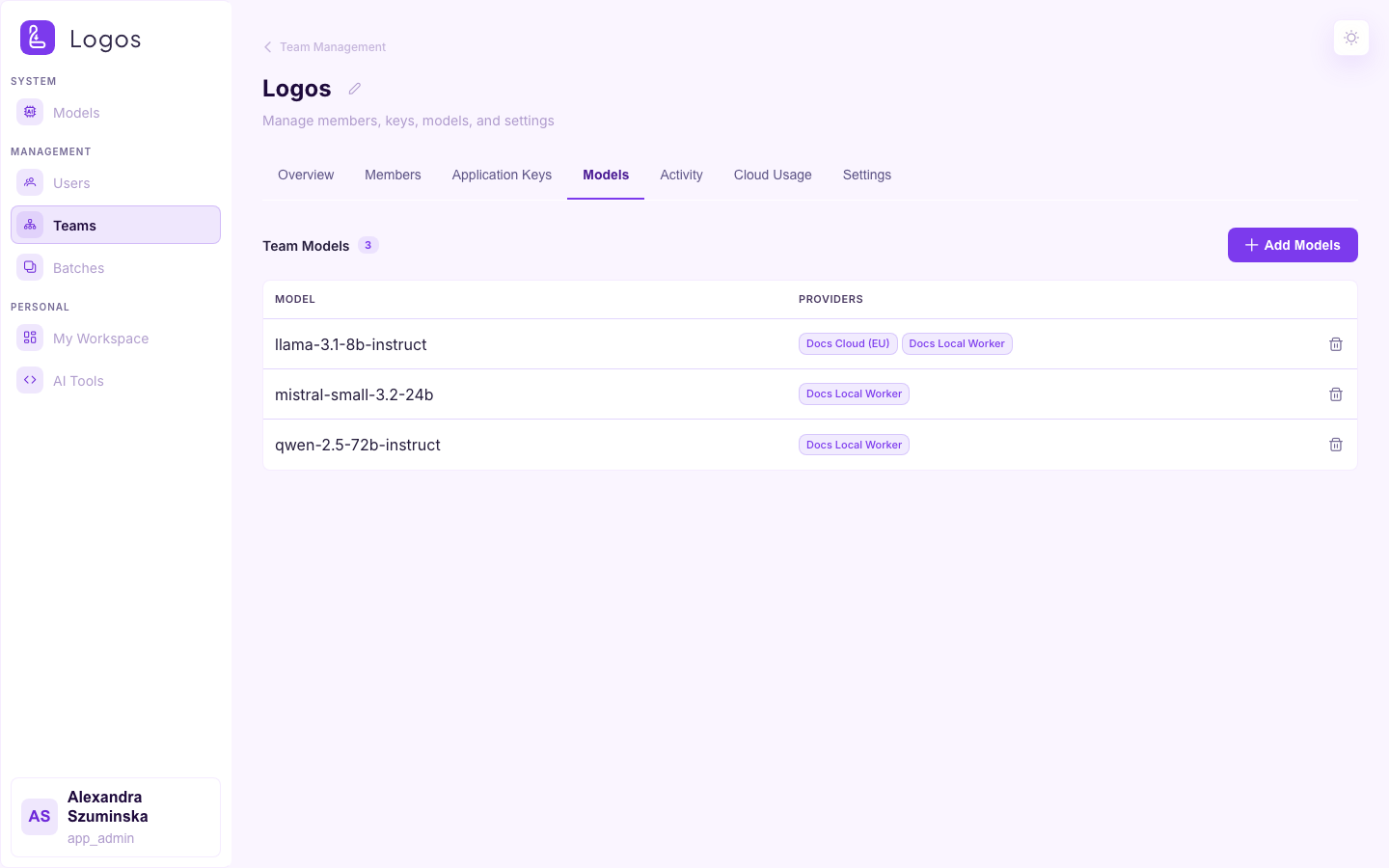
This tab shows which catalogue models the team can use.
Activity
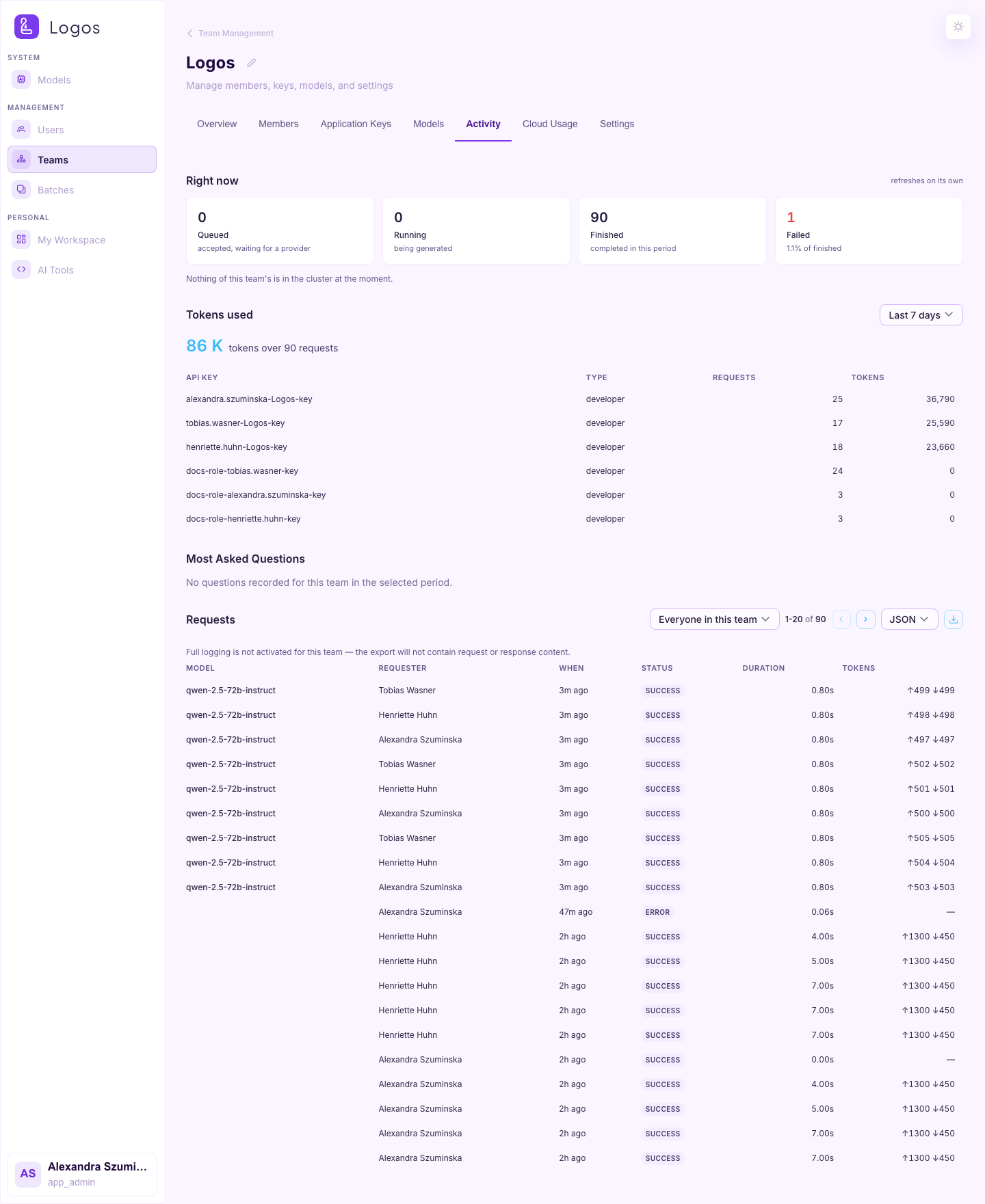
This tab shows the live queue state of the team, the recent request log, the token totals and the export function.
Cloud Usage
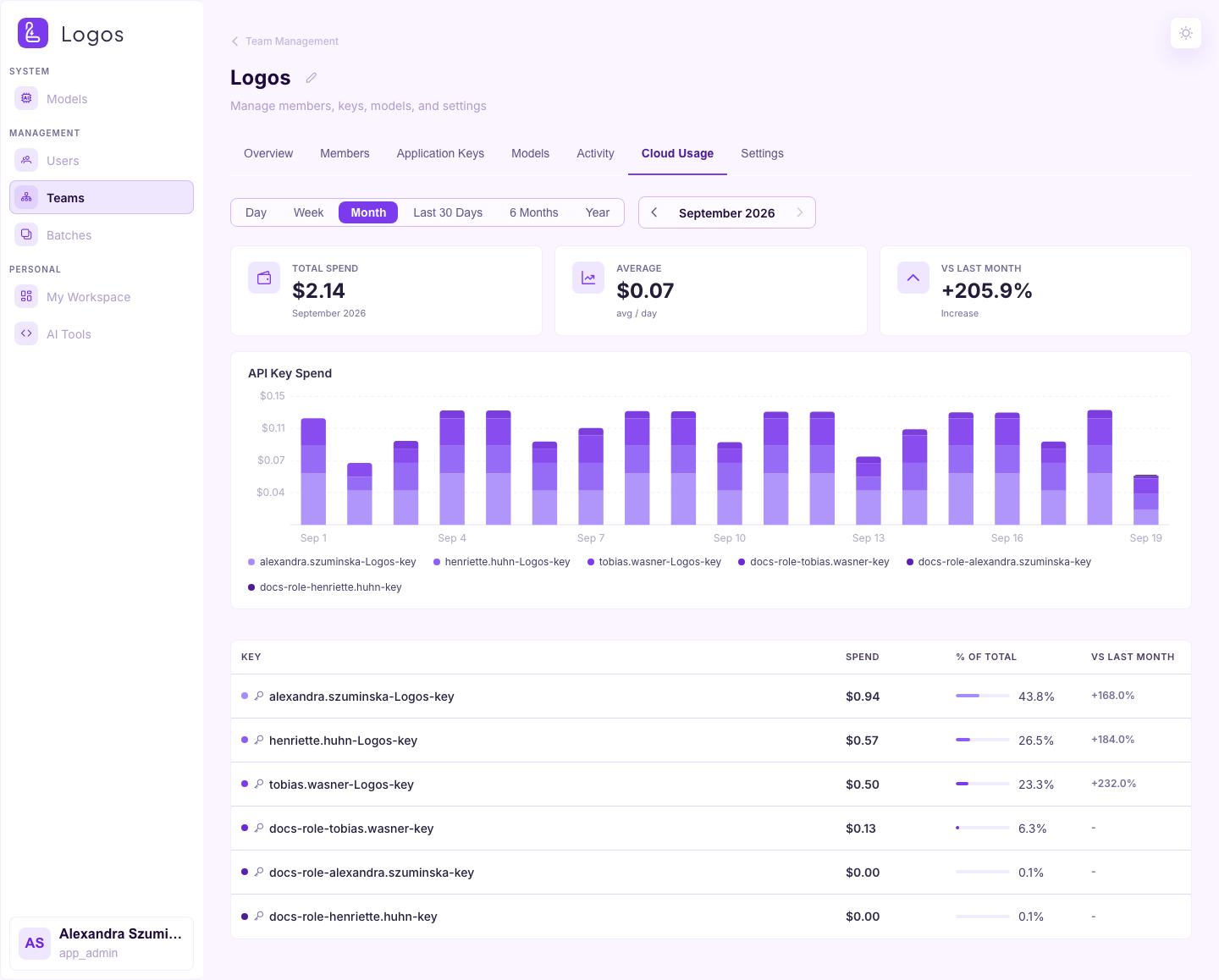
This tab shows the charges of the cloud providers for the off-site traffic of the team. Local models do not show here. For local models, see Activity.
Settings
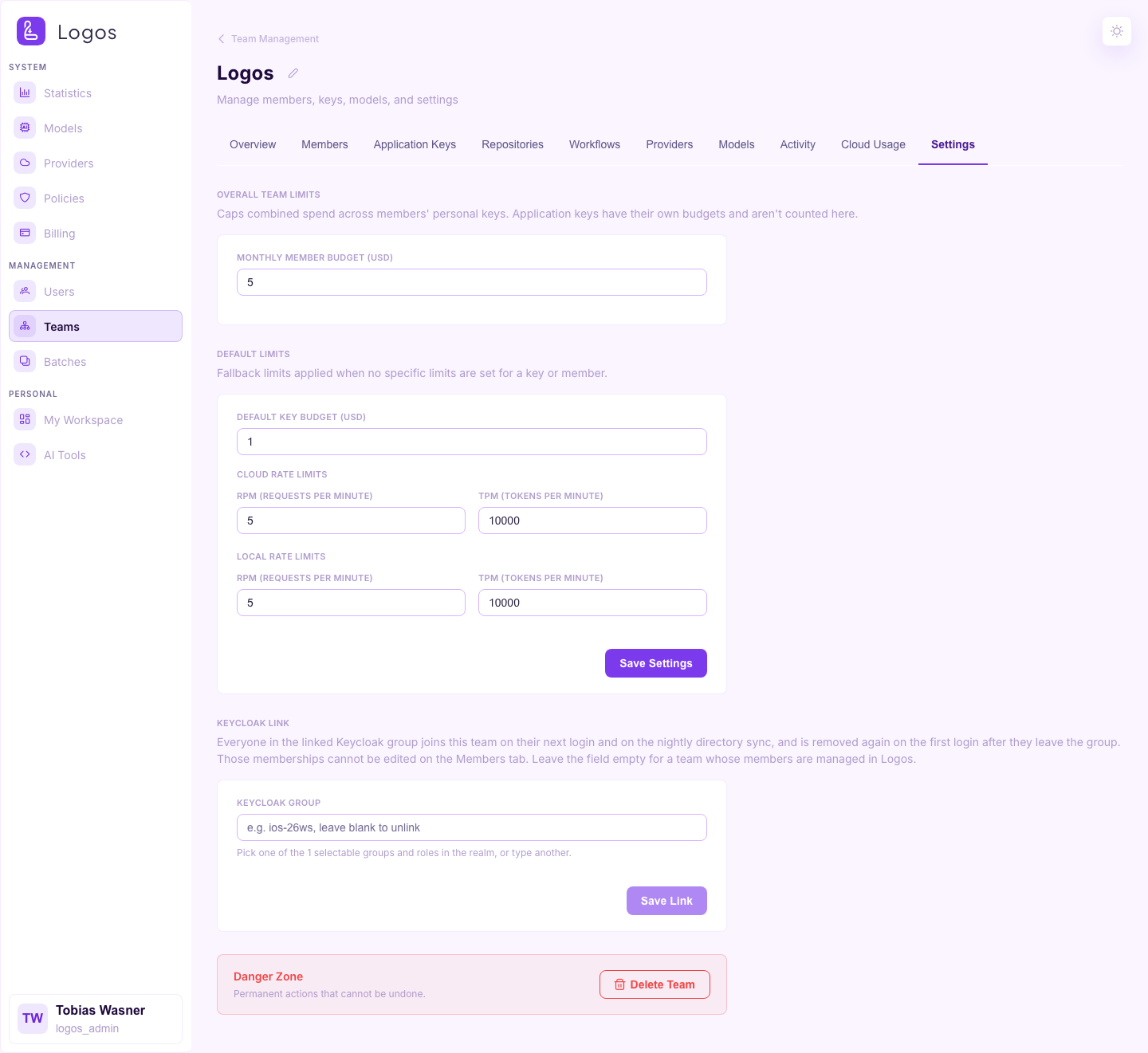
This tab shows the monthly budget of the team, the default key budget and the default cloud and local rate limits. An owner can also delete the team here. If a Keycloak group is linked to the team, then the tab shows the name of the group and no delete control. Only a Logos Admin can change or remove the link. See Logos Admin → Keycloak Group Links.
My Workspace
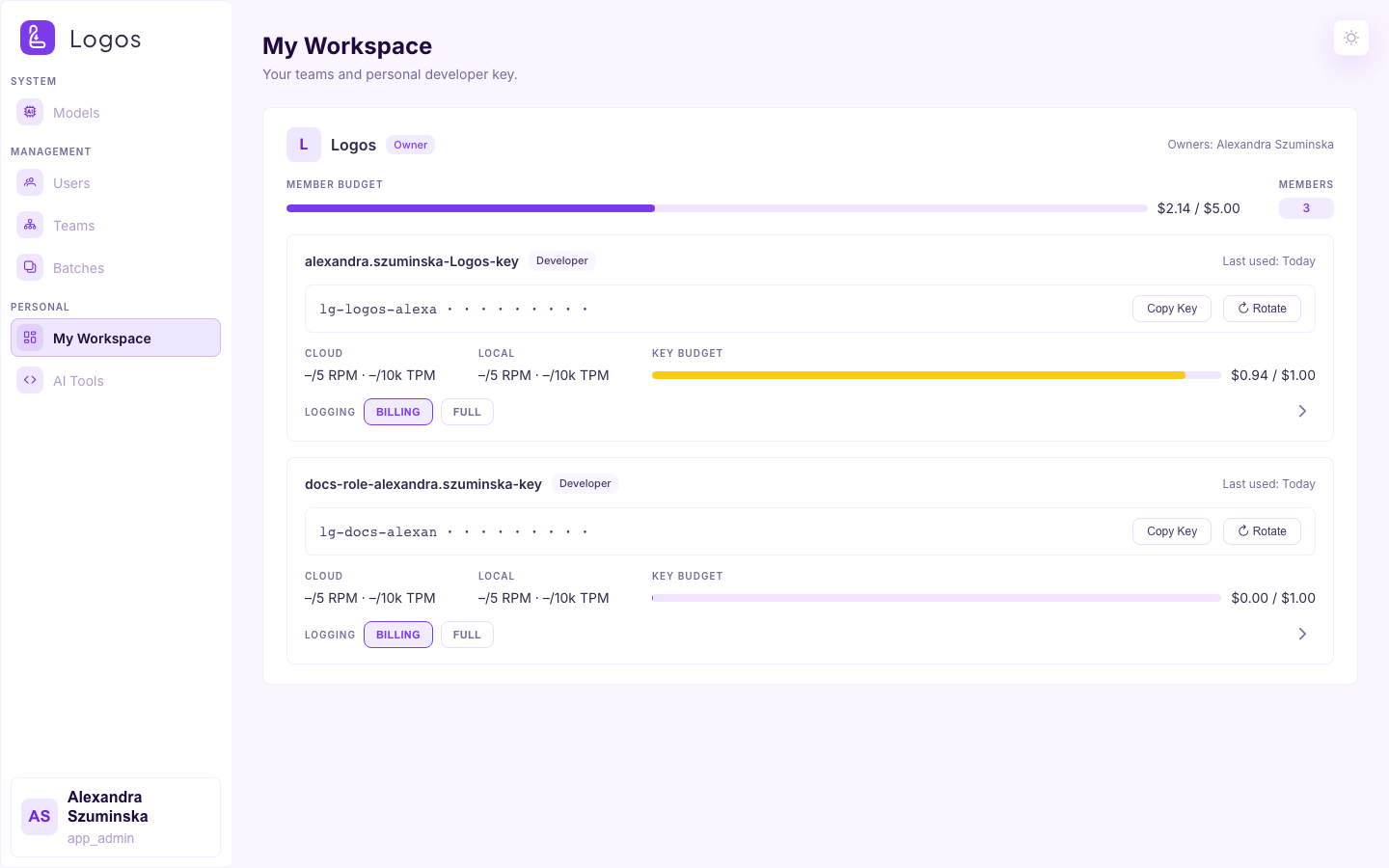
This page is the developer view of the signed-in user. It shows the teams of the user and the API keys of the user. You can create, rotate and revoke keys. You can also set model permissions for each key. Every role that has at least one team and one key can use this page.
AI Tools
This is the same guided setup as for every other role. Select a coding assistant, a team key and a model. Then install the assistant and connect it. The page does not change with the role. For the step-by-step procedure, see App Developer → AI Tools.
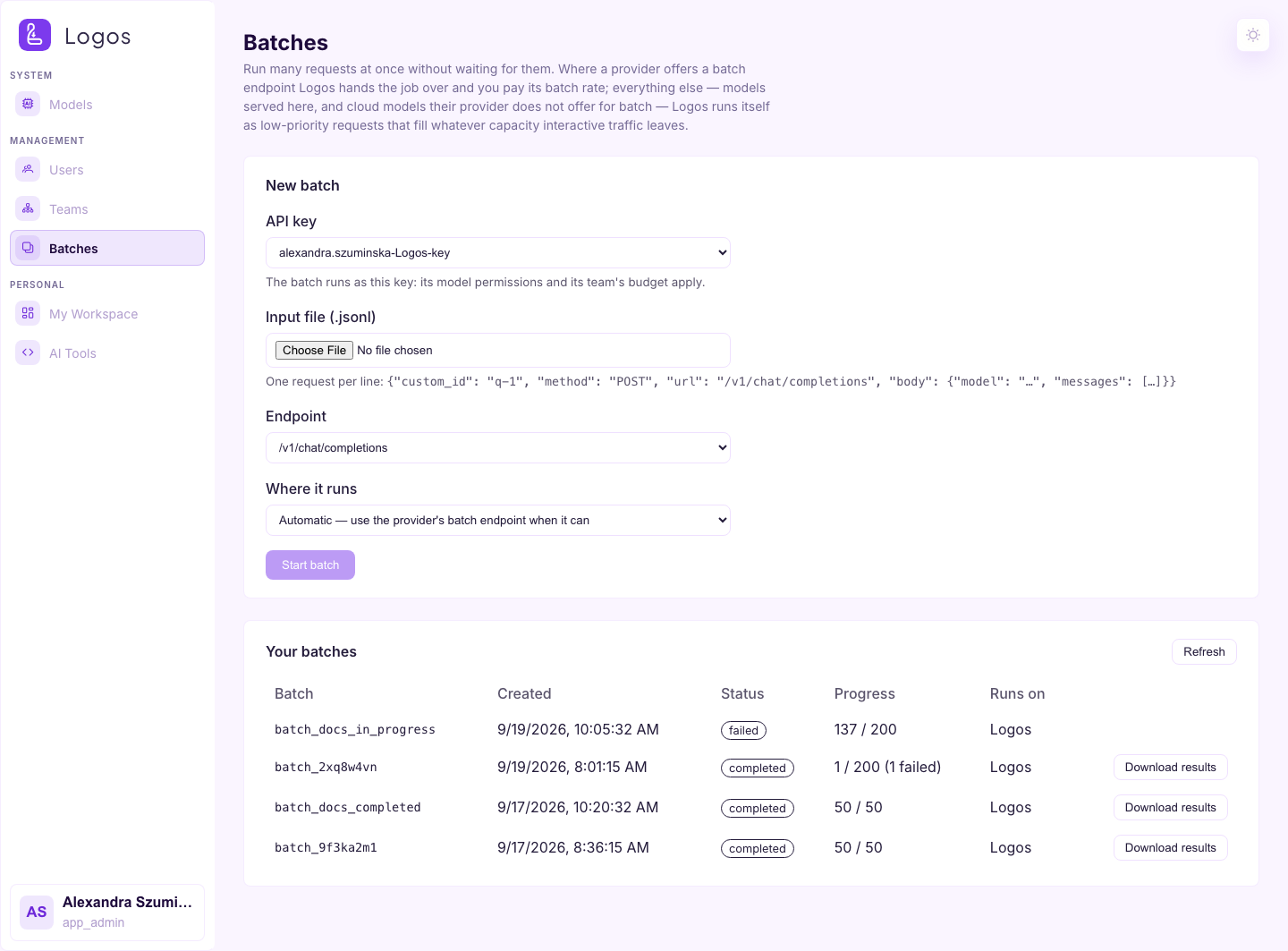
Batches
This page is the OpenAI Batch API in the browser. Upload a .jsonl file, look
at the progress of the job and download the result file. For the server-side
process, see batch processing. The page is the same
for every role that can open it (App Admin and Logos Admin).