Getting Started
Welcome to Iris, your AI-powered virtual tutor inside Artemis. This page walks you through the initial setup and helps you find Iris across the platform.
Choosing Your AI Experience
The first time you encounter Iris in a course, you will be asked to choose your preferred AI experience. You can change this at any time in your account settings.
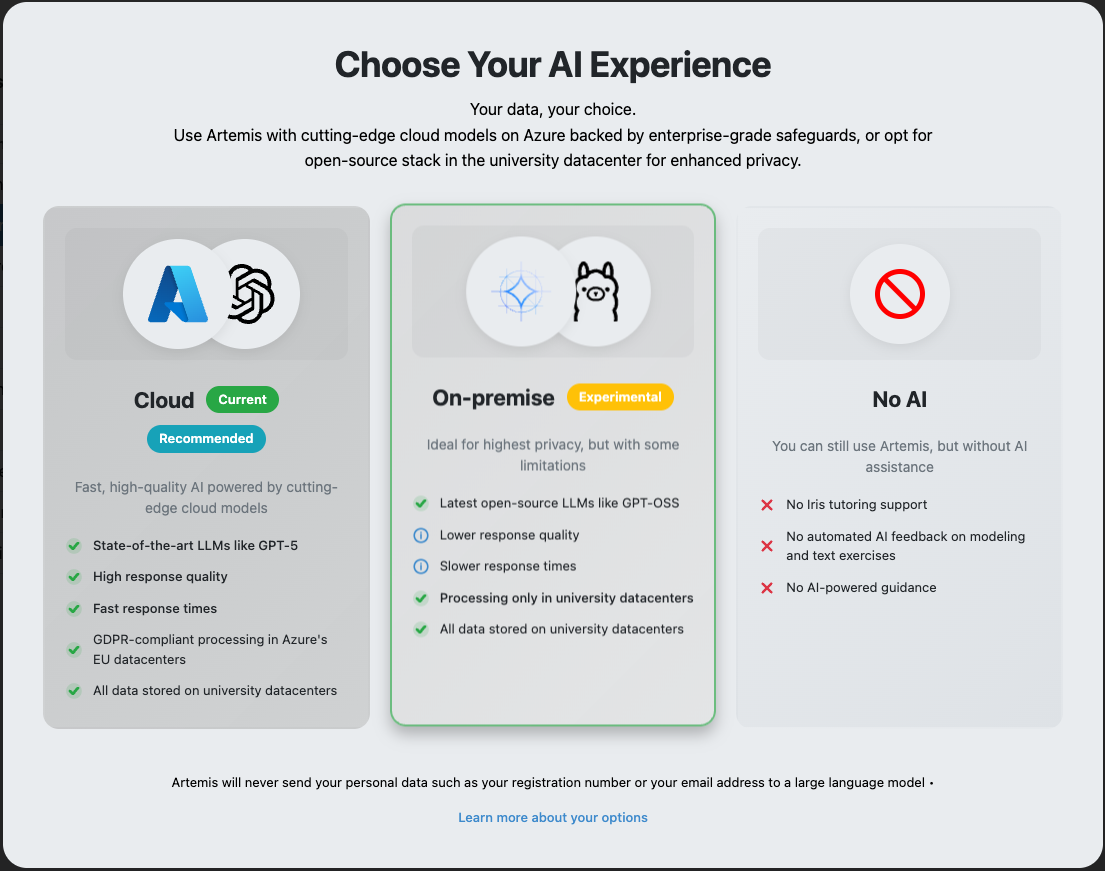
Cloud (Recommended)
Uses cloud-hosted language models (such as GPT-4o) via European Azure servers with a data processing agreement in place. This option generally offers higher response quality and more advanced reasoning capabilities. Your data is not used for model training. The exact cloud provider may vary depending on your institution's deployment.
On-Premise (Experimental)
Uses an open-source model running entirely on your institution's own infrastructure. No data leaves the university network. This is ideal if maximum data locality is important to you, but be aware that response quality may be lower compared to cloud models.
No AI
Opt out of AI-powered features entirely. You will not see Iris chat interfaces in your courses. You can switch back to Cloud or On-Premise at any time.
Not sure which to pick? Start with Cloud for the best experience. You can always switch later.
Where to Find Iris
Iris must be enabled by your instructor for a given course and requires that you select Cloud or On-Premise AI features before it appears. Once both conditions are met, you can open Iris from several places in Artemis:
| Location | How to Open |
|---|---|
| Course sidebar (Web) | Click the Iris entry in the course sidebar |
| Exercise page (Web) | Floating Iris icon (bottom-right) while working on an exercise |
| Lecture page (Web) | Floating Iris icon while viewing a lecture |
| Artemis iOS App | Tap the Iris icon within a course, lecture, or exercise |
These are entry points into the same kind of chat, not into separate kinds. What differs is the active context — the lecture or exercise a chat is currently about, which decides what material Iris can draw on. Opening Iris from a lecture or an exercise page offers that page as the context, and you can change it at any time without losing the conversation.
See The Iris Chat for the chat itself and Chat Context for how contexts work.
Your First Interaction
- Open a chat — navigate to a course and click on the Iris icon or open the course chat from the sidebar.
- Type your question — be as specific as you can. For example, "Can you explain the difference between a stack and a queue?" works better than just "Help me."
- Read the response — Iris places citation markers inline, beside the sentences they support, linking back to lecture slides or other course materials. Hover over one to see the source.
- Follow up — use the follow-up suggestion buttons below the response, or type a new question to continue the conversation.
Check out Tips for Effective Use for more advice on getting the most out of Iris.
Iris on the iOS App
Iris is also available in the Artemis iOS App, providing the same AI tutoring and context-aware capabilities on iPhone and iPad.
When you first open a course with Iris enabled, you will be prompted to choose your AI experience just like on the web. You can chat with Iris, manage active contexts, and ask questions about lectures and exercises on the go.
Next Steps
- The Iris Chat — where to open Iris, citations, and chat history
- Chat Context — how the active context shapes the answers you get
- How Iris Helps You Learn — understand the pedagogical approach behind Iris