Course Chat
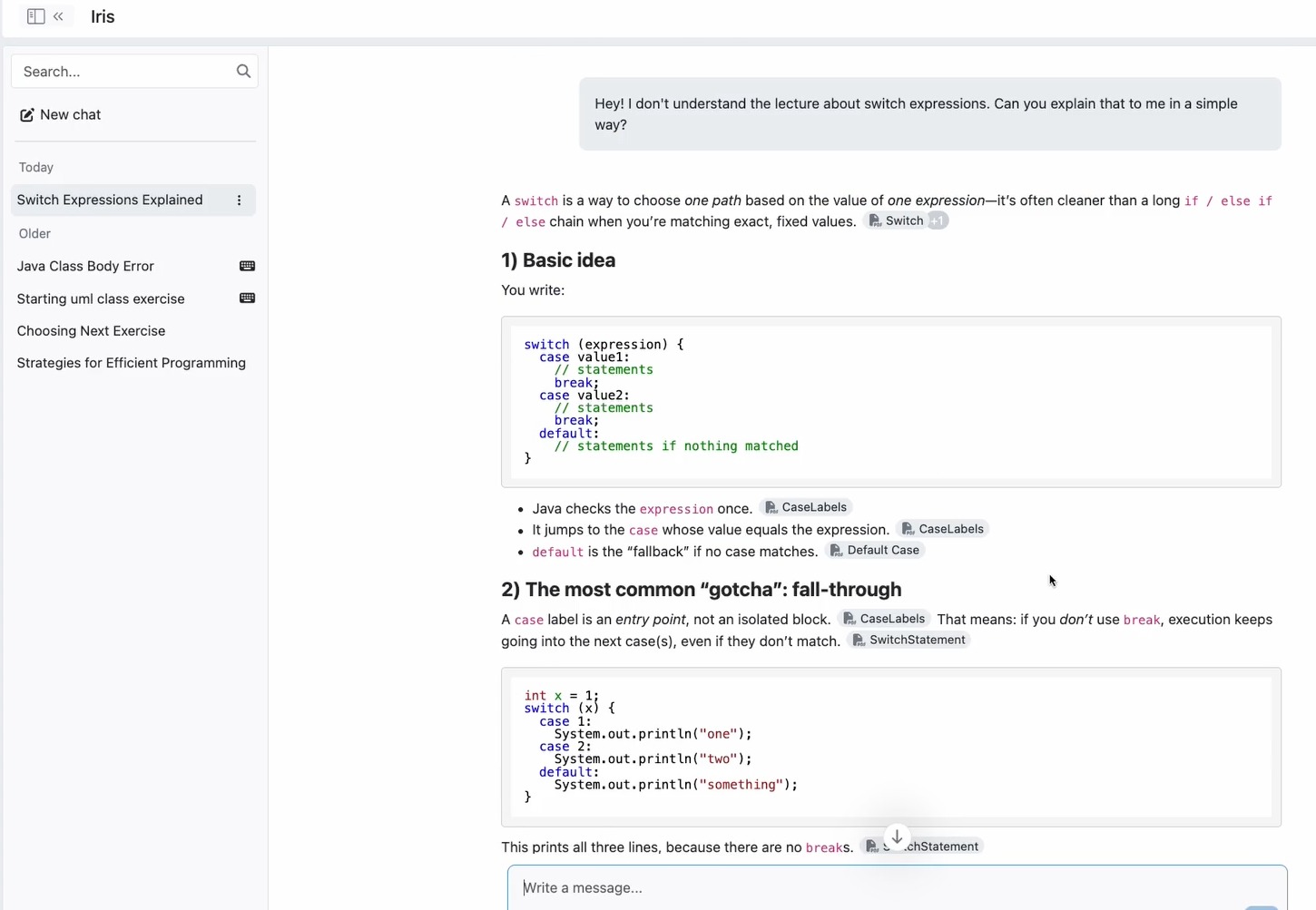
The Course Chat is your general-purpose assistant for an entire course. Whether you have a question about a lecture concept, need a topic explained differently, or want to explore related ideas, this is the place to start.
How to Access It
Open the course sidebar in Artemis and click on the Course Chat entry. The chat opens as a panel where you can start typing questions right away.
What Iris Knows
In Course Chat, Iris has access to:
- Lecture slides and transcripts — all lectures that have been uploaded to the course
- Course FAQs — frequently asked questions curated by your instructors
- General course topics — concepts covered in the course syllabus and materials
This means you can ask about anything covered in the course without having to specify which lecture or exercise you mean — Iris searches across all available materials.
Citations
When Iris draws on specific course content, you will see small numbered citation markers in the response (for example, [1], [2]). Hover over a citation to see which lecture slide, video segment, or FAQ entry it came from. For more details on how citations work, see How Iris Helps You Learn.
Example Use Cases
- "What is the difference between supervised and unsupervised learning?" — Iris explains the concept using your course's lecture content.
- "Can you summarize the key points from the lecture on recursion?" — Iris retrieves relevant slides and provides a summary.
- "I don't understand the observer pattern. Can you explain it with a simple example?" — Iris explains the concept and may cite the specific lecture that covered it.
- "What topics were covered in last week's lecture?" — Iris can search across all available lecture materials to find the answer.
Course Chat is best for conceptual questions about the course material. If you need help with a specific exercise you are working on, use the Exercise Chat instead — it can see your code and build results.
Chat History
Course Chat keeps a history of your past conversations, organized by date in the sidebar. You can:
- Resume a previous conversation by clicking on it in the sidebar.
- Start a fresh conversation by clicking the pen icon at the top of the chat.
Starting a new chat is useful when you want to change topics, since Iris uses the conversation history to understand context.
Next Steps
- Exercise Chat — get context-aware help while coding
- Lecture Chat — ask questions about a specific lecture
- How Iris Helps You Learn — understand how Iris structures its guidance