The Iris Chat
You can keep as many chats in a course as you like, and every one of them works the same way, wherever you opened it from: reading a lecture, debugging a programming exercise, or thinking about the course as a whole. What differs between them is the active context — the lecture or exercise a chat is currently about, and the material Iris draws on because of it. No chat is tied to where you started it, so you can follow a train of thought from a lecture into the exercise that builds on it without leaving the conversation. See Chat Context for how that works.
Where to Open It
Iris appears when enabled by your instructor for a course and when you have selected Cloud or On-Premise AI features. Once both conditions are met, you can open it from several places:
| Location | How to Open |
|---|---|
| Course sidebar | Click the Iris entry in the course sidebar |
| Exercise page | Floating Iris icon (bottom-right) while working on an exercise |
| Lecture page | Floating Iris icon while viewing a lecture |


Opening Iris from an exercise or lecture page does not create a separate kind of chat. If you already have a chat set to that exercise or lecture, Iris resumes it. Otherwise it opens a course-level chat and offers the page you are on as the context for your next message, which you see as a chip next to the input field.
What Iris Knows
Iris always has access to the course itself: the exercise list, the lecture list, the competencies, and the course FAQs. On top of that, the active context adds material specific to what you are working on — your code and build results for a programming exercise, the slides and transcript for a lecture. The Chat Context page lists what each context adds.
You never have to paste your code, an error message or a slide into the chat. Iris reads them from Artemis.
Citations
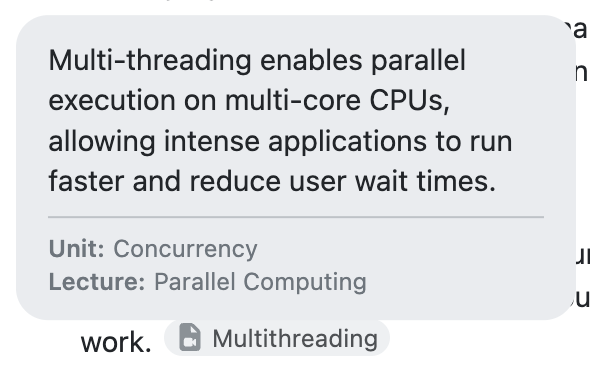
When Iris answers from course content, it places citation markers inline, beside the sentences they support. Each marker carries a short label naming what the source is about, and its icon tells you whether it came from a slide deck, a video transcript or one of the course FAQs.
Hover over a marker to see a one- or two-sentence summary of the source, and for lecture material the unit and lecture it belongs to. Where several sources back the same sentence, their markers sit together and you can step through them.
Clicking a lecture marker opens that unit, with the slides at the cited page or the video at the cited moment. That is what makes a citation worth having: it shows you where Iris found support, so you can check the answer against the material rather than take it on trust.
Occasionally a citation opens the unit without jumping to the exact place. That happens when the slides or the video have been replaced since the answer was written, so the page or moment named in it may no longer hold the same content. Artemis tells you which of those applies, and you can ask again for an answer based on the current material once it has been processed.
When Iris Shows You the Place
If you have a lecture unit open in the combined view — the material across the window with Iris beside it — Iris can do more than describe where something is. It can move the slides to the page or the video to the moment that answers your question, and then explain it with that material in front of you.
A few things follow from how this works:
- Iris points you at material it actually found. It retrieves the lecture content first and can only move you to a position that came back in those results, so it cannot send you to a page it guessed at.
- Iris moves the view at most once per answer, even when the answer covers several places. If a move fails, it can try again. One successful move may bring up a slide and a video moment together.
- It only works while that view is open. If you close it, Iris answers in words instead and does not claim to have shown you anything.
- The move is recorded in the conversation. A chip naming the page or moment stays in the chat, so you can get back to that place later with one click.
Follow-Up Suggestions
Below a response, Iris may show clickable buttons with suggested follow-up questions. They are a shortcut, never a limit — type your own question whenever you prefer.
Chat History
The sidebar lists your past chats, organized by date. You can:
- Resume a chat by clicking it in the sidebar.
- Start a new chat with the pen icon at the top.
A new chat starts at course level with no active context, so start one when you want a clean slate. Within an existing chat, changing the context is usually the better move: it keeps the history that Iris has already built up about your work. See Chat Context.
Rating and Copying Responses
- Thumbs up / thumbs down on a response gives feedback that helps improve Iris.
- The copy icon copies a response to your clipboard, which is useful for saving an explanation to your own notes.
Usage Limits
Your instructor may cap how many messages you can send in a time period. A counter in the chat header shows your current usage, and limits reset on a rolling basis.
Next Steps
- Chat Context — what the active context is and how to change it
- How Iris Helps You Learn — the scaffolding approach behind the answers
- Tips for Effective Use — practical advice