Create a Module
To create a new Athena Module, follow the following steps:
-
Copy the
module_examplefolder to a new folder with the name of your module. It should still be at the project root and its name should start withmodule_. -
Update your module name (
module_something) in the following places:module_something/pyproject.toml- rename
module_something/module_exampletomodule_something/module_something
-
Delete the
poetry.lockfile, then runpoetry installin your module folder to recreate it. -
Update the
module.conffile to include the following values:MODULE_NAME: The name of your module, e.g.module_somethingMODULE_TYPE: The type of exercise your module supports, e.g.textorprogrammingPORT: The port your module will run on, e.g.5002. Look for the ports that existing modules are using and use a port that is not already in use. It's best if you just count one up from the highest number (e.g. if the highest used port is 5002, use 5003).
-
Add your module to the
assessment_module_manager/modules.iniandassessment_module_manager/modules.docker.inifiles. Update the URLs accordingly. The Docker URL for your module should behttp://module_something:port. -
Add a service to in
docker-compose.ymlanddocker-compose.prod.yml. Look at the existing modules for examples. Make sure to use the same port as in the.envfile. -
Add a new Run Configuration to PyCharm:
- Run -> Edit Configurations...
- Click the
+button and selectPython - Name it
Module Something - Choose the
Module Nameinstead of theScript Path(see screenshot below) - Set all other parameters similar to the ones from the example module
- Click
OK
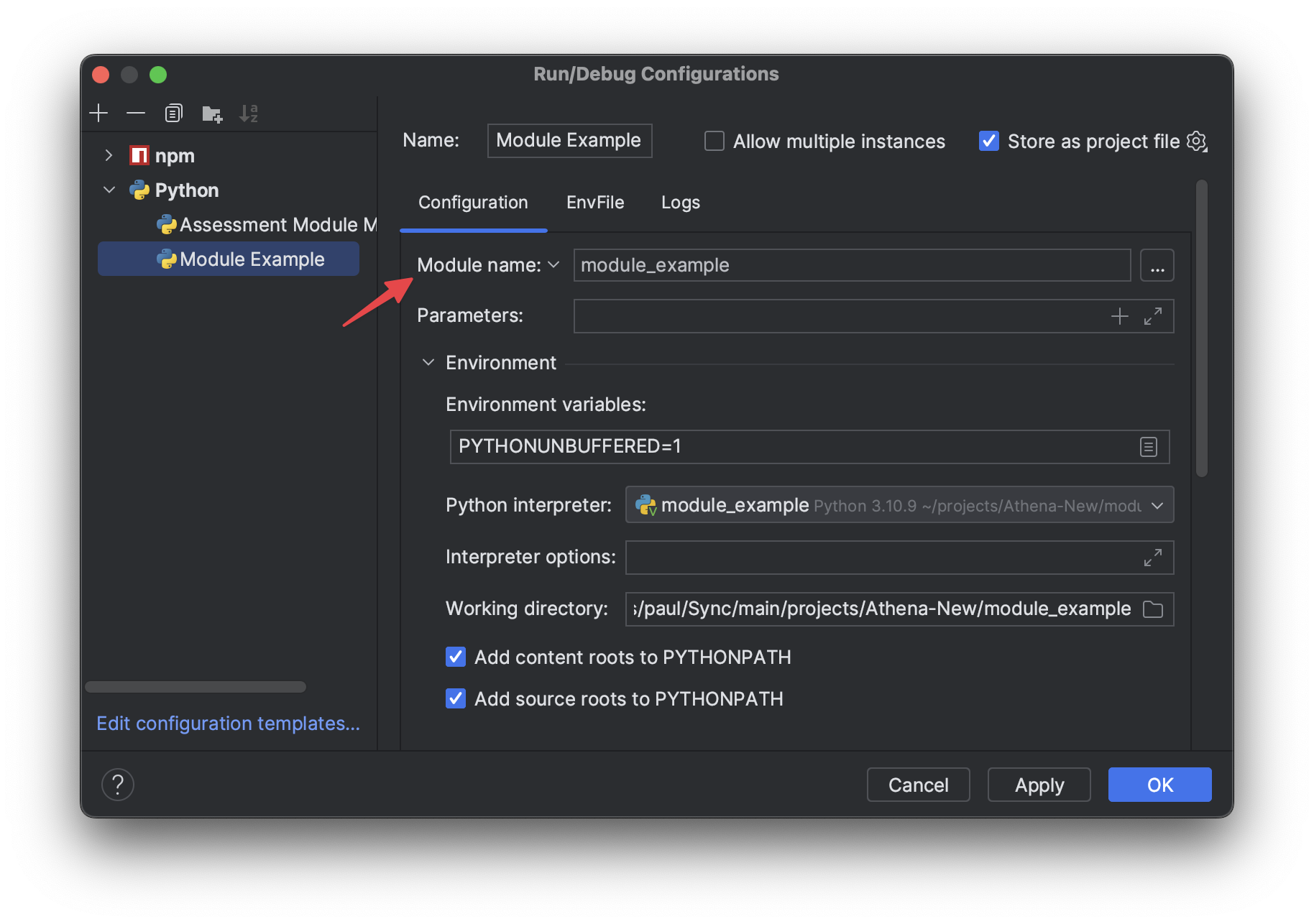
-
Add a new workspace folder entry for VS Code:
- Edit
athena-workspace.code-workspace - Add a new entry to the
foldersarray, similar to the one from the example module
- Edit
-
Add a launch configuration for VS Code:
- Open the
.vscode/launch.jsonfile - Add a new configuration, similar to the one from the example module
- Open the