Model Benchmarks
Use Model Details → Performance to measure a model on a specific provider. You need the Logos Admin role to start a benchmark. Benchmarks measure speed and throughput. They do not grade the generated answers.
Before you start
- A Logos worker must be connected and must report its status. The orchestrator must have capacity planning available.
- A Logos worker needs no separate benchmark endpoint or API key.
- An external provider uses its configured endpoint and credential.
- Only one benchmark job can run on a provider at a time.
Configure a run
- Open Models → Model Management.
- Select the model.
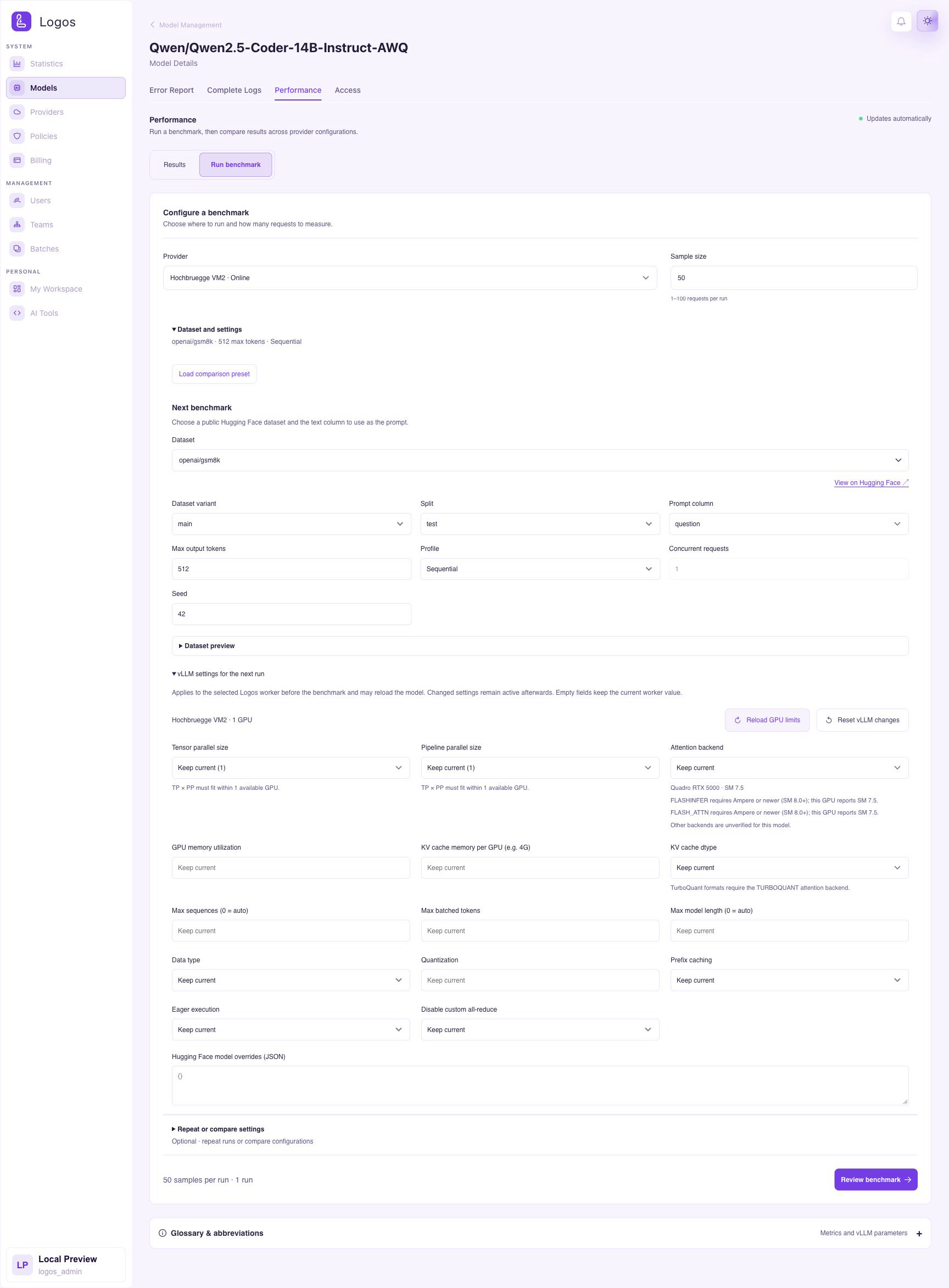
- Open Performance → Run benchmark.
- Check the selected online worker, or select another available provider.
- Set the sample size.
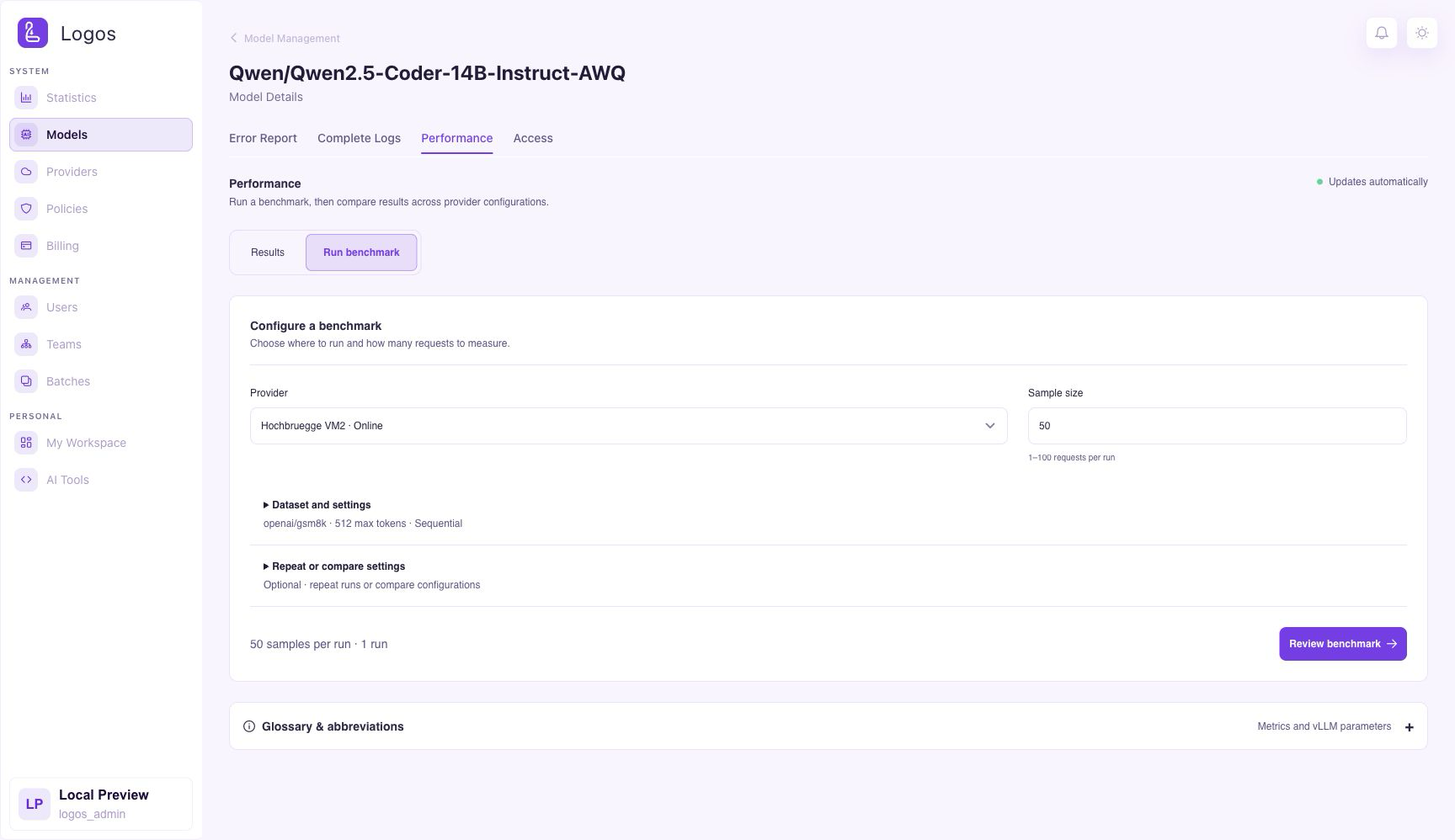
- Open Dataset and settings to change the dataset, request profile or output limit.
- If necessary, change the vLLM settings for the selected Logos worker.
- Open Repeat or compare settings to configure a batch.
Logos selects an online worker when available. Offline workers cannot be selected. Your explicit provider selection remains unchanged when the status updates.
The default dataset is openai/gsm8k, variant main, split test, with the question prompt column.
The default run uses 50 samples, a sequential profile, seed 42 and at most 512 output tokens per request.
One warm-up request runs before measurement. Its result is not part of the measurement.
| Setting | Supported values |
|---|---|
| Sample size | 1–100 requests per run |
| Maximum output tokens | 1–4096 per request |
| Concurrent requests | 1–32 |
| Dataset | Public Hugging Face dataset with a plain-text prompt column |
| vLLM overrides | Logos workers only |
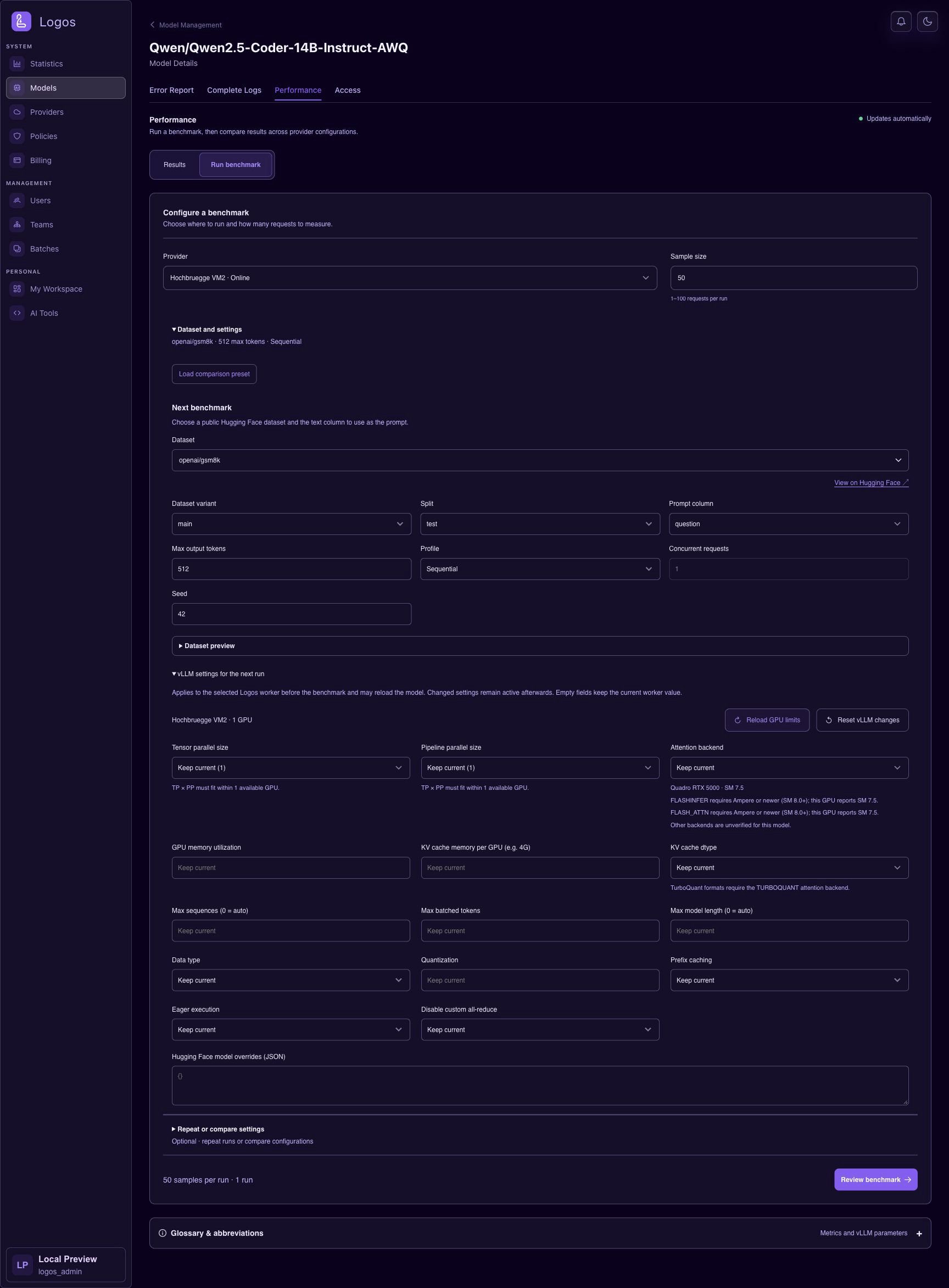
Open Dataset preview to show up to 5 example rows. View on Hugging Face opens the selected dataset variant and split. Private datasets, gated datasets and structured conversation columns are not supported by this editor. The orchestrator downloads the dataset when the job starts. A small sample size does not necessarily limit the dataset download size.
Desktop example
Run benchmark contains the configuration. Results contains the charts and run history. Your draft settings remain unchanged when you switch views. Active jobs remain visible in both views.
The screenshots show the local application with example data, navigation and complete page content. They demonstrate the interface, not a live benchmark measurement. Provider names and measured values depend on your deployment. Select an image to view it at full size.
Confirm the start
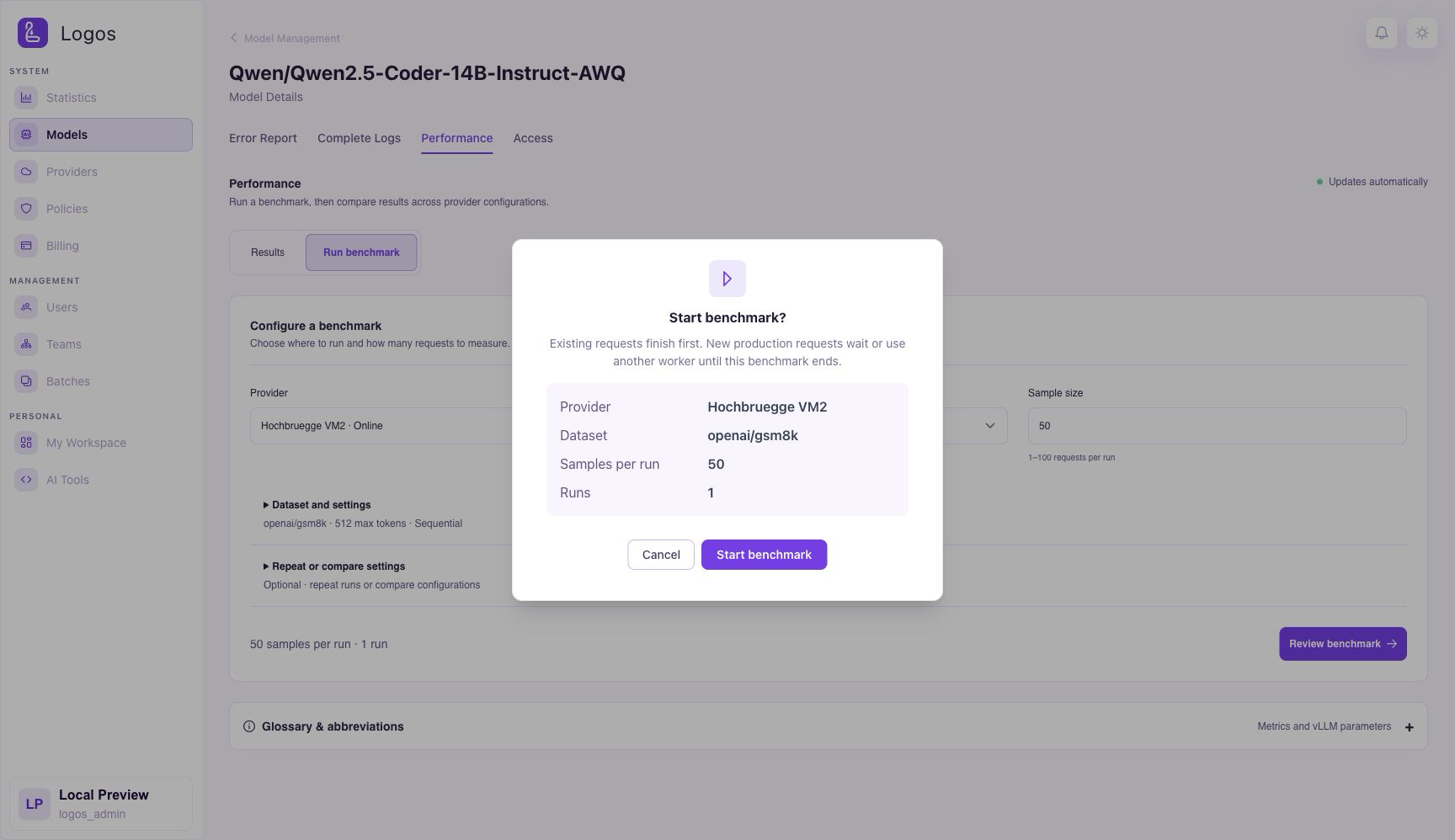
- Select Review benchmark, or Review batch for a batch.
- Check the provider, dataset, sample size, run count and production traffic information.
- Select Start benchmark to submit the job, or Cancel to close the dialog.
Closing the dialog does not start a job. Closing the browser after confirmation does not stop a submitted job. After a successful start, Results opens and shows the job status. If the start fails, Run benchmark keeps your settings and shows the error.
Production traffic during a benchmark
The orchestrator reserves all lanes for the selected model on the selected worker. It reserves the worker/model pair, even if no lane exists yet. The worker node loads the model and executes requests. The orchestrator controls which requests can use the reserved lanes.
The reservation starts before benchmark preparation and remains active until job cleanup. It covers newly created lanes, replacement lanes and the intervals between batch runs. There is no permanent benchmark-only lane setting. Other models on the same worker remain available.
Requests admitted before the reservation finish before measurement starts. New production requests wait or use another eligible provider, subject to normal request limits and timeouts. Authenticated benchmark requests can use the reserved lanes. The capacity planner does not reclaim those lanes during the job.
Completion, failure and cancellation release the reservation. A drain timeout fails preparation instead of starting measurement with existing requests still active.
External provider benchmarks do not reserve provider capacity. Other traffic on that provider can affect the measurements.
Run a batch
- Open Repeat or compare settings and enable Run a batch.
- Set the repetitions per configuration.
- Add the parameters to vary.
- Enter each value list or numeric range.
- Check the configuration preview.
- Select Review batch and confirm the batch.
One confirmation starts the complete batch. Each configuration repeats before the next configuration starts. Multiple varied parameters produce all combinations. The limits are 1,000 configurations and 10,000 total runs. The sample count applies separately to each run. If the configurations use different sample counts, the confirmation shows their minimum and maximum.
The reservation remains active between configurations and repetitions. The first failed run stops the remaining batch. Completed measurements remain stored. Use the run's cancel action to stop the batch. Worker disconnects and orchestrator restarts stop the job. Batches do not resume automatically after a restart.
Read the comparison charts
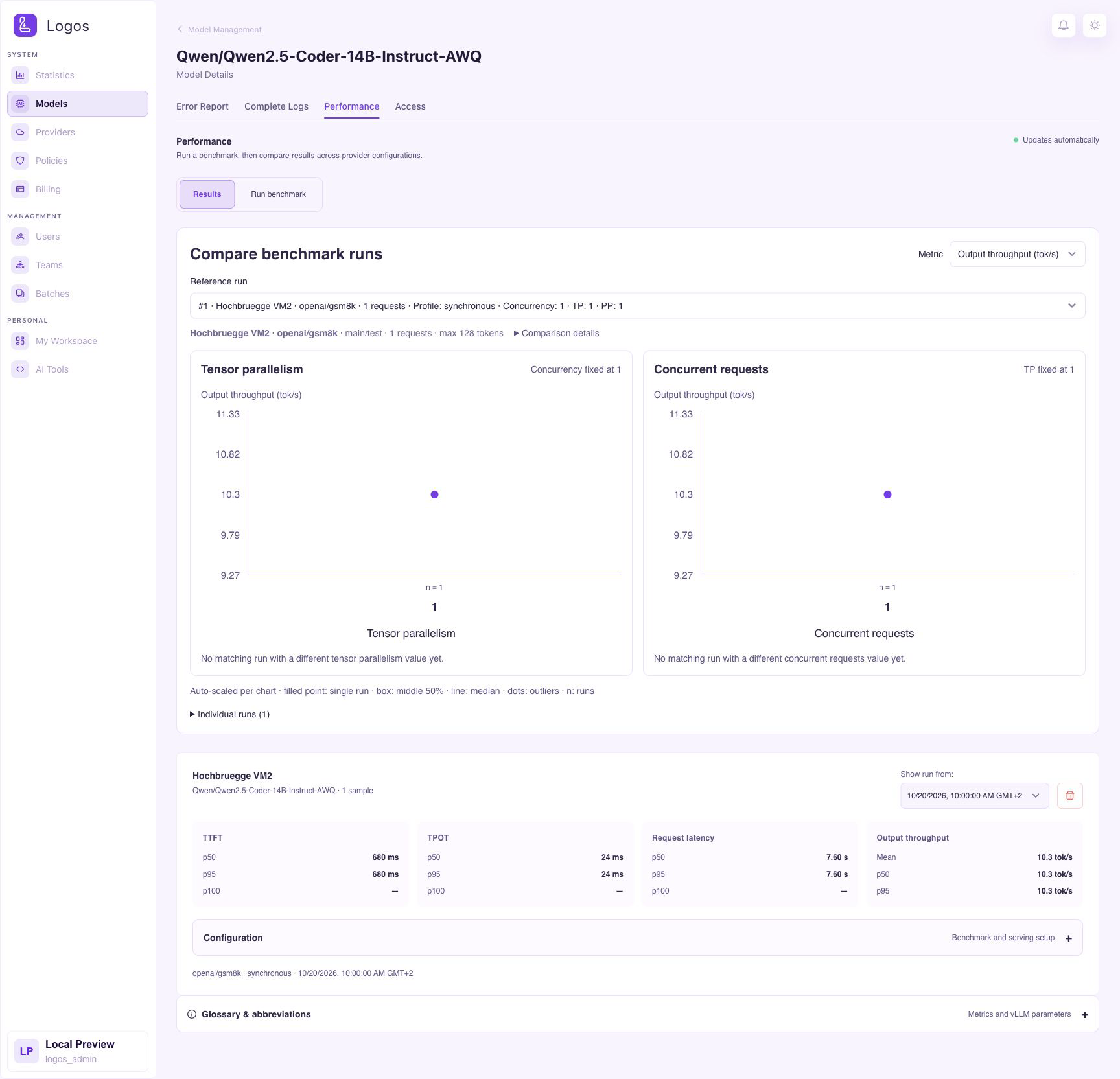
Open Results. Select a reference run and a metric in Compare benchmark runs. Each chart varies one parameter while the other recorded settings match the reference. The charts use separate vertical scales to show their measured ranges.
One eligible measurement appears as a filled point, including when repetitions is 1.
The label n = 1 means one measured run. That run can contain many sample requests.
Multiple measurements use a boxplot. The box shows the middle 50%; the line shows the median.
Separate dots show outliers.
A result must be successful and complete, with the required configuration metadata. Logos does not infer missing controls in historical results. If a result is absent, check its completion state and recorded configuration.
The example shows 3 completed measurements for the same configuration. The charts show their distribution. The cards below show the selected run.
Change settings and retry a failed model
Use for next benchmark copies a historical run's settings and opens Run benchmark.
It does not change the stored result.
Blank vLLM fields preserve the current worker values. Explicit false values remain overrides.
- Open View error details & configuration for the failed run.
- Correct the cause, such as an offline worker, insufficient GPU memory or incompatible settings.
- Apply the required settings and start another run.
Logos applies the selected settings before another startup attempt. This also applies when you explicitly submit the failed lane's current settings. Measurement starts only after the worker reports the applied configuration and a ready lane. There is no automatic retry.
Changes to worker settings
Applied vLLM settings remain active after completion, failure or cancellation. Logos does not restore the previous settings automatically. Reset vLLM changes clears draft overrides only. Stop varying removes a parameter from the batch. Restore the intended worker settings explicitly when necessary.
Verify on Dev
For deployment checks, use the developer verification checklist.
Reload worker GPU limits
- Open Run benchmark → Dataset and settings → vLLM settings for the next run.
- Select Reload GPU limits.
- If the GPU count stays unknown, wait for a worker status update.
- Select Reload GPU limits again.
The button stays available after a failed request or an unknown GPU count. Reload preserves your draft settings. Parameter warnings appear below the relevant fields. Use Reset vLLM changes to discard draft overrides and keep the current worker configuration.
Dark mode
Use the theme button at the top right to change between light and dark mode. The controls, charts and parameter hints use the selected theme.